
If you’ve ever wandered through Minecraft’s pixelated landscapes, you might have wished for a little extra flair. Shaders are a fantastic way to transform the ordinary into the extraordinary. By adding these mods, you can take Minecraft’s blocky visuals and elevate them to a breathtaking realm. Imagine lush grass waving in the breeze, sunlight streaming through the trees, and water reflecting the world above. With the right shader mod, all of this is possible. Ready to enhance your Minecraft experience? Let’s dive into this straightforward guide on how to install shaders in Minecraft!
Requirements to Install Shaders in Minecraft
Before jumping into the installation process, check that your device meets these essential requirements.
- First and foremost, you’ll need a legal copy of Minecraft Java Edition. Shaders simply don’t work with the Bedrock version.
- Next up is a compatible mod. You can choose either Optifine or Iris, which are both popular choices.
Both mods are necessary for shaders to function properly, so once installed, you can move on to the next step!
How to Install Shaders in Minecraft
Now that you’re set up, it’s time to install the shaders and bring your world to life. This process consists of three simple steps: installing the mod, downloading the shader pack, and then running it within your game. Let’s break down each step.
1. Install a Compatible Mod
To use shaders, you absolutely need a compatible mod. Here’s how to get either Optifine or Iris up and running:
- Visit the official download sites for Optifine or Iris and click on the download link.
- Make sure to select the version that matches your copy of Minecraft.
- After downloading, double-click the .jar file to run it with Java.
- Finally, follow the prompts to install the mod to your .minecraft folder.
Once you’ve done this, open your Minecraft Launcher, and you should see a new installation for the mod you just installed. If you run into any issues, check out our guides on setting up Optifine and Iris.
2. Download the Shaders Pack
Next, it’s time to choose and download your favorite shader pack. Not sure what to select? Check out some of the most popular shader packs available. Here’s how to download one:
- Visit trusted sources such as Curseforge or Modrinth.
- Find the shader pack you want, click on it, and hit the download button. Ensure you select the correct mod and Minecraft version.
- Save the downloaded zip file in an easily accessible location.
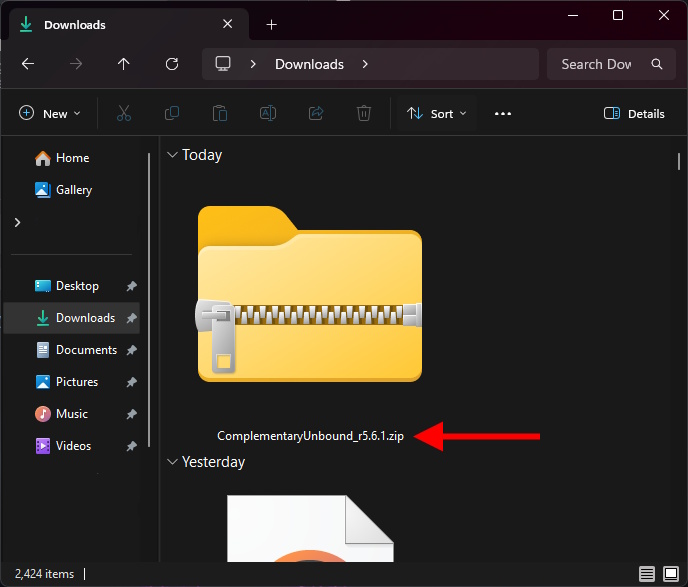
3. Run the Shaders Pack in Minecraft
With your mod and shader pack installed, it’s time to integrate them into Minecraft. Here’s how:
- Launch Minecraft using the profile with Optifine or Iris.
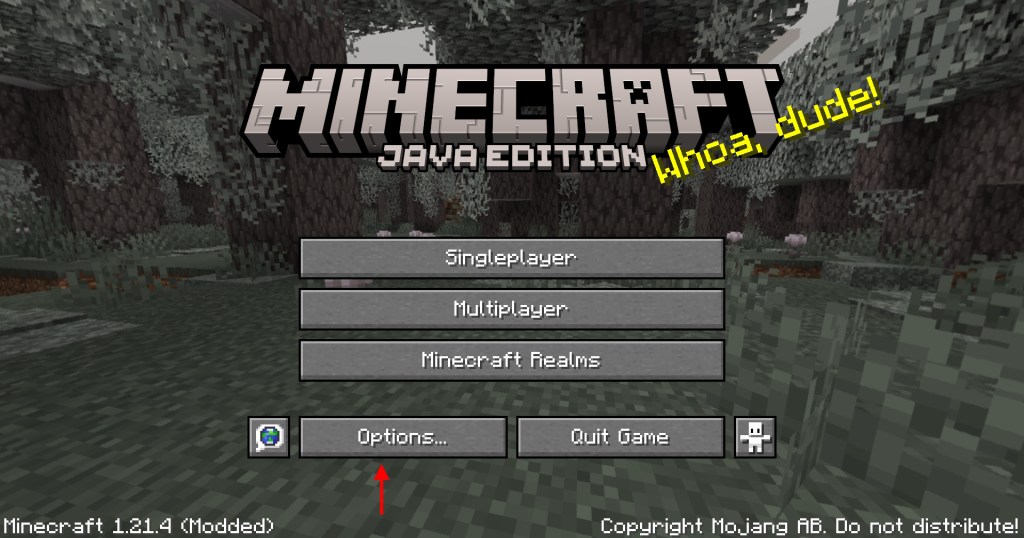
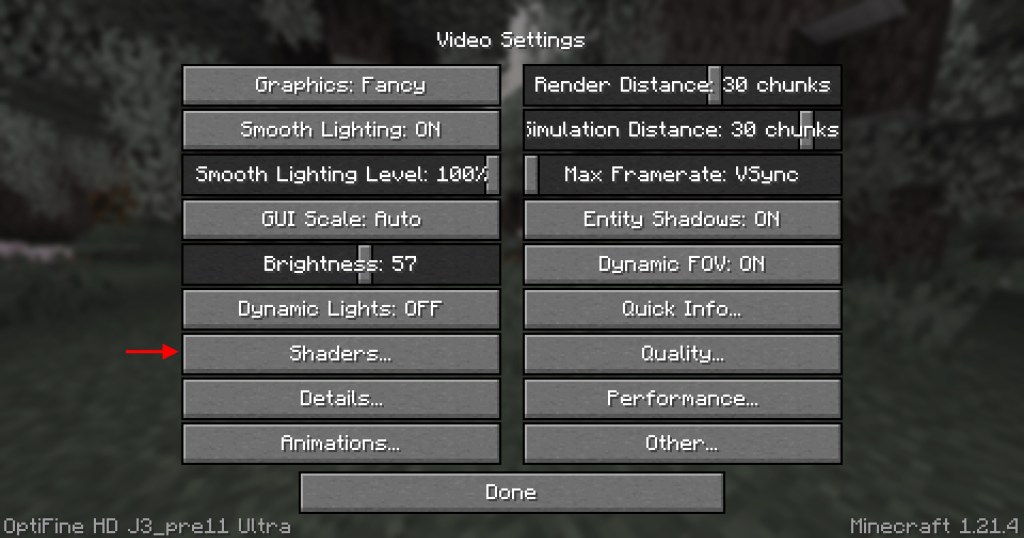
- From the main menu, navigate to Options and select Video Settings.
- Click on the Shaders tab and select Open Shaders Folder.
- This opens the directory for your shader files in Minecraft.
- Drag and drop the downloaded zip file into this folder. Wait a moment for it to load, then close the folder.
- Choose the shader pack you want to apply and click Apply or Done.
Return to your game world, and voilà! Your graphics will be completely transformed. If you’re eager to explore your newly enhanced visual experience, hop into creative mode, grab an Elytra, and take to the skies!
That’s it! You’re all set to enjoy stunning visuals in Minecraft. Which shader are you excited to try first? Let us know in the comments below!
Where should I put shaders in the Minecraft folder?
Drag the shaders zip file directly into the shaders folder within Minecraft. You can access this folder by going to Video Settings from the Options menu and selecting the Open Shaders Folder option.
Do I need Optifine to install shaders in Minecraft?
Yes, a mod is necessary to run shaders in Minecraft, and you can choose either Optifine or Iris.
Do shaders reduce FPS?
Using shaders can impact your FPS in Minecraft, but there are many options available that maintain a smooth playing experience while utilizing them.