The sun dipped below the horizon, casting long shadows across the Hytale landscape as a Creeper rounded the corner of your base. You scramble to warn your teammates, but your voice is lost in the digital void—you’re alone. That’s when it hits you: Hytale is so much better with friends, but how do you wrangle everyone together in the same world?
Bringing Your Hytale World to Life with Friends
There’s nothing quite like sharing a gaming experience with friends; the victories feel sweeter, the defeats less bitter. Hytale gets this, baking multiplayer support right into the game’s core. Forget complicated setups; here’s how to create a server and get your friends building, exploring, and battling alongside you in Hytale.
Given Hytale is not a console title, the process to get your friends playing with you online focuses on PC-related steps. Let’s jump in.
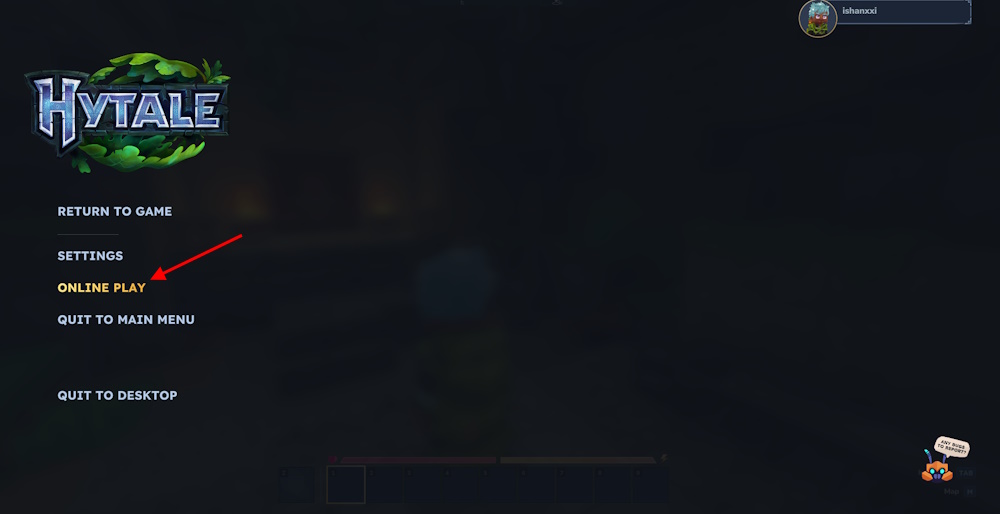
- Load into your single-player world.
- Press ESC to open the pause menu.
- Click Online Play.
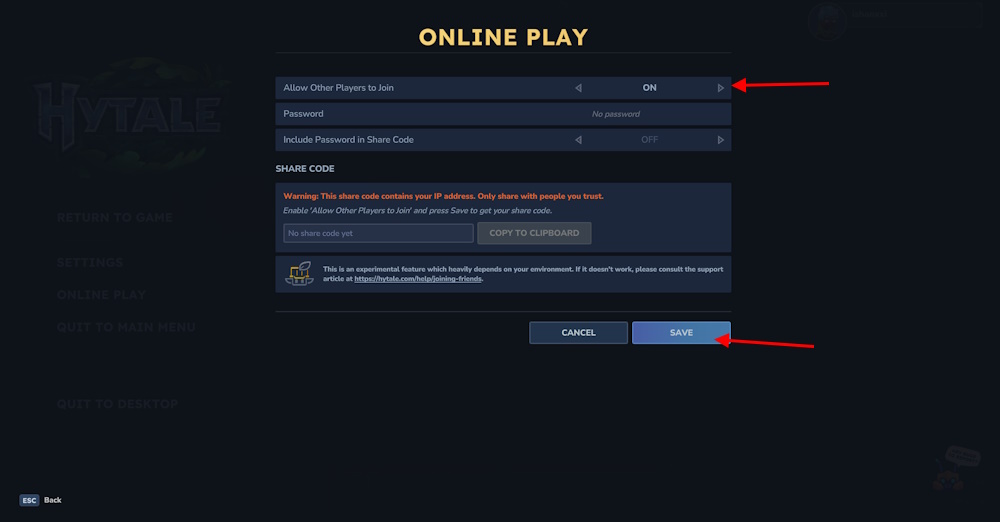
- Toggle Allow Other Players to Join to ON.
- Click Save and copy the share code.
- You restrict access by setting a password.
Keep a few things in mind when hosting: Your network has to be UPnP-friendly, or these steps are useless. Enabling UPnP in your router admin panel can solve it. The code you share contains your IP, so only send it to people you trust.
Alternatively, you can use the Hytale Server manual to create a dedicated server. The catch is downloads and settings. If you aren’t running a higher-spec PC, don’t make a server; it eats CPU and RAM.
Joining the Party: Connecting to a Hytale Server
Think back to the last time you struggled to join a friend’s Minecraft server—endless IP addresses, port forwarding nightmares. Hytale streamlines this process, making it easy to jump into your friend’s world. The experience should be seamless, but what about issues when you can’t connect to your friend’s server?
Why can’t my friends join my Hytale server using the share code?
The most common culprit? Your network’s UPnP (Universal Plug and Play) setting. If it’s disabled, or if your router is blocking specific ports, your friends will be left knocking on a closed door. Enabling UPnP or manually forwarding the necessary ports can resolve this connectivity hiccup.
Once the host has prepped their world, here’s how to join:
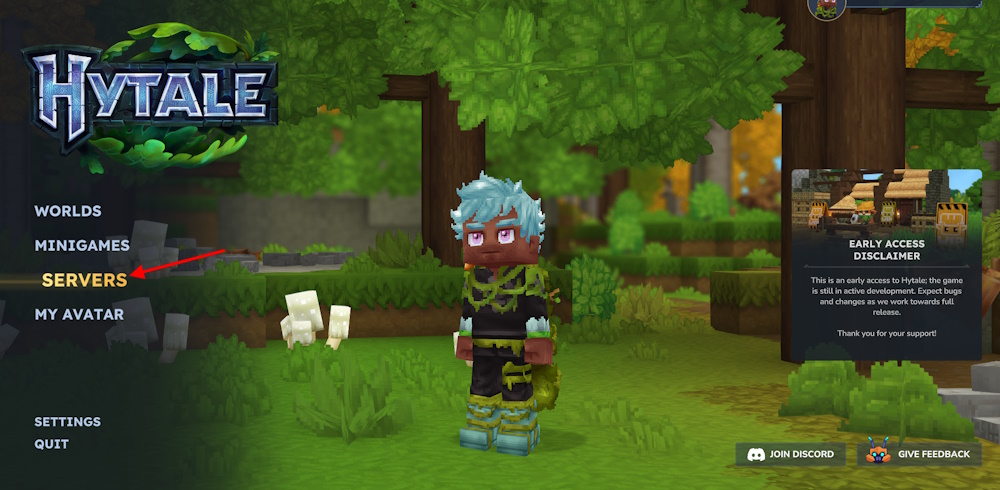
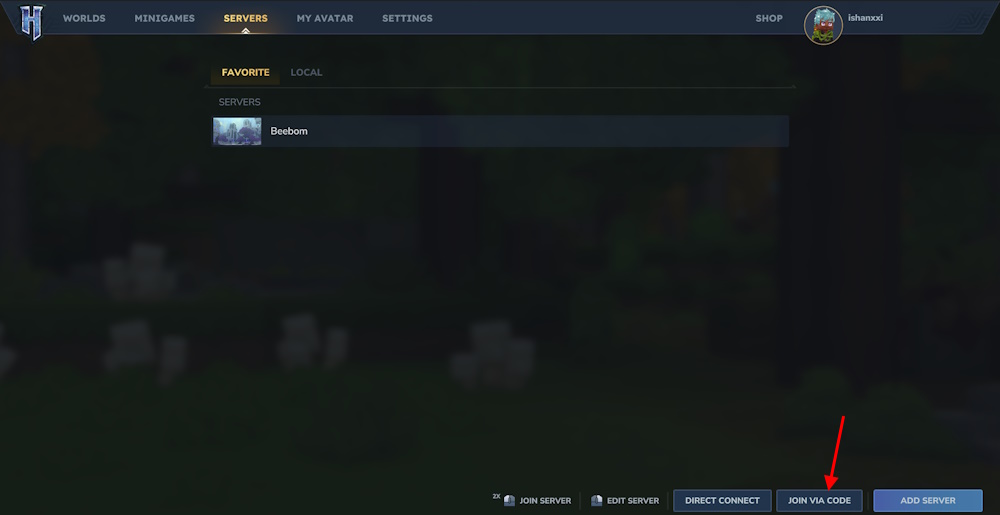
- From the main menu, go to Servers.
- Click Join via Code and paste the share code.
- Enter the password if required and not embedded.
- Click Connect to enter the world.
Dedicated Hytale Servers: For the Serious World Builder
I once tried running a dedicated Minecraft server on an old laptop; it was like trying to run a marathon in flip-flops. Hytale dedicated servers offer more control and stability. You can make one using scripts or purchase one from an online host, like Apex Hosting.
Once you’ve got your dedicated server sorted, here’s how to connect:
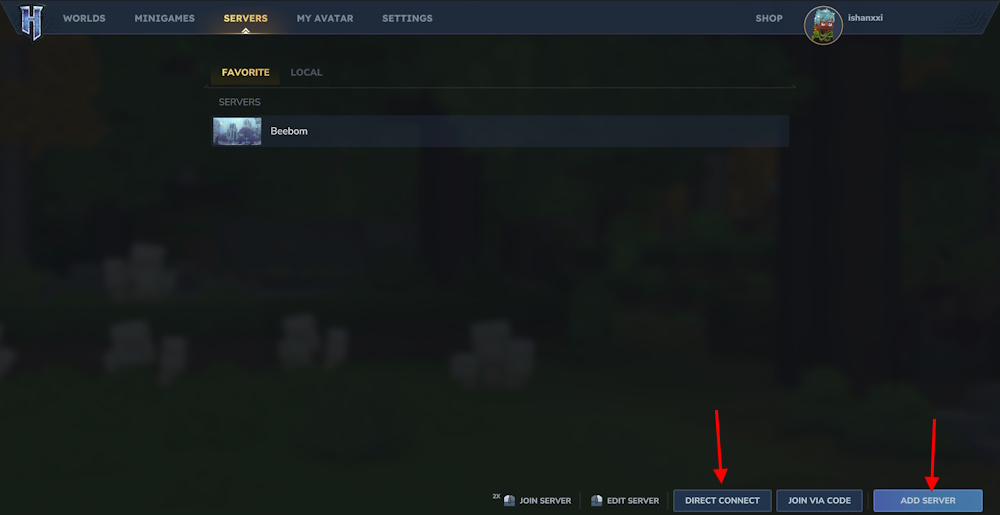
- Go to the Servers section and click DIRECT CONNECT.
- Now paste the IP and port, then join to connect.
- You can also click ADD SERVER and save the world by naming it.
Can I play Hytale multiplayer without setting up a dedicated server?
Good news: you absolutely can. Hytale lets you host a multiplayer world straight from your single-player game using the “Online Play” option. It’s super simple, perfect for casual sessions with friends, and a great way to share your creations without the hassle of managing a dedicated server.
With these steps, you’re set to create servers in Hytale and team up with friends in online multiplayer. It brings more potential for the gameplay and proves Hytale is better than Minecraft.
Now that you know how easy it is to create and join servers, what kind of collaborative builds and adventures will you and your friends bring to Hytale?