
The sun dipped below the horizon, casting long shadows across the Hytale landscape as you raced to finish your build. A sudden rainstorm threatened to wash away your progress, and you felt a pang of helplessness. What if you could control the weather, instantly transforming the downpour into a clear, star-filled night?
Hytale offers a huge amount of freedom, whether exploring vast biomes, battling rogue skeletons, constructing impressive structures, or hosting a multiplayer server. To truly command these worlds, you can use Hytale commands to manage members, teleport, and even change the weather. This guide shows all Hytale commands and how to use them.
Hytale Exploration Server Commands
You’re wandering through a Hytale forest when a pack of monsters ambushes you. You wish you could quickly teleport to safety, or check who else is online to call for backup. Exploration mode offers freedom to roam, mine, and scout, but server commands add a new dimension, especially if you want to play pranks or manage a server effectively.
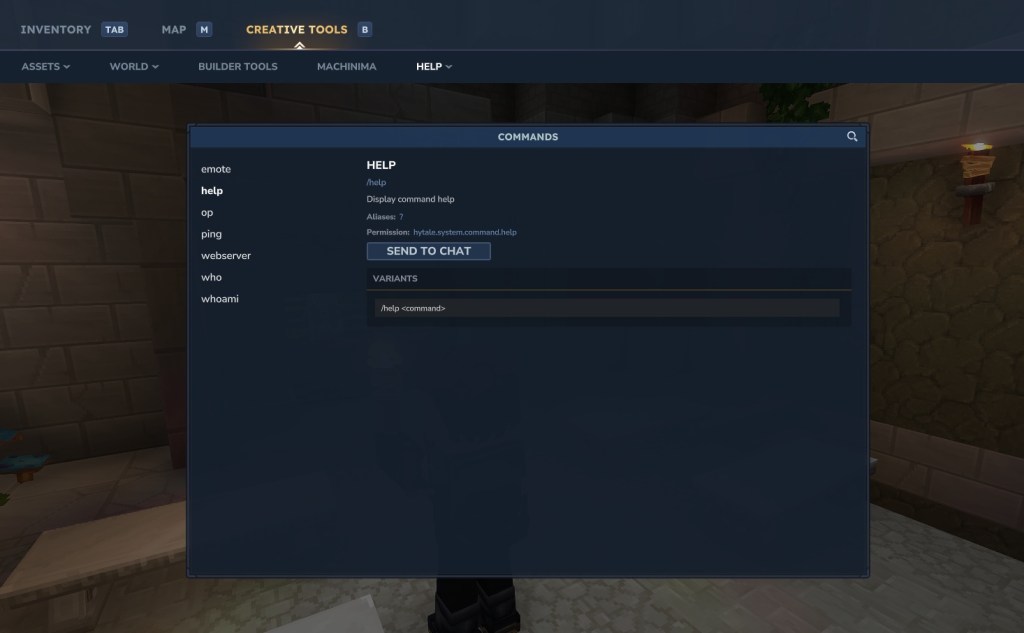
Here are console commands useful for multiplayer management and checking network performance:
| Command | Description |
|---|---|
| /emote <emote_name> | Player performs an emote action |
| /help <command_name> | Display help information for a command |
| /op | Manage permissions for an operator |
| /op self | Give self the operator permissions |
| /ping [–options] | Display the network ping details |
| /ping clear [–options] | Clear the history of ping details |
| /ping graph [–options] | Show the ping data as a graph |
| /who | List all players on the present server |
| /whoami | Display all your player information |
| /webserver | Manage the webserver-related configuration such as user credentials and service accounts |
Hytale Creative Server Commands
Imagine building a magnificent castle in Hytale, but placing each block individually feels like an eternity. Creative mode offers near-limitless building potential. If Exploration mode lets you stretch your legs, Creative mode lets you spread your wings. Console commands in Creative mode are like having a magic wand.
Here are some Hytale server commands that allow you to manipulate blocks and edit terrain:
| Command | Description |
|---|---|
| /block set <x> <y> <z> <block_name> | Place a block at the given coordinates |
| /block get <x> <y> <z> | Get a block at the given coordinates |
| /block getstate <x> <y> <z> | Check the block state data |
| /block setstate <x> <y> <z> <state> | Change the block state data |
| /copy | Copy the selected area |
| /cut | Cut the selected area |
| /paste | Paste the selected area |
| /undo <count> | Undo the previous changes |
| /redo <count> | Redo the undone changes |
| /rotate <angle> | Rotate the clipboard |
| /flip <direction> | Flip the clipboard |
| /fillblocks <pattern> | Fill selection with blocks |
| /replace <from> <to> | Replace one block type with another |
| /expand | Expand the selection |
| /contractselection <distance> | Shrink the selection size |
| /selectchunk | Select an entire chunk |
| /prefab save | Save a structure as prefab |
| /prefab load | Load a saved prefab |
| /prefab list | List all prefabs |
| /time | Display the world time |
| /time <value> | Set the world time |
| /tp | Teleport related commands |
| /hub | Return to the Creative hub |
| /importimage | Convert images into blocks |
| /importobj | Import the obj models as voxels |
| /buildertoolslegend | Toggle the builder tools HUD |
| /clear blocks | Clear the blocks in a selection |
| /deselect | Clear the current selection |
| /environment | Change the environment settings |
| /hollow | Hollow out a selection |
| /itemstate <state> | Modify the held item state |
| /move | Move the selection of chunks |
| /pos1 | Set the first selection point |
| /pos2 | Set the second selection point |
| /repairfillers | Fix the filler blocks |
| /selectchunksection | Select the chunk section |
| /setblocks <pattern> | Set all the blocks in selection |
| /shift | Shift the selected chunks |
| /stack <count> | Stack the selected chunks |
| /submerge <fluid_name> | Fill the selection with fluid |
| /wall <pattern> | Create the walls in selection |
How to Use Console Commands in Hytale
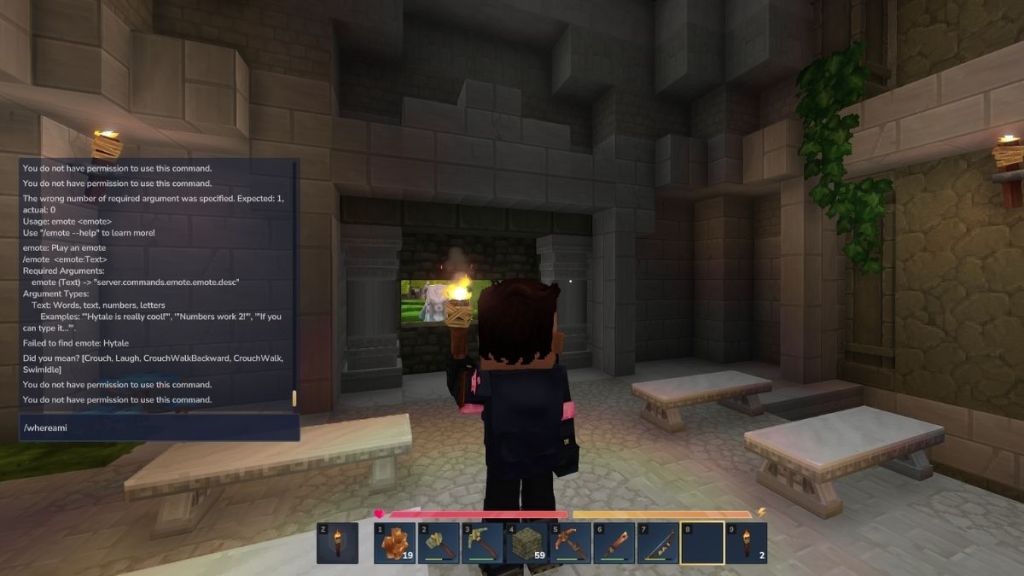
Using Hytale console commands is straightforward. Just follow these steps and enter the commands with the correct syntax:
- Launch Hytale and enter a world or a multiplayer server.
- Press the ‘/‘ key to open the in-game chat box.
- Type the desired command exactly as written in the table above.
- Add any parameters if required and press the Enter key to execute it.
If you get an error message or the command doesn’t work, you likely lack OP permissions. Ask the server OP to grant them, and then you’ll be able to execute the commands.
What are some useful Hytale console commands?
Some useful Hytale console commands include *”/tp”* for teleportation, which allows quick movement across the map; *”/time set”* to control the time of day, useful for building or exploration; and *”/weather”* to change the weather conditions, adding dynamic effects to gameplay. For server administrators, commands like *”/kick”* or *”/ban”* are useful for managing players.
Why are my Hytale commands not working?
If your Hytale commands aren’t working, the most common reason is a lack of operator (OP) permissions. Ensure you have the necessary privileges on the server to execute commands. If you do, double-check the syntax of the command, as errors in spelling or parameters can prevent it from working. Also, verify that the command is available in the game mode you are currently playing.
That is all about the commands in Hytale and how you can use them. With great power comes great responsibility, so what magnificent world will you build?