Imagine sitting down, ready to create something amazing in Canva, only to find that it won’t connect with ChatGPT. Frustration builds as you realize you’re missing vital elements to your project. You’re not alone; countless users face this puzzling dilemma.
Misconception often lies at the heart of ChatGPT Canva not working issues. Many users confuse the “Canva” integration with the ChatGPT Canvas feature not responding, leading to similar symptoms like canvas errors, non-functional links, or plugin messages that leave you scratching your head. This guide reveals the causes and solutions for 2025, ensuring you’re never left wondering what went wrong.
Part 1. First, Identify Your Issue – “Canvas” or “Canva”?
Before you dive into troubleshooting, pinpoint which feature has faltered: the Canva integration or the Canvas in ChatGPT. Understanding this difference is key.
Are you using ChatGPT’s “Canvas” (Desktop Workspace)?
Common symptoms:
Are you utilizing the CANVA integration (links, plugin, design-generation)?
Symptoms Include:
Part 2. If It’s the Canva Integration (Links/Plugin/403)
When the ChatGPT Canva integration falters, the issue might stem from one of six culprits: service outages, incorrect link permissions, token expirations, account mismatches, plugin bugs, or network restrictions.
Below is the step-by-step fix for 2025.
Check Canva Service Status & Recent Outages
Before you start troubleshooting, confirm whether Canva is experiencing downtime:
Visit the Canva Status page, check Twitter updates, and utilize DownDetector for any reported outages. If outages are found, the best course is to wait for resolution. ChatGPT can’t bypass issues on Canva’s servers.
Re-Authorize Canva Inside ChatGPT
Refreshing your permissions is often the simplest fix when ChatGPT’s Canva integration misfires.
Steps in the Integration Process:
Note: If your Canva account has multiple users, ensure ChatGPT is also linked to them.
Fix 403 Forbidden Errors
What happens in a 403?
How to Fix It?
Browser / Network Hygiene (2025 Recommended Fixes)
Errors in ChatGPT Canva often arise from cached tokens.
Steps for Remedying the Issue:
It’s remarkable how many issues are triggered by VPNs misidentifying Canva as “geo-restricted.”
Regenerate Share Links (Fixes 404 & expired links)
Sometimes, ChatGPT generates outdated or broken Canva URLs.
Steps to Fix:
Now, AI will use the correct scope.
When to Open a New Chat (Community Workaround)
Occasionally, the Canva integration may cease to work within a single chat thread.
It can be beneficial to start anew. This method helps because broken sessions can’t refresh OAuth tokens.
Part 3. If It’s OpenAI “Canvas” Not Opening
If the ChatGPT Canvas feature isn’t responding as it should, the issue lies within OpenAI’s Workspace, not Canva.
Here are the latest fixes for 2025:
Desktop App Bounce Bug (Still Common in 2025)
Users frequently report frustrating experiences:
How to Fix?
Clear Local Desktop Cache
This typically resolves the majority of issues with the ChatGPT canvas features.
Disable VPN / Proxy
Canvas requires secure local connections. VPNs often contaminate these ports.
How to Fix?
Try ChatGPT in a Browser Instead of a Desktop
If it operates smoothly in a browser, your desktop installation may be corrupted. A reinstall might just do the trick.
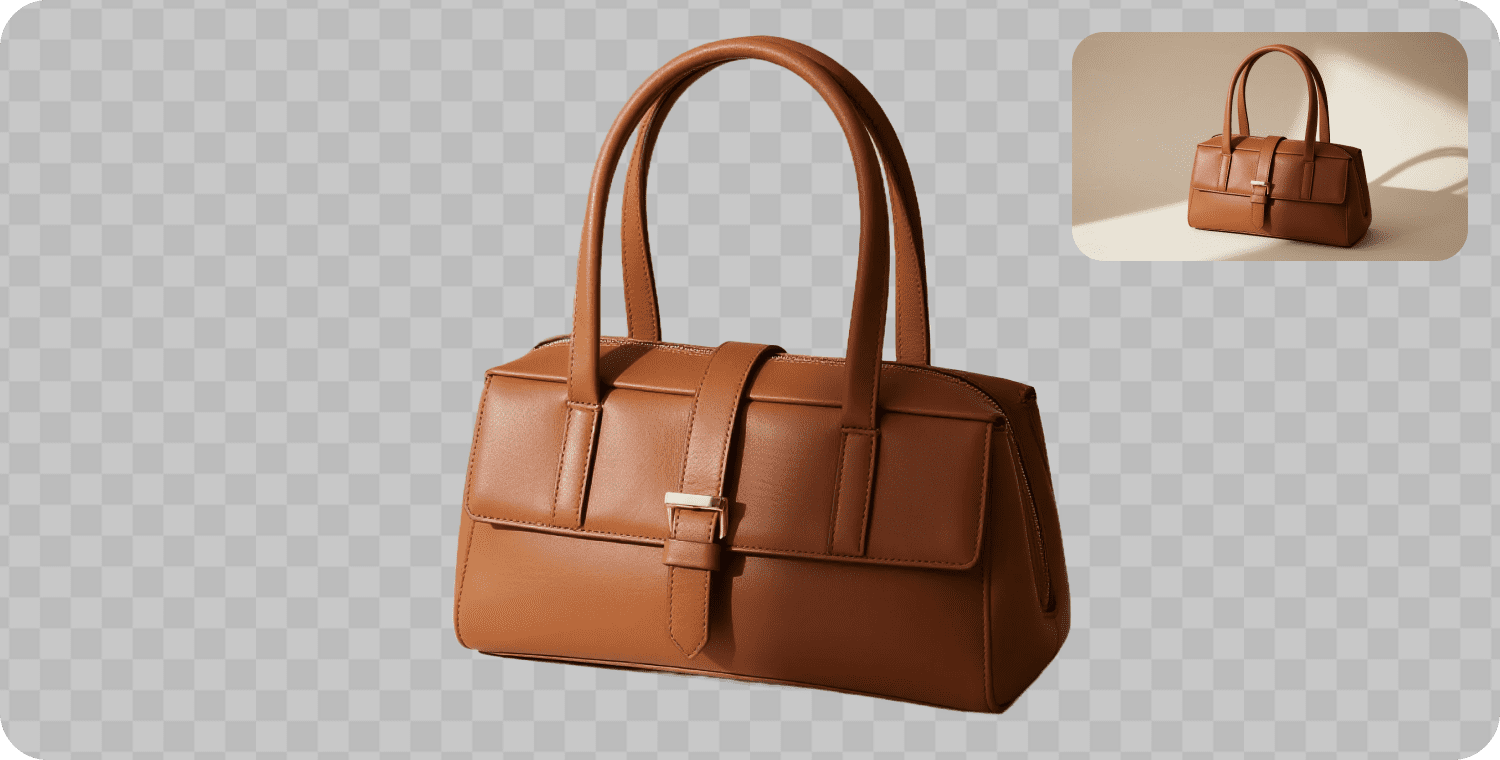
Part 4. Best AI Alternative: Photos Editor (Highly Recommended)
Why PixPretty Is a Better Backup?
How to Use Pixpretty to Remove Unwanted Objects from an Image?
Step 1: Open a browser and access the “AI Object Removal” feature of PixPretty via the link.
Step 2: Hit “Upload Image” to select an image, then choose between Manual or Auto Removal. Manual will provide a brush, lasso, and eraser for precise selections.
Step 3: Finally, click “Download” to save the modified image to your PC.
Why do ChatGPT-generated Canva links show 404?
Links may return a 404 if they are inactive, set as “Team Only,” or have incorrect permissions associated with a signed-out session.
Does the Canva integration require a paid plan?
Canva Free can work, but certain templates could be locked due to security limitations. Team links may require Pro or Team access, as administrative restrictions might block design integration.
How do I fix the “Plugin unreachable” loop?
This issue originated within the OpenAI Developer Community and can now be remedied by opening a new chat and reconnecting Canva, while disabling your VPN and clearing browser cache.
Is this a Canva outage or my account?
If all links fail, designs won’t open, or service reports spike, it’s likely a Canva outage. However, if specific links return a 404, your account settings may be to blame—check for identity changes, logged-out accounts, or altered permissions.
Are you prepared to tackle these frustrating issues and reclaim your creative flow?