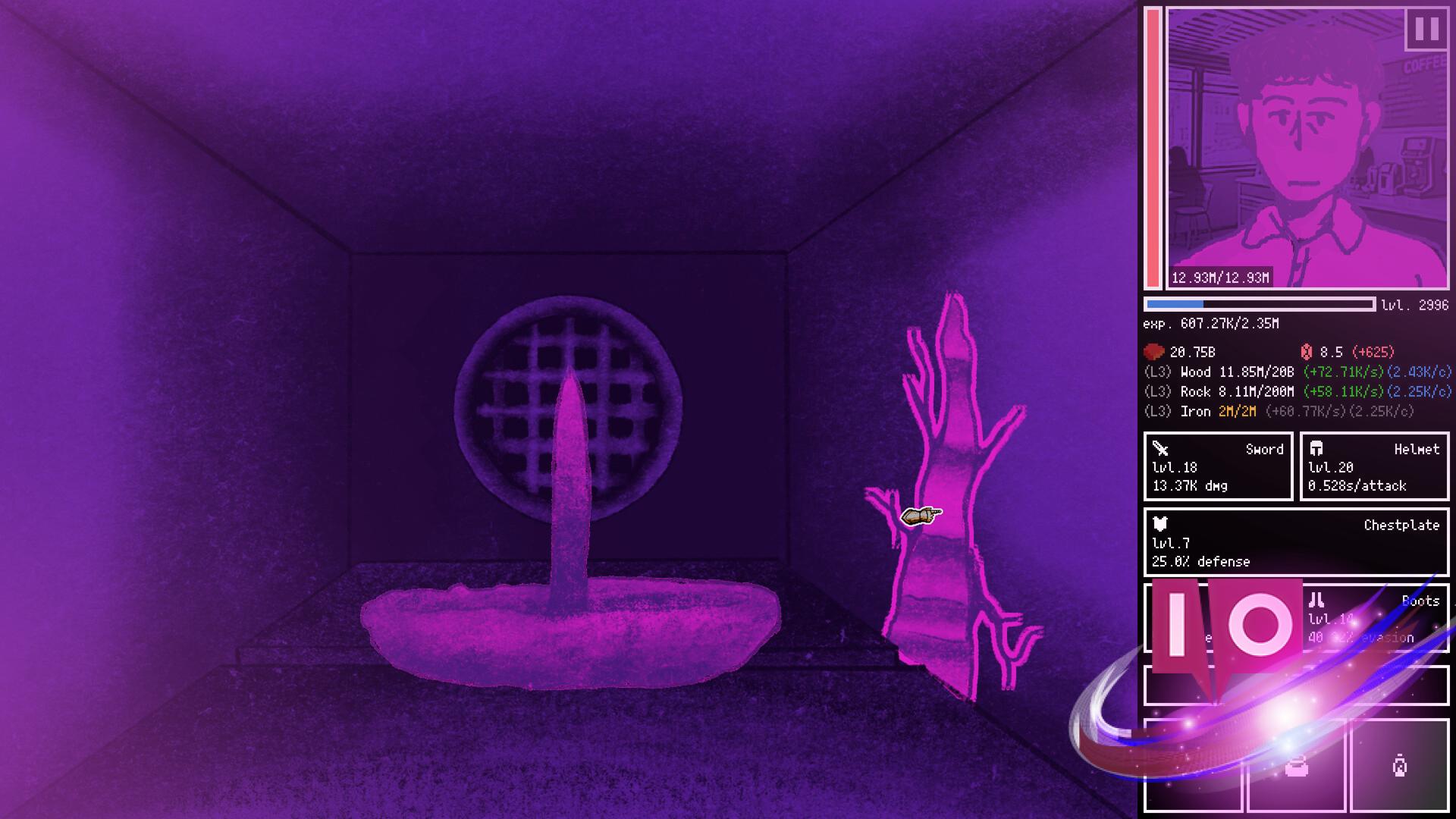
I killed the loading screen, stared at a bland portrait, and felt a tiny, stubborn mismatch between my character and the face on-screen. You know that nag—small, avoidable, and oddly personal. I dug into the Supporter folder and found a cheap, fast way to make the game look like me.
I’m going to walk you through the exact steps I used, the traps I ran into, and the little tricks that save time. You’ll need the Supporter Pack on Steam (it costs $4.99 — approximately €4.60). This is strictly cosmetic: no gameplay advantage, just personality. Think of a portrait as a digital ID card; the change is small but it says a lot.
Real-world observation: people skip DLC they think is expensive, then miss easy quality-of-life mods — How to create custom portraits in Horripilant
Owning the Supporter Pack is the only paid step. After that, everything happens on your PC and in a few folders. I’ll keep this punchy and practical so you can finish it between matches.
How do I add custom portraits in Horripilant?
Yes — once you own the Supporter Pack you add portraits by placing images in a named folder inside the game’s Supporter directory. Open your Steam Library, right-click Horripilant → Properties → Local Files → Browse, then follow the folder structure below.
- Open the Supporter folder inside the game install folder (Steam → Library → Horripilant → Properties → Local Files → Browse).
- Create a new folder inside the /portraits/ directory and give it any name you like.
- Drop your images into that new folder.
- Rename the image you want for the normal portrait to normal.png.
- Rename the scared/alt portrait to scared.png (if you want both states).
- Rename the thumbnail to thumb.png for the selection screen.
- If you want a background, add it as bg.png (optional).
Real-world observation: most people upload whatever they have and get pixelated results — Image specs and best practices
Use a square image and you’ll avoid surprises. The game expects a 1:1 aspect ratio and supports up to 300×300 pixels. I crop in GIMP or Photoshop to keep faces centered and key details inside the frame.
Tip: images larger than 300×300 will be scaled; smaller images can blur. Test with a 300×300 export to see the final look in-game.
What size should portraits be for Horripilant?
Stick to 300×300 pixels for the clearest result. If you want tighter control, export PNGs from GIMP or Photoshop and preview them in a quick save folder before you move them into the Supporter portrait folder.
Real-world observation: small settings files sometimes handle visual tweaks — Optional tweaks and troubleshooting
If the portrait looks dithered, add an empty text file named no_dither.txt into the same portrait folder and reload the game; this will disable dithering in many cases. It won’t always change the outcome, but it’s an easy fix to try.
If your image doesn’t appear, confirm the folder name is inside /portraits/ and that file names match exactly (normal.png, scared.png, thumb.png, bg.png). Steam’s cloud or antivirus can sometimes block writes—run Steam as administrator or whitelist the game if needed.
Real-world observation: players assume custom content breaks balance — Are custom portraits fair play?
They are purely cosmetic. The Supporter Pack gives you the folders and the right to add content, but nothing in the pack affects stats or gameplay. It’s a short, harmless way to personalize your experience.
Two quick reminders: export PNGs for lossless clarity, and keep face elements centered inside a 300×300 square. If you want the portrait to read well at smaller sizes, test thumbnails before finalizing. I treated the first attempt like swapping a vinyl sleeve; it felt instantly more personal.
Want a final micro-checklist? Here it is:
- Own the Supporter Pack on Steam ($4.99 — approximately €4.60).
- Open game install folder via Steam → Properties → Local Files → Browse.
- Create a folder under /portraits/ and add your images.
- Name files exactly: normal.png, scared.png (optional), thumb.png, bg.png (optional).
- Use square PNGs at up to 300×300 pixels.
- Add no_dither.txt if you want to try removing dithering.
After you’ve done this once it takes under five minutes to swap portraits mid-session. The result is small but unmistakable—a tiny window into your character’s soul. Ready to make your Horripilant face match your intent?