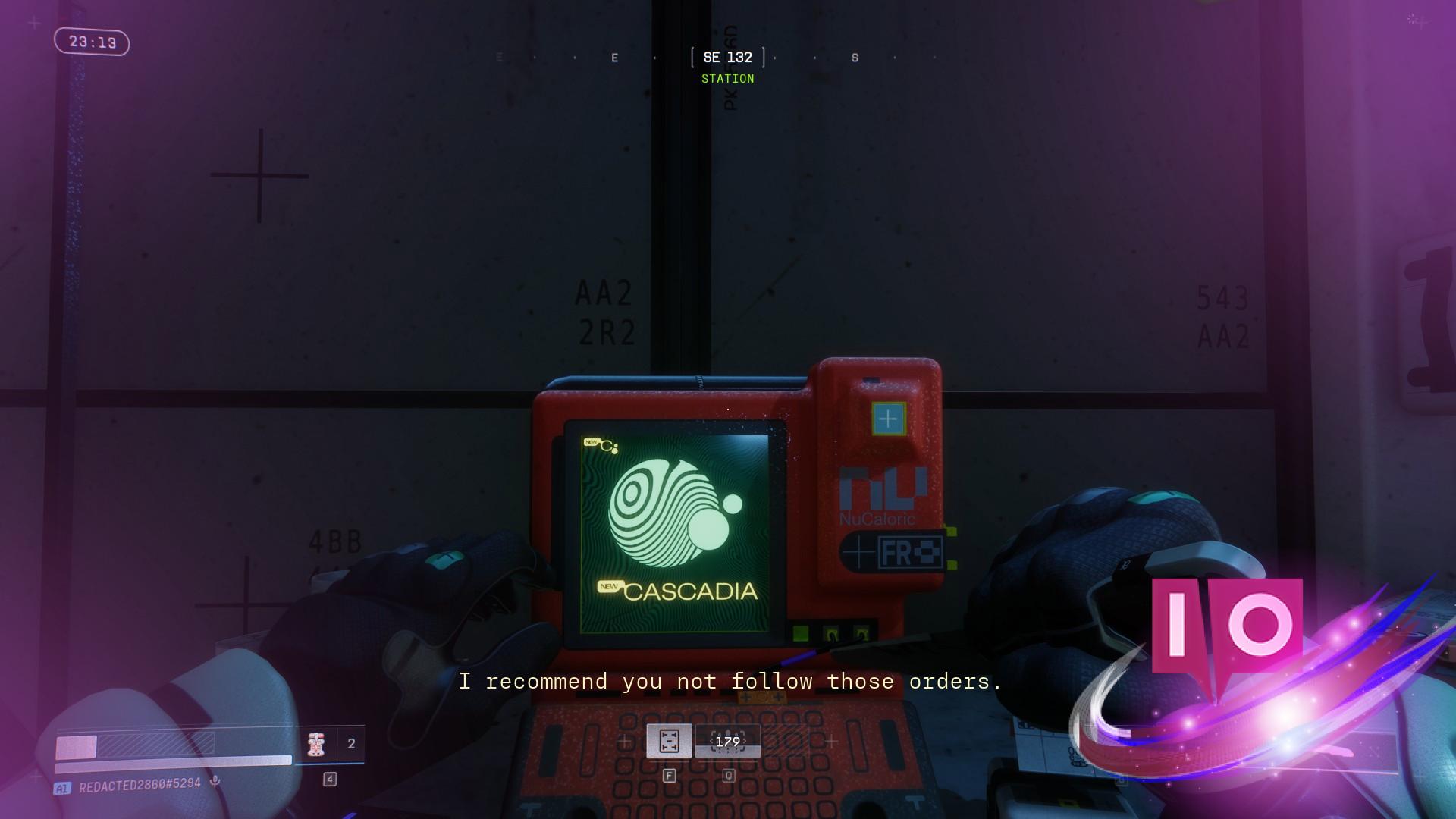
I was three seconds from a flank kill when the world juddered and my crosshair drifted off target. The Server Slam had me replaying that moment while I tweaked settings between matches. You don’t want a single hitch to decide a gunfight.
I’ll walk you through what I run on PC and why those choices stop stutters and raise frame counts. You’ll get the reasoning, the exact values I use, and the quick swaps that matter in a heated lobby. I test on both NVIDIA and AMD tech so the advice fits what you own.
You notice the screen hitch when enemies explode. Best Marathon Server Slam graphics settings for no lag and max FPS
Settings that favor steady frames win firefights. Below are the settings I use on an NVIDIA RTX 3060 12 GB with an AMD Ryzen 5600G and 16 GB of DDR5. Treat this as a baseline you can nudge up or down depending on your GPU and monitor.

- Resolution: 1920×1080 (match your monitor)
- Vsync: Off
- Frame Rate Cap Enabled: On
- Frame Rate Cap: 60 (see note below)
- Field of View: 90
- Graphics Quality: Custom
- Anti-Aliasing: NVIDIA DLSS / AMD FSR
- Resolution Scaling: Performance
- Screen Space Ambient Occlusion: Highest
- Anisotropic Filtering: 4x
- Texture Quality: Medium
- Shadow Quality: Low
- Environment Detail Distance: High
- Character Detail Distance: High
- Foliage Detail Distance: Medium
- Light Shafts: Medium
- Motion Blur: Off
- Chromatic Aberration: Off
- NVIDIA Reflex: On
- UI Refresh Rate: Medium
Why these choices? I prefer consistent frame pacing to occasional highs. Uncapped FPS looks good on paper but, on my rig, explosions and particle effects produced stutters. Capping at 60 smoothed those spikes and removed microstutters that cost me kills.
What settings give the best FPS in Marathon?
Lower shadow, texture, and foliage settings first. Shadows are GPU-taxing and add little tactical value in most firefights. Texture quality can stay at medium if you have 12 GB VRAM like an RTX 3060; if you’re on 8 GB or less, drop textures further. Use NVIDIA DLSS or AMD FSR in Performance mode to raise frame rate without washing the visuals away.
Should I use DLSS or FSR in Marathon?
Both are good; pick what matches your GPU. NVIDIA DLSS pairs best with RTX cards and will often give better clarity at the same framerate. AMD FSR works across hardware and is a solid alternative for Ryzen owners. Turn on resolution scaling to Performance and pair it with DLSS/FSR—this is the simplest way to gain FPS with little visual cost.
You feel smooth gameplay on some maps and choppy play on others. Why cap your framerate
A capped frame rate can be less thrilling but more reliable in a firefight. On my build, uncapped FPS created a jitter whenever an enemy died or a grenade burst; capping to 60 removed that jitter and made input timing predictable. Think of steady frames as a ticking metronome for your aim.
- Vsync off reduces input lag; use a frame cap to avoid GPU runaway.
- Enable NVIDIA Reflex if you have an NVIDIA card to lower system latency.
- If you play on a 144 Hz or higher monitor and your GPU can hold those frames stably, use a cap close to your refresh rate—otherwise favor stability over raw numbers.
How do I fix stutter in Marathon Server Slam?
Start with a driver update from NVIDIA or AMD, then test with DLSS/FSR on and off. Check background apps for overlays (Discord, GeForce Experience). If the stutter is tied to explosions or particle effects, lower shadow and particle settings, cap FPS, and keep Vsync off. If you use Steam, try disabling the Steam overlay briefly to test its effect.
You compare an RTX 3060 to older cards every patch. Hardware and presets that matter
I test on an RTX 3060 12 GB, Ryzen 5600G, and 16 GB DDR5. That combo handles high detail in many matches, but stutters can still creep in without proper caps and anti-lag settings. I recommend these quick checks before a session:
- Update GPU drivers (NVIDIA GeForce Experience or AMD Radeon Software).
- Set DLSS or FSR to Performance on cards from mid-range and below.
- Use a frame cap when you notice inconsistent frame pacing; experiment with 60, 90, and your monitor’s refresh rate.
- Turn off motion blur and chromatic aberration for clearer targets.
If Bungie pushes changes after the Server Slam, tweak shadows and texture pools first—those move performance the most. Small swaps are usually all you need; a single setting can be the tripping wire between smooth gameplay and a lost match.
Try these settings in a warmup match and adjust only one or two values at a time. Do you cap to win or chase raw FPS and risk the hiccup?