
I stepped out of the van with a full backpack and a nagging feeling I’d missed something. The driver-side panel sat flush with the metal, hiding in plain sight like a secret pantry. You’ve been here before: pockets full, progress stalled, and the road ticking away.
I’ve played the early hours of Outbound enough to know how this scene ends. I’ll walk you to the storage panel, show exactly which buttons to press, and keep the confusion to a minimum so you can get back on the road fast.
The panel’s paint matches the desert dust — it hides better than it should.
Deposit the materials from your backpack into your vehicle in Outbound
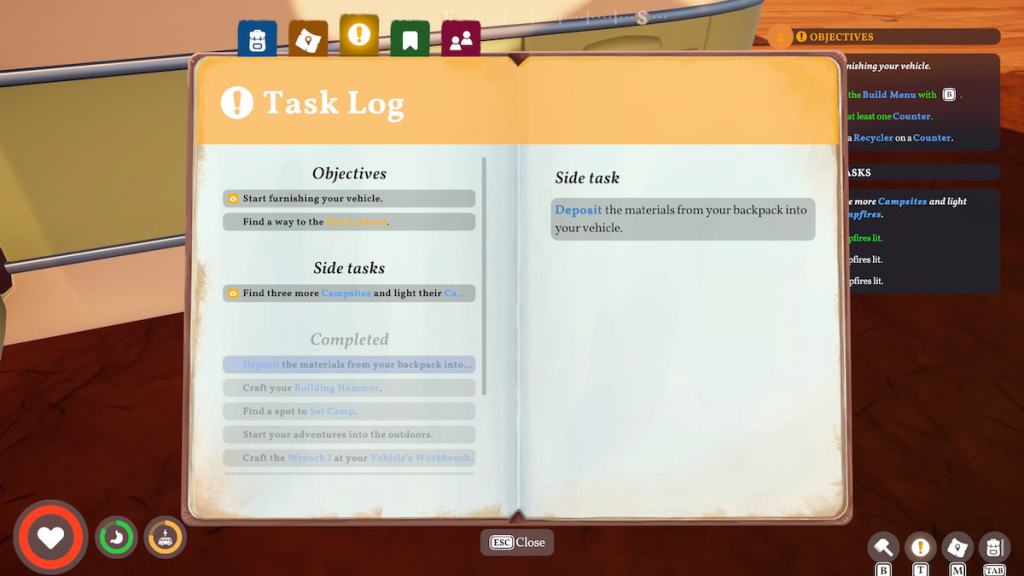
If you’re stuck on the side quest to store goods, the process is simple once you know where to stare. Follow these steps and you’ll stop wasting backpack slots on stuff you don’t need right now.
- Play until the storage mission appears. It pops up after the opening tutorial; keep moving through the first tasks until the mission is active.
- Carry at least one item. You can’t deposit nothing. Grab a Fiber, Bottle Caps, or any scavenged resource so the action becomes available.
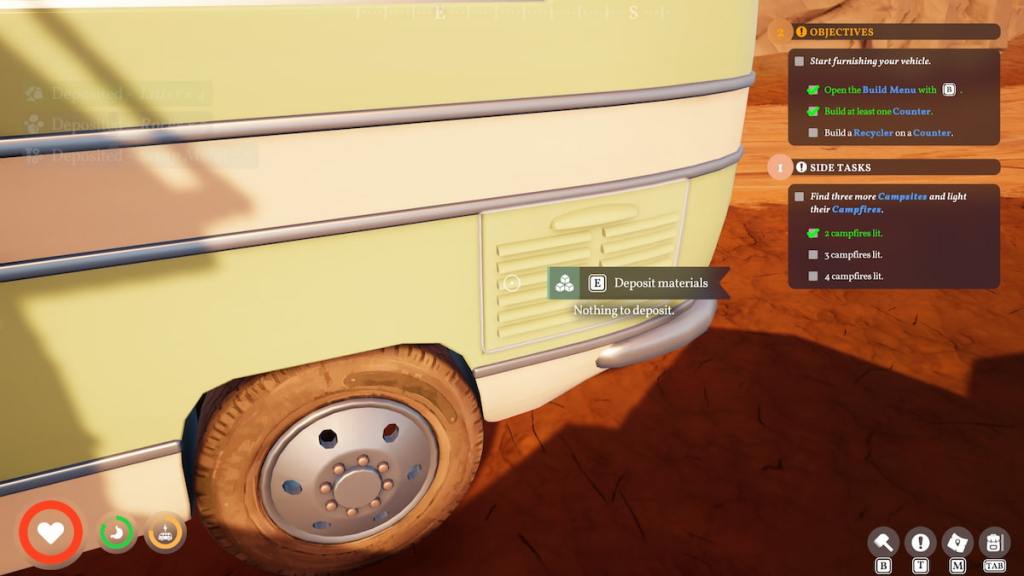
- Find the storage panel. Circle your van and check the driver’s side behind the rear tire. The compartment blends with your paint job and is easy to miss.
- Interact with the panel. Aim at it until the Deposit materials prompt appears. The button to press varies by platform and will be shown on-screen.
- Deposit the items. Hit the button and watch your backpack free up while the mission updates.
How do I deposit materials into my vehicle in Outbound?
Stand by the driver’s side rear tire, target the hidden compartment until the Deposit materials prompt shows, and press the on-screen button. The game tells you which key or button to use, so follow the prompt and the items vanish from your backpack into storage.
Where is the storage panel located?
It’s on the right side of the back tire on the driver’s side. The panel color matches your van, which is why you miss it; treat the area like a search-and-scan checklist and you’ll spot it faster.
The tiny screen floats above the panel like a watchtower.
How to access storage in Outbound
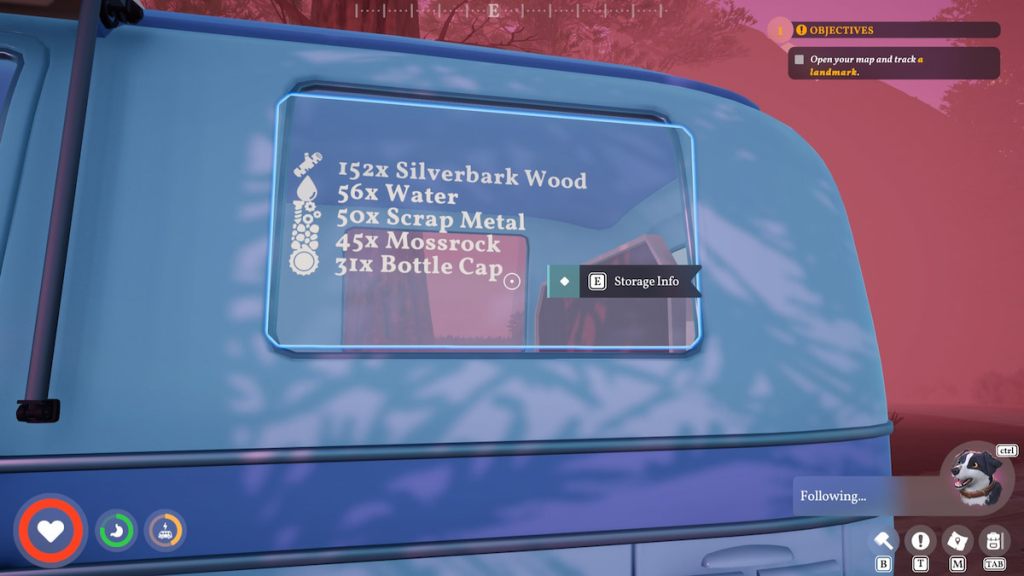
The floating screen above the panel lists stored goods and is the actual interface for pulling items back out. Face the screen until the Storage info prompt appears, then press the shown button to open the menu.
Not everything you own will fit on that small display; it highlights recently stored or mission-relevant items. When machines in your vehicle need parts, they pull from storage automatically, which saves you from running back and forth. But for field uses — buying Blueprints from Radio Towers with Download Vouchers or spending Bottle Caps at Cap-N-Snap vending machines — items must be in your backpack to be spent.
How do I pull items back from storage?
Open the Storage info menu above the panel and select the item you want to withdraw. It moves into your backpack so you can use it for a vending machine, crafting at a Radio Tower, or handing it to an NPC.
I’ve learned this the hard way playing on Steam and swapping tips in a Discord channel: the few seconds you spend at the van save you minutes of running later. Treat the storage panel like a stagehand — invisible until called, then indispensable.
Are you hoarding resources in your van or using them to push your next run forward?