
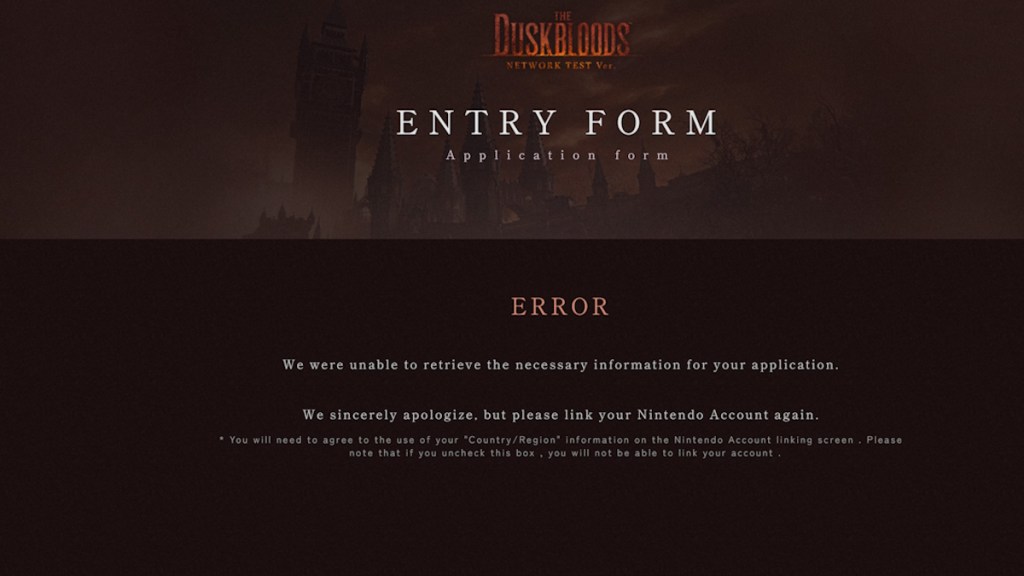
I tapped Link Your Nintendo Account, watched the Nintendo page load, and then an error stole the moment. I’d done everything by the book, but the sign-up refused to accept me for FromSoftware’s closed network test. You’re probably facing the same tiny trap that keeps otherwise-ready Switch owners out of the queue.
On my Switch the link step failed and the page offered no hint — here’s what’s actually wrong
That sudden failure glance is maddening, but the problem almost always comes down to one of two small things: a missing checkbox on the account-permissions screen or a mismatched region setting. I’ll walk you through both fixes so you finish the application instead of refreshing the page again and again.
Why can’t I link my Nintendo account for The Duskbloods?
Most sign-up rejections happen during the account-linking handoff to Nintendo’s site. After you hit Link Your Nintendo Account, the Nintendo consent page asks you to share data. If you skip the region permission, the test won’t accept the connection and you’ll get an error.
How I fix it, step by step:
- Click Link Your Nintendo Account from the Duskbloods sign-up page (the button will redirect you to Nintendo’s site).
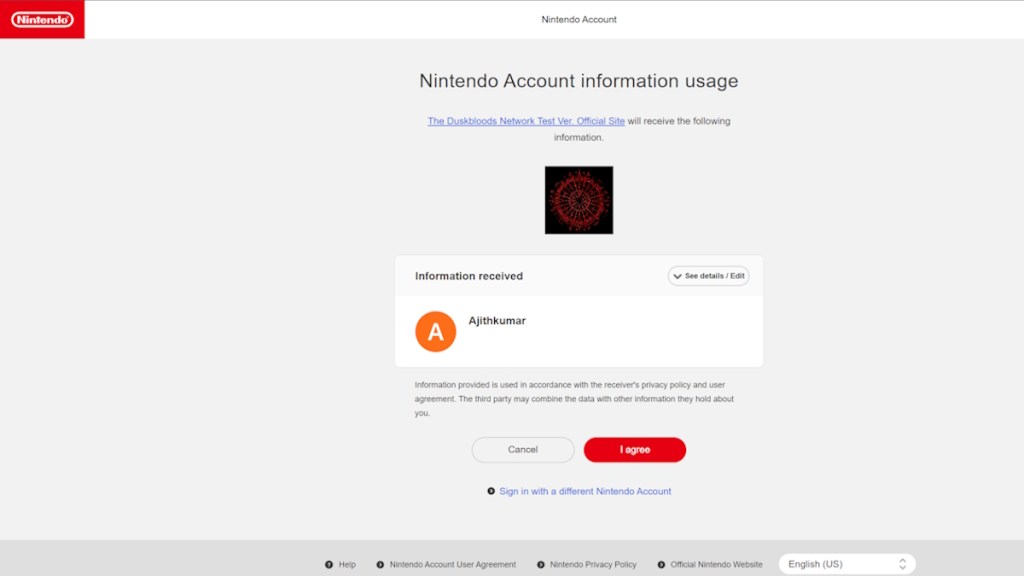
- On Nintendo’s consent screen, expand See details/Edit. There’s a small checkbox to share your region — tick it. The sign-up page is like a locked gate on an otherwise open road if you leave it unticked.
- If you’re on a phone, the dropdown won’t show. Scroll all the way to the bottom of the account-link page and search for the checkbox there.
- Hit I agree and return to the Duskbloods application. The link should complete without error.
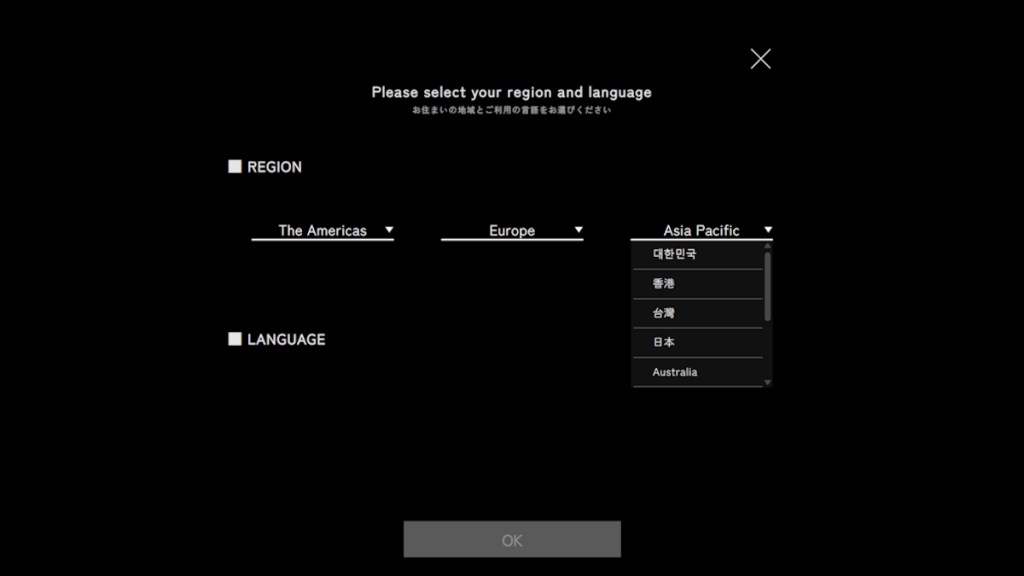
At the sign-up screen I picked a language that didn’t match my Nintendo account — that mismatch will block you
Regional settings are literal blockers: the Nintendo account region must match the region you choose in the Duskbloods application. Mismatched regions produce a linking error that looks like a general failure.
How do I pick the right region for the closed network test?
Follow these quick checks:
- Open Nintendo Account Settings (accounts.nintendo.com) and confirm your account’s region and language.
- Return to the Duskbloods sign-up and select the exact same region and language from the dropdown. If they differ, the server rejects the link.
- If your Nintendo account region is wrong, change it in account settings or sign up with the account that matches the region you selected for the test.
I completed the link and still worried I’d miss the test — quick sanity checks before you hit submit
Small validation steps keep a frustrating “almost there” from turning into a wasted attempt.
- After agreeing on Nintendo’s site, watch for the confirmation screen that returns you to the Duskbloods page. If it stalls, retry the link once more.
- Confirm your Nintendo Switch is updated and that you’re signed into the same account you linked. FromSoftware distributes invites to linked accounts, not to console IDs alone.
- If you use two-factor authentication with Nintendo, complete that flow before linking so the redirect doesn’t timeout.
If you’ve already submitted your application successfully, check FromSoftware’s official page for the test schedule and any regional notes. Missing that tiny checkbox can feel like leaving the front door unlocked — as if you’d left a window open during a storm — but now you know where to look.
Ready to try again and actually make it into the queue for The Duskbloods network test, or do you think FromSoftware should simplify the link flow?