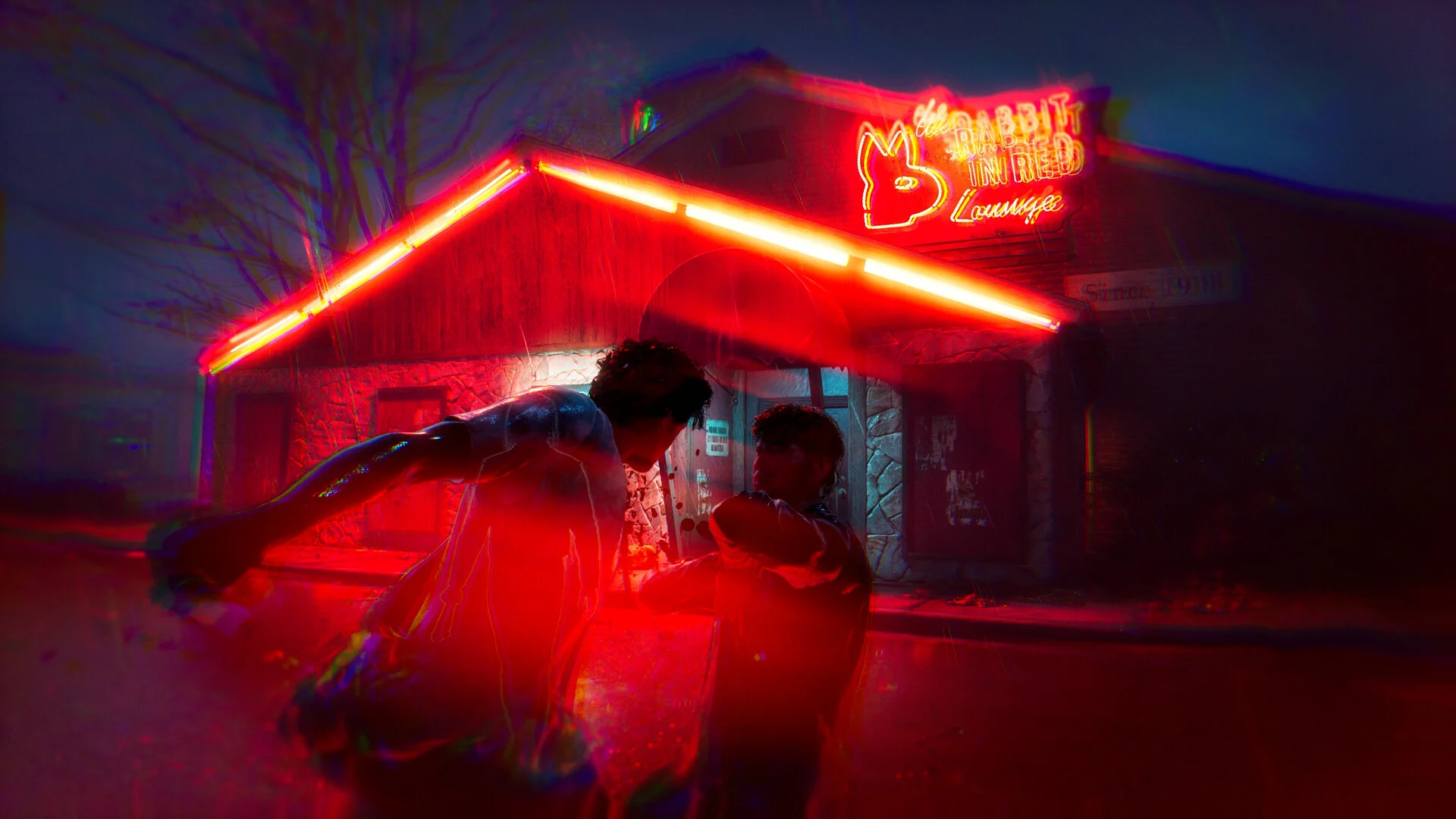
We were two minutes into a 12-player match when my screen froze. The lobby filled with ragged footsteps and the host unceremoniously dropped us back to the menu. I closed the game, cursed, and started tweaking settings like a field medic on a battlefield.
I’ve spent hours tuning Halloween: The Game on everything from budget rigs to my go-to testbench. You’ll get the fastest wins if you know which sliders to nudge and which to slam to zero. I’ll show you the settings I actually use and why they stop the hiccups without killing visual clarity.
- My test rig: 32 GB DDR4 RAM; AMD Ryzen 7 5700X; AMD Radeon 9060XT 16 GB.
- If you bought the game on Steam for $39.99 (€37), these tweaks matter more on low- and mid-tier GPUs.
My match froze mid-chase on a 12-player server. Best Halloween: The Game graphics settings for no lag and max FPS
Real quick: the game’s post-launch optimization still trips over congestion in multiplayer. That’s where the settings in this list buy you breathing room.
- Resolution: Use your monitor’s native resolution. It keeps UI scaling predictable and avoids extra GPU work.
- Vsync: Turn it on for multiplayer if you hit micro-freezes—Vsync acts as a metronome for your frames.
- Frame Rate Limit: Cap to 60 FPS. I found anything higher invites stutters on mixed-host servers.
- Gamma: Default.
- Motion Blur: Off.
- Ray Tracing: Off unless your GPU is seriously overpowered.
- Upscaling Method: Off by default; flip it on if FPS tanks mid-game.
- Resolution Scale: 100%.
- Upscaling Quality: Performance (if using AMD FSR or Radeon Super Resolution).
- FSR Frame Generation: Off.
- Anti-Aliasing Quality: Medium.
- Effects Quality: Low.
- Foliage Quality: Low.
- Post-Process Quality: Medium.
- Shading Quality: Low.
- Shadow Quality: Low.
- Texture Quality: Medium.
- View Distance: Medium.
- Global Illumination Quality: Low.
- Reflection Quality: Low.
How do I stop stutters in Halloween: The Game?
You start by removing GPU choke points: drop Effects, Shadows, and Foliage to Low and cap FPS at 60. Check your drivers—use AMD’s Radeon Software or NVIDIA’s GeForce Experience to update and set a driver-level frame limit if the game’s cap is unreliable. Close background apps (Discord, OBS, browser tabs) and monitor CPU/GPU spikes in Task Manager.
The lobby turns into chaos on weaker rigs. Per-setting explanations and why they matter
When ten players converge, the engine throws particle effects, shadows, and AI updates at the same time—your GPU can choke. High-effect settings are a clogged artery for your GPU, and cutting them opens circulation.
- Why Shadows Low? Shadows are cheap-looking in crowded scenes but expensive to render. Lowering them yields far more FPS than tiny gains in fidelity.
- Why Effects + Foliage Low? Particle effects and dense foliage increase draw calls and VRAM churn. On 8–12 player maps, they’re the biggest FPS killers.
- Textures Medium balances clarity and VRAM use—if you have 16 GB on your GPU, you can test High, but watch stutters.
Should I use FSR or DLSS for higher FPS?
Use DLSS only if you run an NVIDIA RTX card with driver support; it often gives the best quality-per-FPS. AMD FSR and Radeon Super Resolution work on a wider range of cards and are excellent when you need a quick FPS boost. Set up the in-game upscaler to Performance, and test stability—I keep FSR Frame Generation off because it introduces frame pacing oddities in this title.
Practical steps I use every session: update GPU drivers, launch the game through Steam with a clean boot, and run one match with new settings to spot microstutters. If a change breaks stability, roll it back and try the next item on the list. On laptops, use the GPU vendor’s power profile (AMD’s Radeon settings or NVIDIA’s Control Panel) to force consistent clocks.
After a patch, retest settings and keep an eye on server behavior
Patch day often swaps CPU/GPU load around—what worked yesterday can misbehave today. I test the same 60-FPS cap, toggle Vsync, and run a warm-up match after updates.
- Steam Deck / Portable: Lower resolution, use Performance upscaling, and cap at 30–40 FPS to keep thermals sane.
- Multiplayer hosts: Host instability will show up for everyone. If multiple players report freezes, it’s more likely a server-side problem than your rig.
- Recording & Streaming: If you stream with OBS, set the encoder to hardware (AMF/NVENC) to avoid CPU bottlenecks.
These tweaks are fast to apply and easy to test; if you want, I can walk you through a step-by-step checklist for your exact GPU and display—which setting will you try first?