
I joined a four-player lobby and watched my friend on Switch freeze at the loading screen. The group chat went quiet as we realized we hadn’t linked accounts. I walked everyone through a five-minute fix and we were back to smashing mobs.
I’m going to keep this short and practical: you can play Minecraft Dungeons 2 with friends across PC, Xbox, PlayStation 5, and Nintendo—and the main gate is a Microsoft account. I’ll show you the settings to flip, the few things that trip people up, and how to add friends fast so you spend less time in menus and more time in the game.
Does Minecraft Dungeons 2 Have Crossplay?
I watched the launch trailer and counted the platform logos: Steam, Xbox PC, Xbox Series X/S, PlayStation 5, Nintendo Switch, Switch 2, and Xbox Cloud Gaming.
Yes. Minecraft Dungeons 2 supports crossplay. Mojang built the sequel to let players on different hardware join the same co-op session. The standard edition also lands on Xbox Game Pass on day one, so subscribers can play immediately via the Game Pass app or Xbox Cloud Gaming.
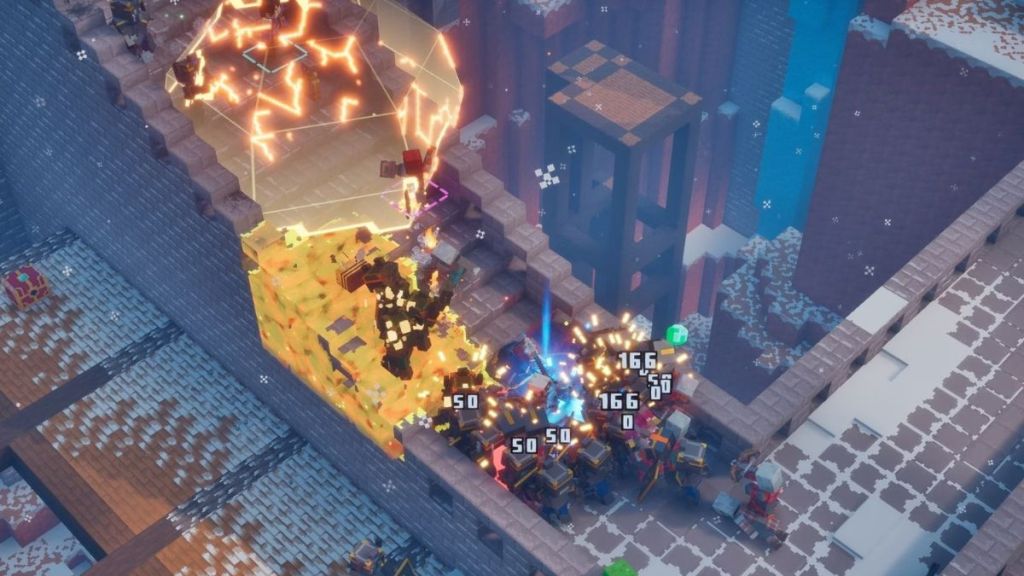
Think of crossplay as a bridge connecting different consoles into a single party. The architecture relies on account linking more than platform parity—so the platform you buy on matters less than the Microsoft account you attach.
Can I play Minecraft Dungeons 2 with friends on Xbox and PlayStation?
Yes. If everyone links their Microsoft account inside the game, Xbox and PlayStation players can join the same session. Xbox Game Pass subscribers on Xbox or PC can also invite non-subscribers who own the game on other platforms.
How to Turn on Crossplay in Minecraft Dungeons 2
I watched a friend try to join via Gamertag while on PS5 and she had to pause to connect accounts mid-queue.
Here’s the practical flow I use when I want a group together in under five minutes. You’ll need a Microsoft account (free) and the Gamertag for anyone you want to add.
- Open Minecraft Dungeons 2 and go to the main menu.
- Open Settings or Game Options and find the toggle labeled Crossplay, Cross-Platform Play, or Online Play.
- Flip the toggle to enable cross-platform multiplayer. If prompted, sign in or link your platform account to your Microsoft account.
- Follow the on-screen steps to complete the connection. On consoles this often opens an overlay for account linking; on PC it may open the Xbox app or Steam overlay.
- Open the Friends or Multiplayer menu, search for your friend’s Gamertag, and send an invite.
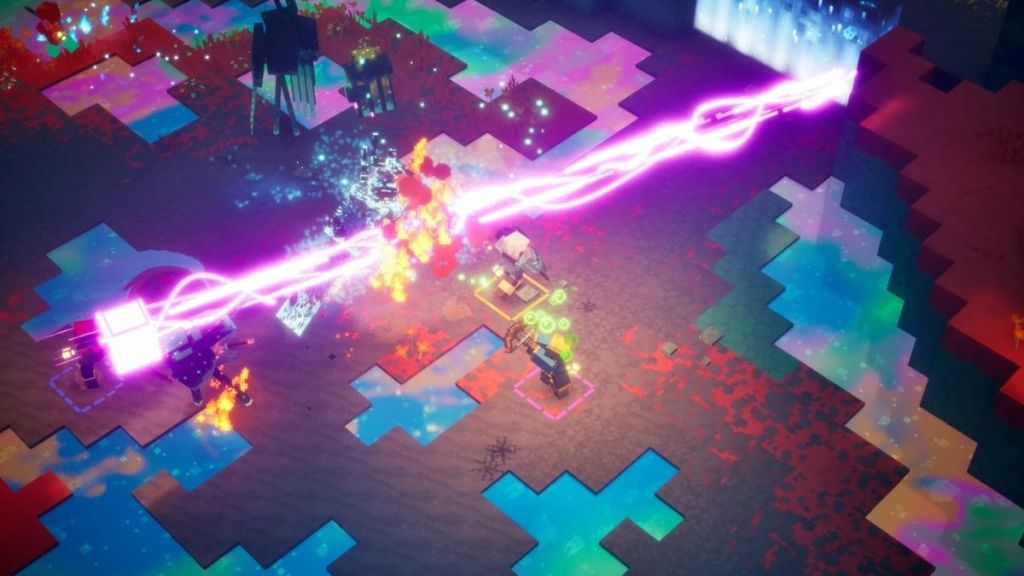
Common hiccups I’ve fixed for people:
- If invites don’t arrive, check your privacy settings on the Xbox account or PlayStation network settings that control crossplay and invites.
- If the game opens an Xbox overlay on Steam, follow the prompt—this is normal when linking accounts.
- Use the exact Gamertag (including special characters); mistyping is a frequent invite failure.
How do I turn on crossplay in Minecraft Dungeons 2?
Enable the in-game Crossplay toggle, link to your Microsoft account when asked, then add friends by Gamertag in the Friends menu—simple as that unless a privacy setting blocks invites.
Does Minecraft Dungeons 2 Have Cross-Progression?
I tested cross-saves in previous Minecraft titles by signing into the same account on PC and console; the patterns often repeat.
Crossplay is confirmed, but cross-progression details were still being finalized at launch. If Mojang follows other Minecraft products, linking the same Microsoft account across devices will likely let you access purchases and cosmetics tied to that account. Whether your save file transfers seamlessly between platforms depends on how Mojang implements saves with Xbox Game Pass and cloud services.
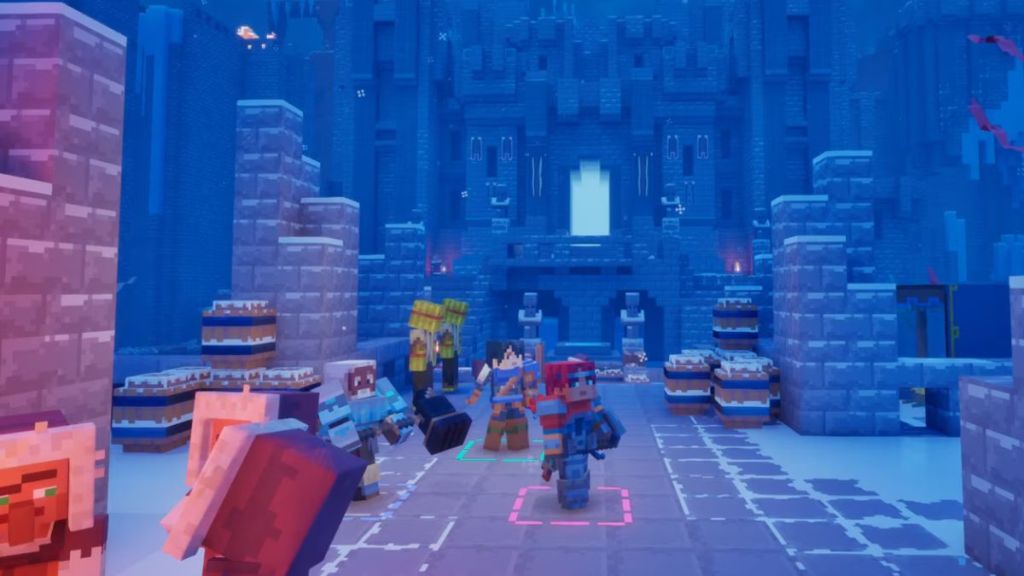
A Microsoft account is your passport across platforms for purchases and social features; think about linking the same account before you invest time into character builds or cosmetics.
Does Minecraft Dungeons 2 support cross-progression?
Short answer: probably for purchases and account-tied items; exact save-file portability depends on Mojang’s server-side choices. Keep an eye on official Mojang and Xbox support notes after launch.
If you want one last pro tip: make the Microsoft account the first thing you set up before inviting friends—save headaches later. Who’s getting the first rare drop tonight?