
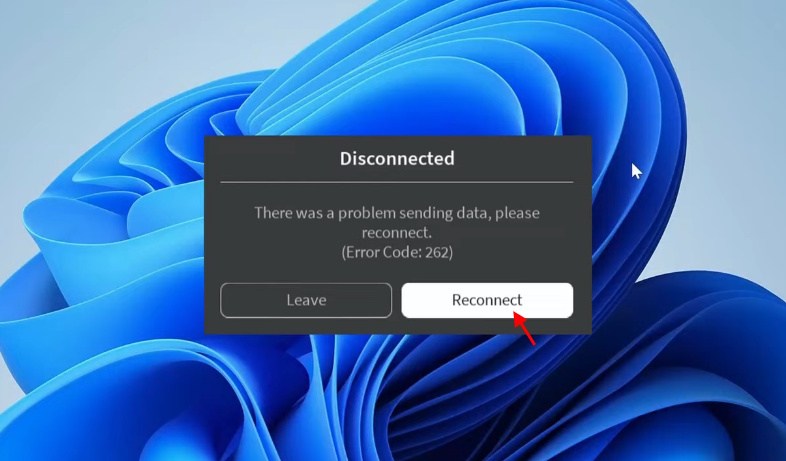
I was three minutes into a match when the screen froze and the dialog read, “There was a problem sending data, please reconnect.” My heart sank—my squad was still in the game and the Reconnect button might as well have been a shrug. I closed the window, calmed down, and started methodically testing every angle until the client let me back in.
I’ll walk you through the fixes I use when Roblox throws up Error Code 262 and leaves you waiting. You’ll get quick checks first, then harder cures if the simple ones fail. Follow the order and you’ll save time and frustration.
How to Fix Error Code 262
Observation: I hit Reconnect and sometimes the game returns immediately; other times it won’t budge.
Start here: click the Reconnect button on the error prompt. If Roblox drops you back into the experience, the interruption was temporary and you can keep playing. If not, move through the steps below in order—each one rules out a common cause.
Reconnect to Roblox
Observation: Every now and then the client just needs a handshake reset.
Click the Reconnect option. If that doesn’t work, sign out of your Roblox account, close the browser or app, and try again. Small hiccups fix fast; if this fails, don’t panic—keep going down the checklist.
Check Your Internet Connection
Observation: I’ve seen players on shaky Wi‑Fi drop repeatedly while others on Ethernet stay steady.
Roblox needs a stable connection. Run a quick Speedtest (Ookla) and look for packet loss or wild latency. If Wi‑Fi feels flaky, switch to Ethernet. Restart your router and modem, and consider rebooting the device running Roblox. Think of a bad connection like a congested intersection—packets get stuck and the game can’t complete its handshake.
Check the Roblox Server Status
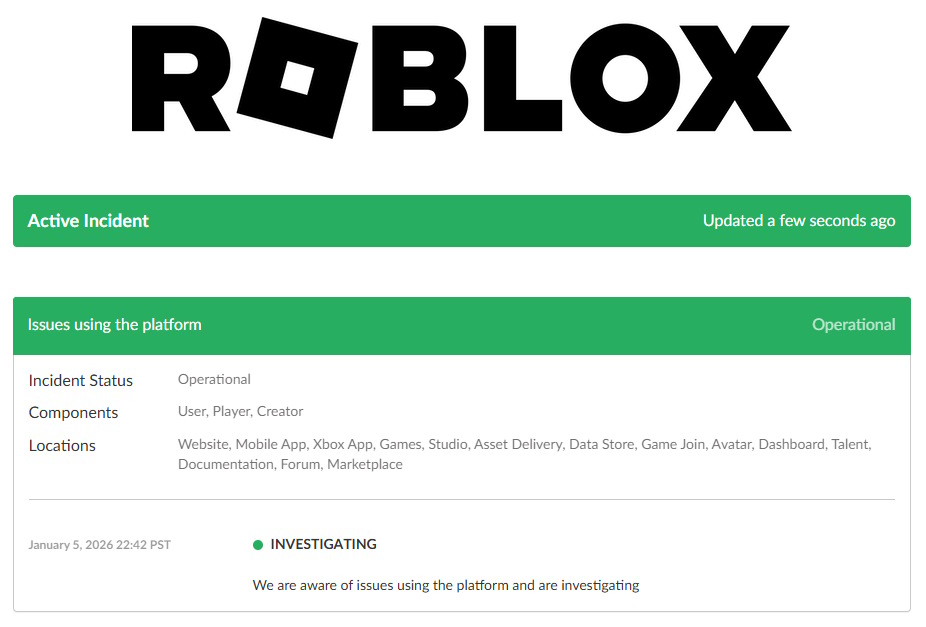
Observation: Sometimes the whole platform hiccups and nothing on your end will fix it.
Before changing settings, visit Roblox’s official status page or the Roblox Twitter feed to see if servers are down or in maintenance. If Roblox has an outage, waiting is the only realistic move; the client can’t connect to a dead server.
Restart Roblox and Your PC
Observation: A fresh start can clear the sticky temporary state that trips the client.
Completely close Roblox (use Task Manager on Windows), then relaunch. If the issue persists, reboot the computer. Sign out and back into Roblox after restarting. These steps clear transient conflicts between the app and your system.
Clear Roblox Temporary Files
Observation: I’ve fixed clients by deleting one corrupt temp folder—no reinstall required.
Corrupted cache can stop the client from connecting. On Windows:
- Press Windows + R, type %localappdata%, and press Enter.
- Open the Temp folder and delete the Roblox folder if present.
- Relaunch Roblox and try joining a game.
Removing temp files is like trimming dead branches—sometimes a tiny cut brings everything back to life.

Disable Roblox Extensions and Mods
Observation: I’ve seen browser add-ons inject scripts that break Roblox page-to-client handoffs.
If you use browser extensions that touch Roblox (Ad blockers, Roblox enhancers, or user scripts), disable them and try again. Also avoid modified clients—Roblox explicitly warns that altered installers or clients can cause connection and account problems.
Check Your Firewall and Antivirus
Observation: A recent security install once blocked Roblox from talking to its servers.
Open Windows Defender Firewall or your antivirus controls and confirm that Roblox is allowed through both inbound and outbound rules. If you use third‑party suites like Norton or Bitdefender, temporarily disable them to test. Re-enable protection after testing.
Close Downloads and Network-Heavy Apps
Observation: Large background downloads can starve the game of bandwidth and cause timed-out connections.
Pause torrents, stop cloud backups, and close streaming apps. On Windows, check Task Manager for high network usage and quit the apps hogging bandwidth. A clean network path reduces disconnects.
Reinstall Roblox
Observation: A fresh install has rescued clients that were otherwise unfixable.
If nothing else works, uninstall Roblox, delete leftover folders (AppData and Program Files entries), and download the official installer from Roblox.com. Reinstalling replaces damaged files and often resolves persistent Error Code 262.
What causes Roblox Error Code 262?
The short answer: a broken handshake between your client and Roblox servers. Causes include unstable internet, platform outages, firewall blockage, corrupted local files, browser extensions, or modified clients.
How do I fix error 262 on Roblox?
Follow the checklist above in order: Reconnect, check your connection and Roblox status, restart the client and PC, clear temp files, disable extensions, verify firewall settings, stop heavy network use, and reinstall if needed. Use Speedtest by Ookla and Task Manager to diagnose the network and system load.
Will reinstalling Roblox fix Error Code 262?
Often it will if corrupt or missing files are the root cause. If servers are down or your network is blocking Roblox, reinstalling won’t help—so rule out those external issues first.
When to Contact Roblox Support
Observation: Sometimes the problem is server-side and only Roblox can fix it.
If Error Code 262 persists after every step, file a ticket with Roblox Support. Give them your username, device model, OS version, exact error text, and the reproduction steps. Attach logs or screenshots if you can. That gives their engineers what they need to investigate account- or server-level issues.
If you had to reboot routers, fiddle with firewalls, or call the ISP, what actually fixed your Error Code 262—and what made you want to throw your PC out the window?