
You open a game’s page and spot a community with a bright blue button—then it disappears. Your heart sinks a little; missing that button can feel like losing a ticket to something everyone else is already at. I’ll walk you through exactly how to get back in the room.
I’ve run communities and helped dozens of creators on Roblox Studio and console apps. You’ll find quick wins here: where the join buttons hide on PC, how mobile and console differ, and what to do if the system blocks you. Read on and you’ll be the person other players message when a new event drops.
How to Join a Group in Roblox PC and Web
On desktop the Communities link sits in the left menu, visible but easy to ignore.
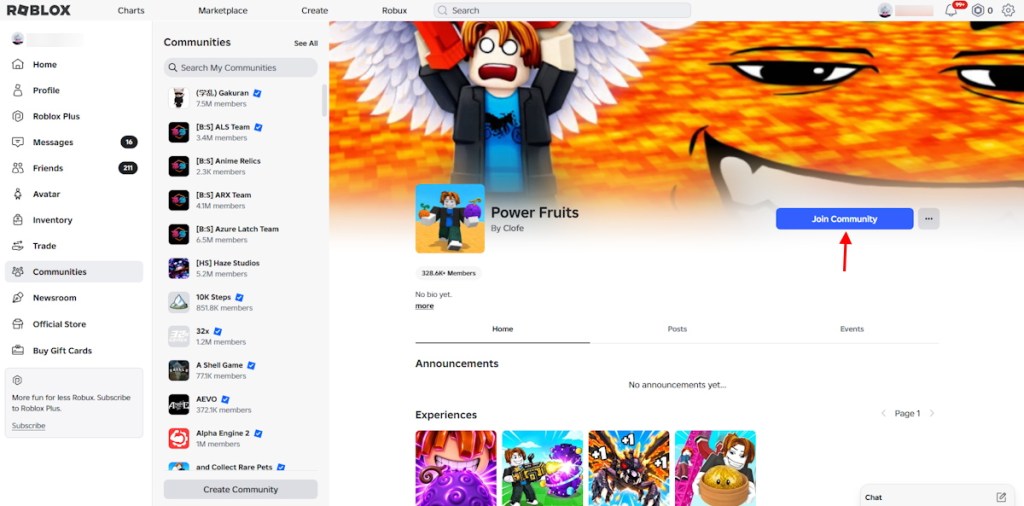
Open the Roblox website or the PC app and sign in. Click the hamburger icon (or the left sidebar) and select Communities. Hit See All or More Communities, type a game or group name into the search bar, then click the community you want. Press the blue Join Community button and you’re in—unless the group is private, in which case you’ll send a request.
If the app hides that button, try the desktop site on a browser like Chrome or Edge (the Microsoft Store app can sometimes misbehave). You can also join directly from official invite links when you’re already logged in.
How to Join a Group in Roblox Mobile, Tablet and iPad
On phones the Communities tile is tucked into the More menu, one tap away.
Open the Roblox app, tap the … More button along the bottom or left edge, then choose Communities. Use the search field under My Communities to find a name, or scan featured lists. Tap a community and press Join Community. Mobile makes it fast to follow events and snag member-only drops.
How to Join a Group in Roblox on PS5, PS4, and Xbox
Console interfaces mirror the app layout, but you use a controller instead of a mouse or finger.
Launch Roblox on PlayStation or Xbox, open the … More menu, select Communities, and use the search bar to type a group name. Choose the community from results and select the blue Join Community button. If your console app glitches, load the site on a PC or mobile browser to finish joining.
Roblox Group Approval and Community Features
Some communities accept anyone; others gate entry behind manual approval.
Public communities let you join instantly. Private communities require an owner or moderator to approve requests—sometimes they ask for a short message before accepting you. If you’re 13+ you can post on the Wall; some groups set a 17+ rule, so verify your age if you plan to chat or moderate. Members see Shouts, the Description, ranks, exclusive experiences, and linked social pages.
How many groups can you join in Roblox?
You can join up to 100 communities per account. Hit that cap and the Join button disappears until you leave one.
Does it cost Robux to create a group in Roblox?
Yes. Creating a new community costs 100 Robux (≈€1). If you’re building a fan base, consider starting with a free community slot and upgrading later.
Can you rejoin a Roblox group after leaving it?
Yes. You can join again anytime provided the group still accepts members and you have a free slot under the 100-community limit.
How to Leave a Roblox Group
Leaving a community is one quick menu tap away when you need space for a new join.
Open Communities, select the group, click the three-dot menu in the upper-right, then choose Leave Community and confirm. Remember: you must free a slot to join a 101st group.
Roblox Communities: Important Rules and Troubleshooting in 2026
Ownership rules are strict; leaving without assigning an owner has permanent consequences.
If you own a community and leave without transferring ownership, you lose admin powers forever and the community becomes ownerless. Transfer ownership first if you plan to step away. If the Join Community button is missing, it usually means you hit the 100-group cap. Strange join bugs can appear in the Microsoft Store PC app or on consoles—switch to a mobile browser or the desktop website to fix most issues.
How to Make Someone an Admin in a Roblox Group
Assigning roles is a process that rewards trust and careful settings management.
Open your community page, click the three-dot menu, and select Configure Community. Choose Roles, create a new role named “Admin,” set visibility, then toggle permissions for actions you want them to handle. Drag the Admin role near the top for higher authority and assign it to members under Members. Roblox lets you create up to 100 custom roles in the permissions system.
Roblox Communities Settings and Role Permissions
The Configure Community menu is where you shape a community’s identity and safety rules.
You control profile text, emblem, cover photo, social links, and membership rules. Admins can invite, approve, kick, ban, and assign roles; audit logs track activity; and developers can connect community-owned games to test and publish experiences. High-risk admin powers require Two-Factor Authentication first.
| Feature | Description |
|---|---|
| Profile and Entry Settings | Change the description, emblem, cover photo, social links, and manual approval rules. |
| Member and Role Management | Let admins invite, approve, kick, ban, or assign lower roles to members. |
| Audit Logs and Allies | View the community activity history and manage ally or enemy relationships. |
| Creations and Experiences | Allow developers to playtest, edit, publish, and moderate community-owned games. |
| Revenue and Payouts | View group Robux balances, run ad campaigns, and send Robux payouts to members. |
| Avatar Items and Analytics | Create community clothing, configure catalog accessories, and view game analytics. |
Communities are your way to gather players and run events; treat roles like permissions at a concert and your control panel as a control room. Which community are you going to join or reshape first, and why?