
I slammed the accelerator in Vice City’s rain and the screen juddered. You feel that tiny delay in your hands and know something is wrong. I learned fast: the TV settings, not the game, were stealing the night.
GTA 6 stretches across the sunlit Leonida Keys and neon Vice City; you want the TV to make those streets sing, not smudge them. I’ll walk you through the settings I test on Sony, LG, Samsung, TCL and the consoles I use—PS5 and Xbox Series X—so you get the visuals and the responsiveness the game deserves.
TV Settings to Change Before You Play GTA 6
Observation: I noticed console menus respond instantly on one TV and lag on another, even at the same price point.
Start with the basics: cut the processing the TV adds, let the console do its work, and stop features that make fast camera pans look false. A few switches—Game Mode, ALLM, HGiG, VRR—will shave input lag, protect HDR intent, and keep colors honest.
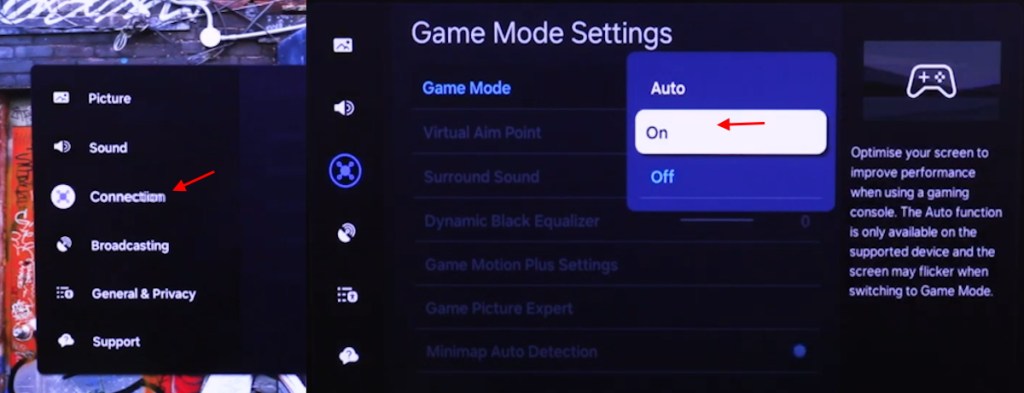
Enable Game Mode
Game Mode is the first toggle I flip. It strips out post-processing that adds lag so your steering and targeting feel immediate. On some sets this is called Game Optimizer (LG) or simply Game Mode (Samsung, Sony, TCL).
If your TV supports Auto Low Latency Mode (ALLM), set it to Automatic so the console can flip the TV into low-latency mode when a game starts. Game Mode is the pit crew for your controller—quiet, precise, and fast.
Turn Off Motion Smoothing
Observation: I saw motion smoothing make drifting through Vice City feel like a soap opera car chase.
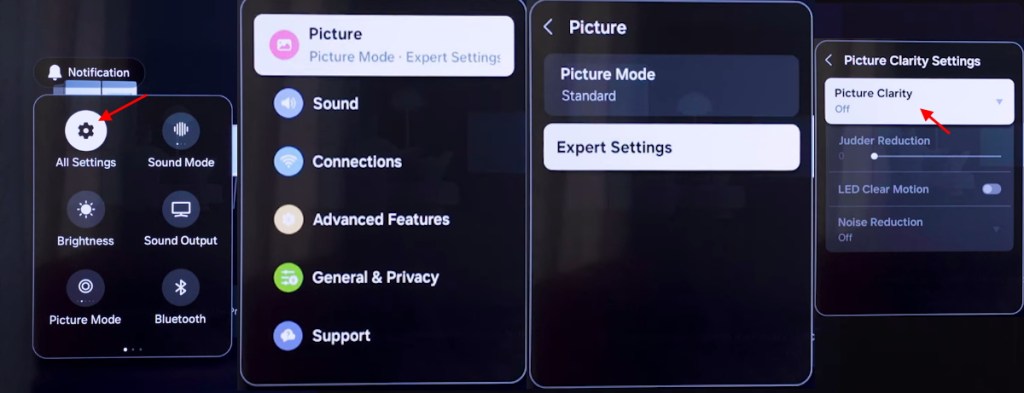
Turn off motion smoothing and frame interpolation features—TruMotion on LG, Picture Clarity/Motion Plus on Samsung, Motionflow on Sony. These add artificial frames that can mess with timing and make quick camera moves look wrong. For a game that doesn’t target a locked 60 FPS everywhere, forcing interpolation only creates artifacts and input friction.
Enable HGiG and Adjust HDR
Observation: On one TV, neon signs clipped and faces went black; on another the same scenes had drama and detail.
If your TV supports HGiG (HDR Gaming Interest Group), turn it on. HGiG tells the set to accept the console’s HDR curve, avoiding double tone mapping that flattens highlights or crushes shadows. If HGiG is present, disable Dynamic Tone Mapping (DTM) and then run your console’s HDR calibration tool to match the output to the panel.
Think of HDR as a headlamp cutting through Vice City’s neon fog—when it’s set properly it reveals depth and texture without blinding your eyes.
Adjust Color Temperature and Sharpness
Observation: Factory presets often push blue-heavy whites and oversharpen edges to sell showroom punch.
For more natural whites set Color Temperature to Warm or Warm 2 (Warm 50 on some LG sets). That reduces the cold, blue bias many default presets have. Keep Sharpness at neutral—extra sharpening creates halos around buildings and ruins subtle details.
Turn Off Energy Saving
Observation: Eco modes dim the screen mid-chase, hiding detail in tunnels and dark interiors.
Disable Energy Saving, Eco Mode and any automatic brightness features. Those settings throttle peak brightness and can wreck HDR consistency. Adjust brightness manually for your room and panel instead.
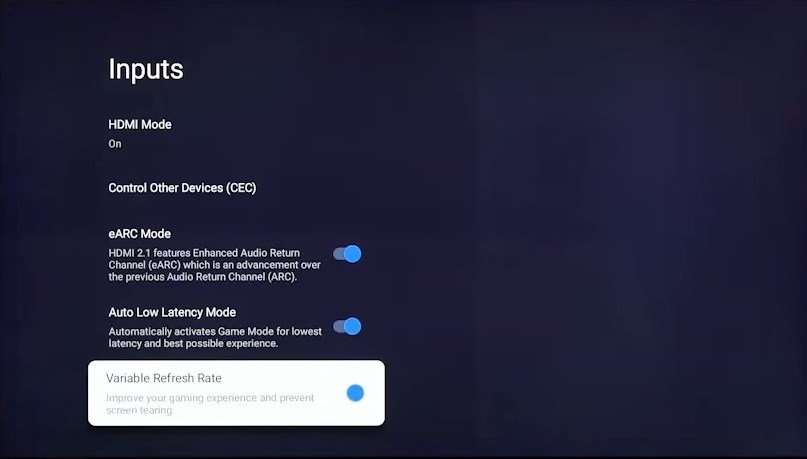
Enable VRR and 120Hz Output
Observation: On a fluctuating frame-rate run, VRR stopped tearing and made the ride smoother.
Set Variable Refresh Rate (VRR) to Automatic if your TV supports it, and enable 120Hz Output so the console can use the higher refresh band when available. VRR syncs the TV’s refresh to the console frames to cut tearing and stutter—especially useful in open-world sections where FPS moves around.
Best TV Settings for GTA 6 on PS5
Observation: When I switch a PS5 between two TVs, the console’s HDR calibration often reads differently; the difference shows in-game.
Once your TV is set, tune the PS5. These settings help the console speak clearly to the display and avoid unwanted scaling or incorrect color space:
| PS5 Setting | Recommended Option |
|---|---|
| Resolution | Automatic |
| 120 Hz Output | Automatic |
| VRR | Automatic |
| Apply to Unsupported Games | Off |
| HDR | On When Supported |
| RGB Range | Automatic |
| ALLM | Automatic |
Best TV Settings for GTA 6 on Xbox
Observation: Xbox consoles give you fine control over HDMI features, and I often toggle Allow 4K/HDR per display.
On Xbox Series X|S the settings below make the console and TV cooperate well:
| Xbox Setting | Recommended Option |
|---|---|
| Resolution | 4K UHD |
| Refresh Rate | 120Hz (if supported) |
| Allow 4K | Enabled |
| Allow HDR10 | Enabled |
| Allow Variable Refresh Rate | Enabled, if supported |
| Allow Auto Low Latency Mode | Enabled, if supported |
| Color Space | Standard |
What are the best TV settings to play GTA 6?
Answer: Turn on Game Mode/ALLM, enable HGiG if available, disable motion smoothing and Eco modes, and use VRR with 120Hz if your panel supports it. Calibrate HDR with the PS5 or Xbox tool so highlights aren’t blown out and shadows aren’t crushed.
Is GTA 6 better on a TV or monitor?
Answer: If you play from a couch and prefer scale and immersion, a TV gives the cinematic sweep; if you sit close and chase competitive responsiveness, a monitor wins. Both benefit from the same TV/monitor hygiene—low latency modes, correct color temperature and honest HDR handling.
Do you need an HDMI 2.1 TV to play GTA 6?
Answer: No. You can play on HDMI 2.0 panels; HDMI 2.1 adds headroom for 4K at 120Hz, full VRR and ALLM on some TVs. If you buy an HDMI 2.1 set, expect to pay more—current entry prices for 4K TVs with HDMI 2.1 often start around USD 400 (€370)—but older HDMI 2.0 sets still deliver excellent results for most players.
Tools and names I used while testing: PS5, Xbox Series X, Sony, Samsung, LG, TCL, HGiG specs, HDR10 and the consoles’ built-in HDR calibration. Small changes there transformed how GTA 6 felt and how Vice City looked.
Which setting did you flip first, and did it change how the game felt for you?