
I swipe the DualSense when the doorbell buzzes and Lucia is already trading fire on the street. My thumbs freeze, the world on-screen freezes with it, and for a second I can breathe. You learn fast which buttons buy you those seconds.
Your controller is the first line of defense when real life interrupts the play session.
If you need to step away—grab dinner, stretch, or consult a Moyens I/O guide—you don’t have to guess which button to press.
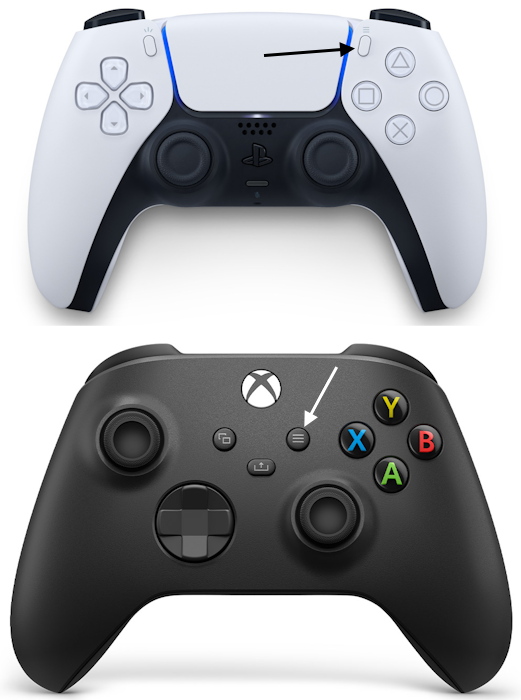
- PlayStation 5: Tap the Options button on the top-right of the DualSense controller (the button shows three horizontal lines).
- Xbox Series X & S: Press the Menu button, to the right of the Share button in the center of the controller (also marked with three horizontal lines).
Pressing either of those will freeze Grand Theft Auto 6 and open the pause interface; close it and the game resumes where it left off.
You hit pause and the game hands you a control panel for your session.
Think of the pause menu as a short portal into everything you might want to check, change, or buy without the street noise of Leonida getting louder.
- Jason & Lucia: Check each protagonist’s status—criminal profile, cash on hand, body shape, calories, and more. It’s how you keep both characters in sync.
- Map: The GTA 6 map uses satellite imagery for clearer landmarks and legends; the view opens like a camera shutter, letting you plan routes without guessing.
- Brief: Your current objective, dialogue, and on-screen help text live here so you can read mission context at leisure.
- Progress: Track overall completion—stats, vehicles, weapons, even animals—so you know what’s left to chase.
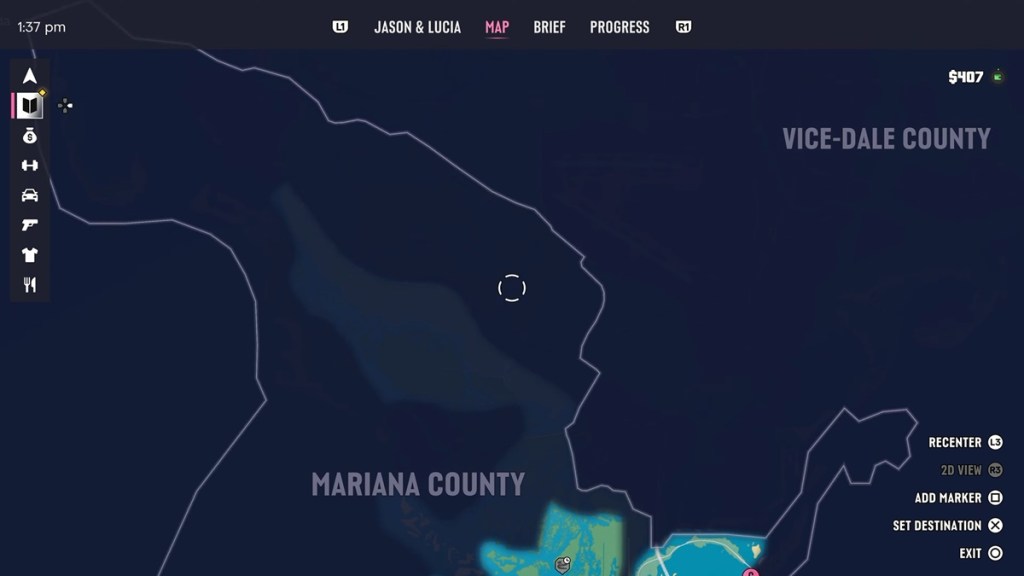
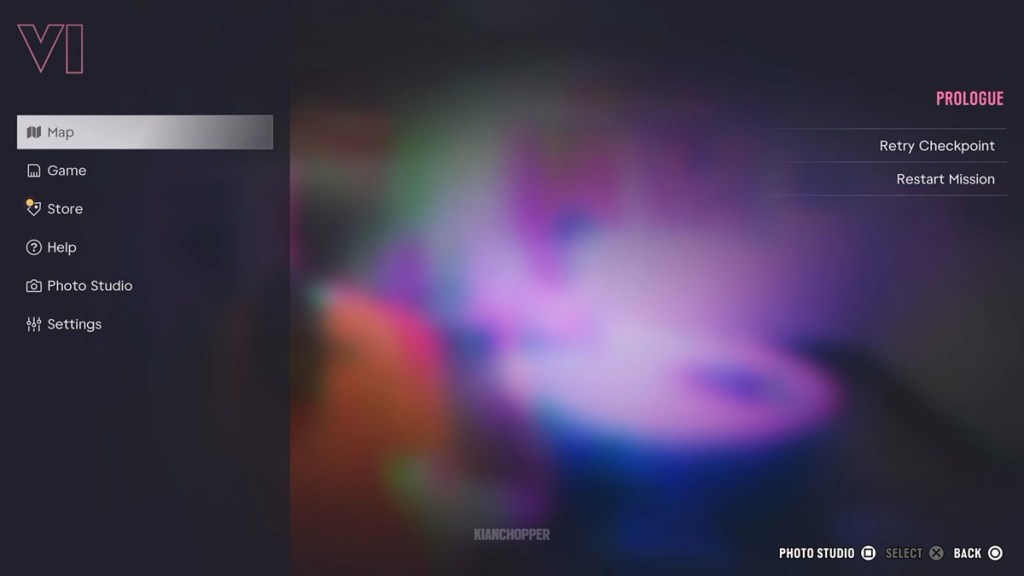
Open the Main Menu from here and you’ll see additional options:
- Map: Same detailed map view.
- Game: Manual save when permitted—use this before risky moves if you want a fallback.
- Store: The GTA Store for cosmetics and extras—expect items priced in USD (for example, a cosmetic might be listed at $5 (€5)).
- Help: Game tips and explanations.
- Photo Studio: Official photo mode, ideal for capturing Leonida.
- Settings: Adjust audio, controls, copyrighted music toggles, and gore settings.
- Retry Checkpoint and Restart Mission: Quick ways to try a segment again without losing progress.
I recommend using the Game save when you want a known return point; Rockstar’s open worlds can surprise you.
Will I be able to pause GTA 6 during cutscenes?
Yes. You can pause during cutscenes and step away; the scene will hold until you press resume. That’s handy when you need a breather mid-conversation or want to screenshot a moment with the Photo Studio.
Does time advance in GTA 6 when I pause the game?
No. Pausing freezes in-game time and activity. NPCs, weather, and timers stop until you return, so you won’t miss an event because you took five minutes to sort real-life stuff.
You hit pause in a firefight and the world stops—but consequences await when you come back.
The pause button acts as an anchor: it holds the game steady while you tend to life. That said, pressing pause won’t change something already set in motion.
If Jason and Lucia are mid-shootout, the scene is suspended but not rewritten. Unpause and events continue—bullets, police AI, and mission timers pick up exactly where they paused, so prepare for immediate heat.
Practical tips I use:
- Pause to check objectives or plan a route, but avoid pausing while one of the protagonists is the focus of action.
- Use the manual Game save before risky missions or when you’re about to test combat tactics.
- Remember platform quirks: the DualSense and Xbox controllers both mark the pause button with three lines, but feel and placement differ—get comfortable with each if you switch between PS5 and Xbox Series X|S.
Want a clean session? Pause, save, and step away with confidence—or risk walking back into chaos. Which will you pick next?