
I dropped into Leonida at night, headlights cutting through rain and a chase breathing down my neck. I muted the chatter, glanced at the screen, and realized the map had disappeared—then reappeared exactly when I needed it. You’ll feel that same tiny jolt of control the first time the game decides when to show you the world.
GTA 6 Navigation Minimap Options
You’ll notice the city feels both enormous and intimately designed the moment you walk its streets. I want to walk you through what Rockstar built into the Navigation Experience so you stop guessing and play with intention.
What does Dynamic minimap mean in GTA 6?
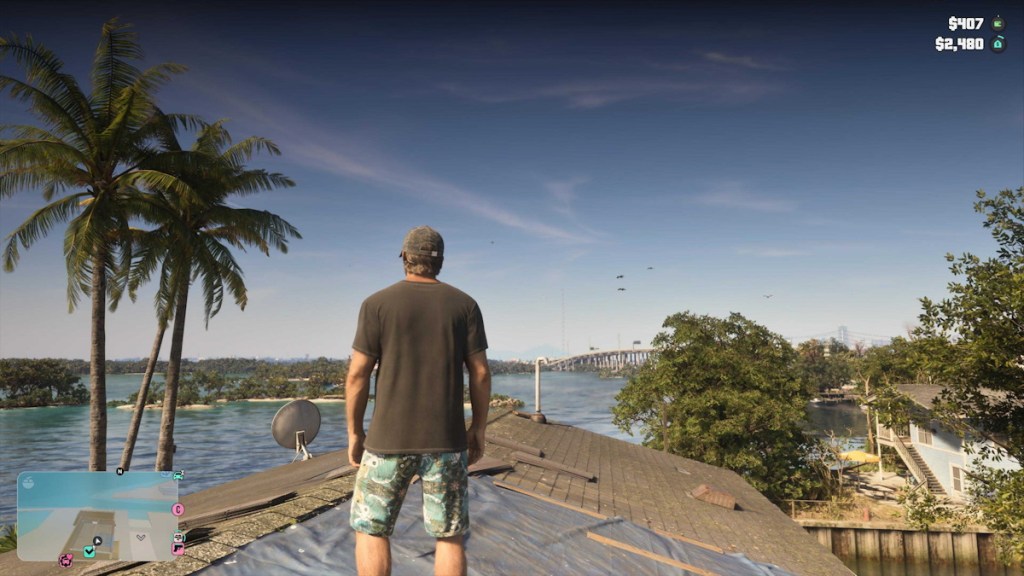
The Dynamic minimap is the silent co-pilot of GTA 6. It appears when the game thinks it will help—driving, missions, active objectives—and fades away when you’re in calmer moments, like inside your safehouse or during certain cutscenes.
That behavior keeps the screen cinematic without starving you of direction. If you want fewer HUD distractions but still hate getting lost, this is the middle ground I recommend testing first.
Should I set minimap always on in GTA 6?
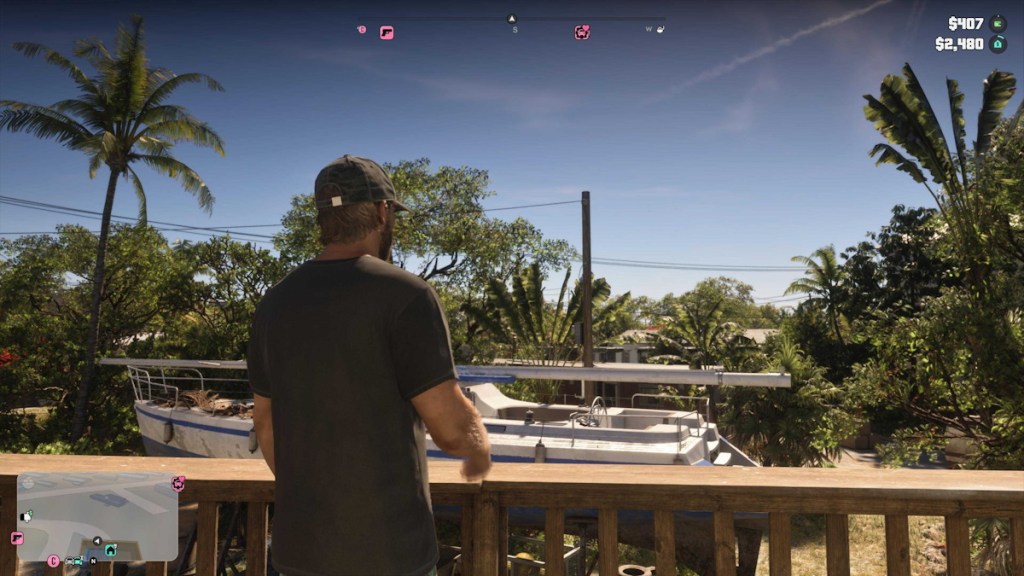
Always On keeps the minimap pinned to the bottom-left of your HUD throughout gameplay (cutscenes excepted). If you’re the type who plans routes, times escapes, or uses the UI to micro-manage missions, this setting hands you continuous data.
Be warned: the screen can feel busy at first. If you’re new to the series, you might prefer to ease in with Dynamic and then switch to Always On when you want full situational awareness—especially during high-traffic heists or police chases where every second counts.
What does the Minimap & Compass (Dynamic) option do?
The Dynamic compass adds a top-of-screen readout that lights up with map markers, POIs, and police heat. The compass becomes a lighthouse when chaos swells, signaling nearby shops, objectives, and red-blue police indicators without cluttering your view.
On PS5 and Xbox, the compass highlights objectives and points of interest and even flashes with color to tell you how hot the chase is. Use this setting if you want intermittent guidance without a constant HUD anchor.
How to Change Navigation Minimap Experience in GTA 6?
When you open the pause menu, you’ll see how granular Rockstar made the UI controls—small toggles with big consequences. I’ll walk you through the quick steps so you can switch settings in under a minute.
- Press Options on PS5 or Menu on Xbox to open the pause menu.
- Go to Settings from the pause menu.
- Cycle to UI settings using R1 on PS5 or RB on Xbox.
- Scroll down until you reach the Navigation section.
- Adjust the Minimap and Compass independently.
- Each has three choices: Off, Dynamic, and On—mix and match to suit your playstyle.
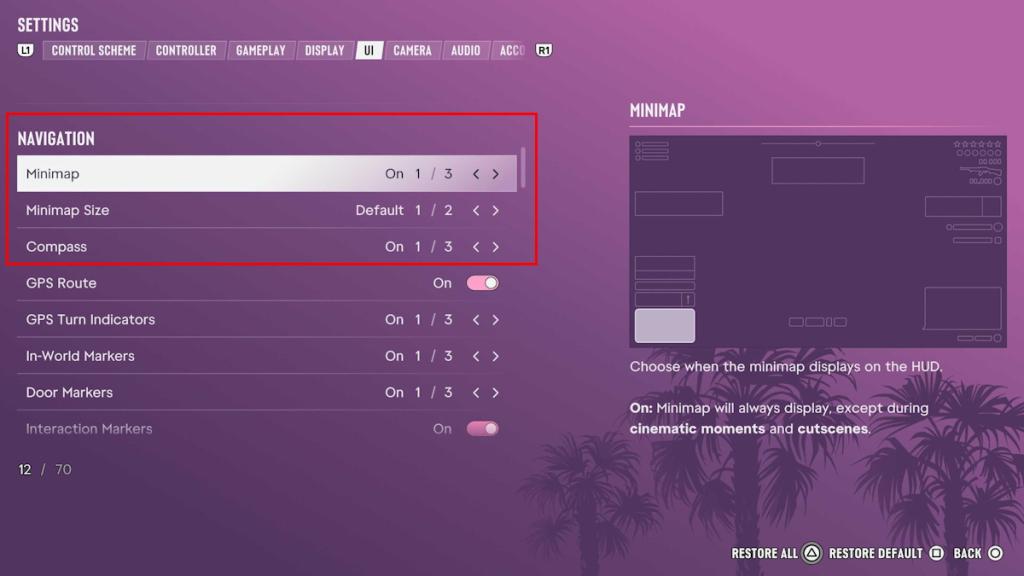
Rockstar and outlets like IGN and Moyens I/O have highlighted the accessibility options, so if Screen Narrator turned itself on—or your friend needs help—check the same UI panel. The game is flexible: you can keep the minimap off while leaving the compass dynamic, or vice versa.
I typically run Minimap Dynamic with the Compass Dynamic while I learn routes, then flip Minimap On for replay runs or when I’m farming side content. Your mileage will vary depending on whether you prefer silence or constant status.
Which setting will you try first on PS5 or Xbox—Dynamic reserve, full-time map, or a mixed strategy that fits your style?