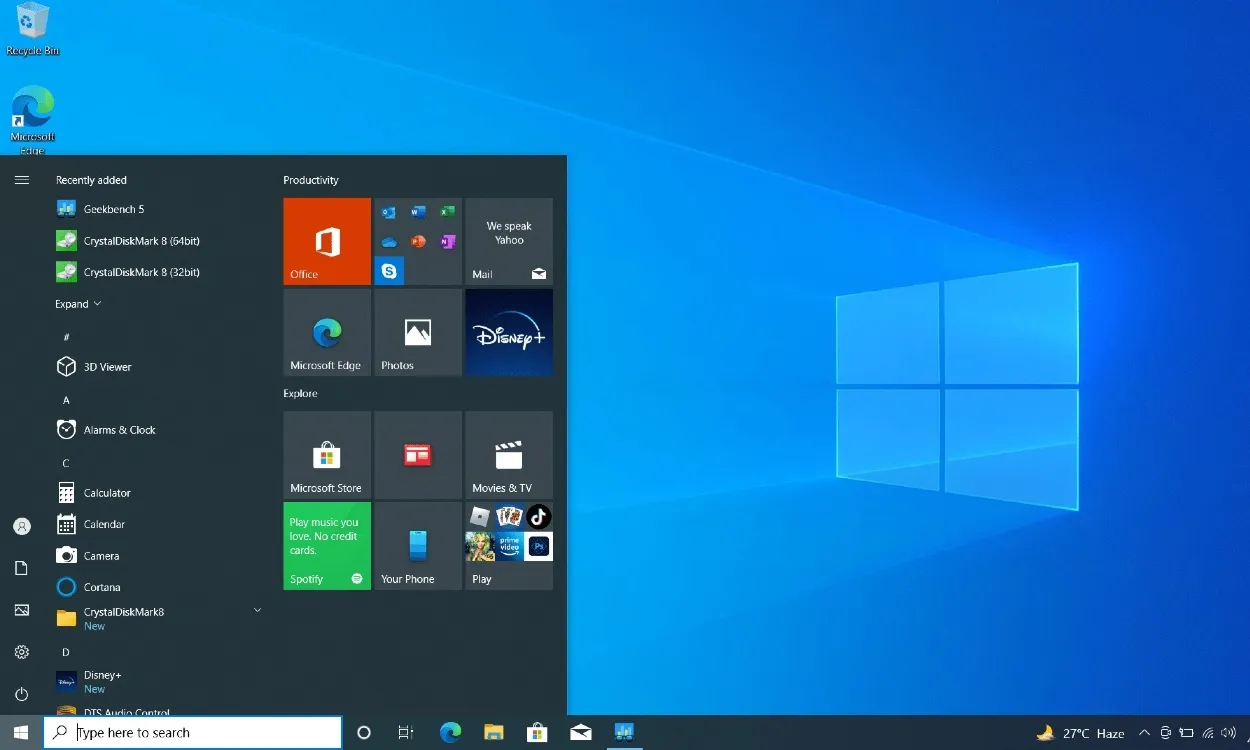
After the beloved Windows XP and 7, Windows 10 has cemented its place as one of the top operating systems in user preferences. However, on October 14, 2025, Microsoft officially ended support for Windows 10, leaving many users wondering, what does this mean for the millions of Windows 10 PCs still in use? Will apps continue to work? This article explores all your options now that Windows 10 has reached its end-of-life (EOL).
Can I Still Run Windows 10 After EOL?
As of October 14, 2025, Windows 10 has officially reached end of support. This means no more bug fixes, security patches, or feature updates. So, what happens to your Windows 10 devices after this date?
Your Windows 10 PCs will still operate normally, but there are important security considerations. Without security updates to address new vulnerabilities, using Windows 10 may become increasingly risky. Additionally, as time goes on, some apps and services may begin to encounter compatibility issues since Microsoft will no longer provide official support.

If you’re a power user, there’s still a way to use Windows 10 securely. Keeping your browser and antivirus updated is crucial. Microsoft has committed to providing antivirus definition updates through Windows Security (Microsoft Defender Antivirus) until 2028, meaning your Windows 10 PC will still receive protection from new threats.
Additionally, Microsoft 365 (Office) apps will continue to receive security updates until 2028, although new features will no longer be rolled out. Notably, Google has assured that Chrome will keep receiving security updates, with no indications of ending support for Windows 10 anytime soon. For context, Google maintained Chrome support for Windows 7 until 2023, three years after its end-of-support.
Given these points, for most Windows 10 users, upgrading to Windows 11 is advisable to ensure you remain secure and up to date. However, if you prefer sticking with Windows 10 while prioritizing security, consider enrolling in the Extended Security Updates (ESU) program explained below.
Enroll Into the Free ESU Program to Use Windows 10 Safely
Even after end-of-support, Microsoft is still extending support to older operating systems via the Extended Security Updates (ESU) program. While this program is typically paid, Microsoft has opened it up for consumers at no cost for Windows 10, which is great news.
To gain access to one year of free ESU updates, simply link your Microsoft account to your Windows 10 device and sync your PC with OneDrive. You can follow specific tutorials to secure your updates without any charges.
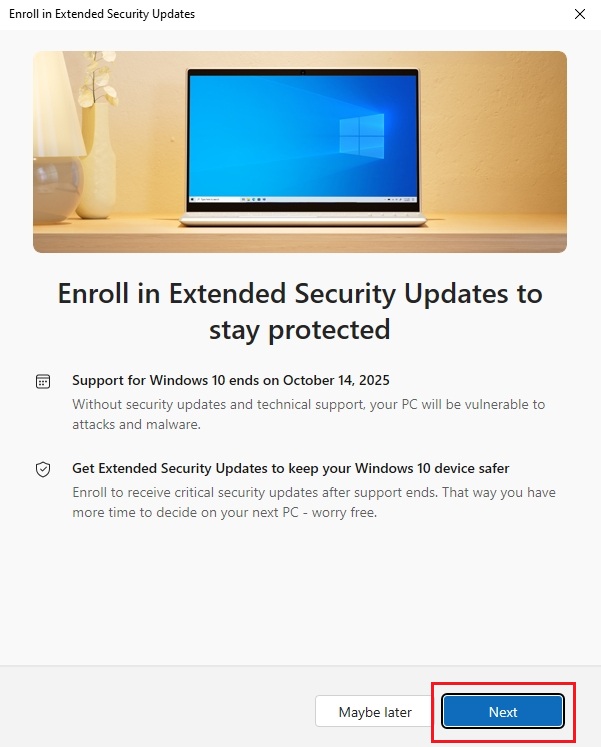
Alternatively, you can redeem 1,000 Microsoft Reward points for free ESU updates. If linking your Microsoft account doesn’t appeal to you, a fee of $30 (around €28) will grant you one year of security updates for up to 10 devices.
| Products | ESU Start Date | ESU End Date Year 1 | ESU End Date Year 2 | ESU End Date Year 3 | Type of Security Update |
|---|---|---|---|---|---|
| Windows 10 | November 11, 2025 | October 13, 2026 | October 12, 2027 | October 10, 2028 | Critical, Important |
For general consumers, the cost for one year of security updates is $30 (approximately €28) for 10 PCs using Windows 10. Educational institutions will pay $1 (about €0.93) per device the first year, $2 (around €1.85) for the second year, and $4 (approximately €3.70) for the third. Businesses, however, will incur higher costs: $61 (approximately €56.50) the first year, $122 (around €113) the second year, and $244 (roughly €226) the third.
Take note that currently, Microsoft offers a one-year ESU plan for general consumers. Educational and business users can subscribe for an extended three-year plan, leaving individual consumers with only until October 2026 to utilize Windows 10. Microsoft has not confirmed plans for extending availability beyond this period for regular users, which may eventually prompt mandatory upgrades to Windows 11.
Bypass Hardware Requirements and Upgrade to Windows 11 from Windows 10
Some users prefer to stay on Windows 10, either out of choice or because their PCs don’t meet Windows 11’s hardware requirements. If this is your situation, there’s good news: you can bypass these requirements without hassle. Our detailed guide shows you how to upgrade to Windows 11 from Windows 10, irrespective of your system specs.

Whether your PC is missing the TPM chip or Secure Boot support, tools like Rufus can help you install Windows 11 with ease. You can even bypass the 4GB+ memory requirement if needed.
If using third-party tools isn’t your preference, there’s a Registry workaround detailed in the linked guide. With Windows 10 reaching end-of-life, upgrading to Windows 11 is a smart move for unsupported systems, saving you the expense of purchasing a new Windows 11 PC.
Switch to an Alternative OS: ChromeOS Flex or Linux Mint
If upgrading to Windows 11 is off the table, consider alternatives like Chrome OS Flex or Linux Mint. Personally, while Windows 11 is my main operating system, I have extensive experience with ChromeOS and continue to use it regularly. ChromeOS has transformed from primarily web-based into a robust desktop OS that supports Linux apps, among other features.

Interestingly, I’ve managed to run Windows applications on my Chromebook via its Linux environment using Wine, and the experience has been excellent. ChromeOS Flex lacks Android app support, but it offers extensive functionality with Linux apps and even allows for Steam installations, enabling PC gaming through the Proton layer.
If ChromeOS Flex doesn’t work for you, Linux Mint is another solid choice. With a familiar Windows-like interface, it’s lightweight, secure, and importantly, free. It operates seamlessly right out of the box, and you can install software easily with a user-friendly Software Manager, similar to the Microsoft Store.
In conclusion, while the end of Windows 10 support may seem daunting, you have plenty of options to keep your computing safe and effective. Whether upgrading to Windows 11, utilizing Extended Security Updates, or exploring alternative operating systems, there are paths forward. For more insights into tech solutions, continue exploring content from Moyens I/O.