
The sun beat down on Times Square, even in the digital world. I watched Spider-Man pose, but something was missing; the perfect angle, the right light. It felt like the game knew what I wanted before I did. Marvel Rivals finally delivered a Photo Mode in Season 6, a feature many fans have been requesting for months.
Dedicated photo modes are common in single-player games, yet live-service titles have been slow to adopt them. In some ways, Rivals stands out, adding a Photo Mode ahead of popular games like Overwatch 2 and Apex Legends. Here’s what you need to know, including how to access it so you can capture your own heroic moments.
Strike a Pose: The Marvel Rivals Photo Mode
I remember endlessly resetting for the perfectly timed photo in Spider-Man PS4, but a social space changes everything. The Marvel Rivals Photo Mode is only available on the Times Square map. This social hub is a non-combat zone where players can hang out, making it a fitting place for taking snapshots. However, the Photo Mode is not available in other modes such as Quick Play, Competitive, or Practice vs AI.
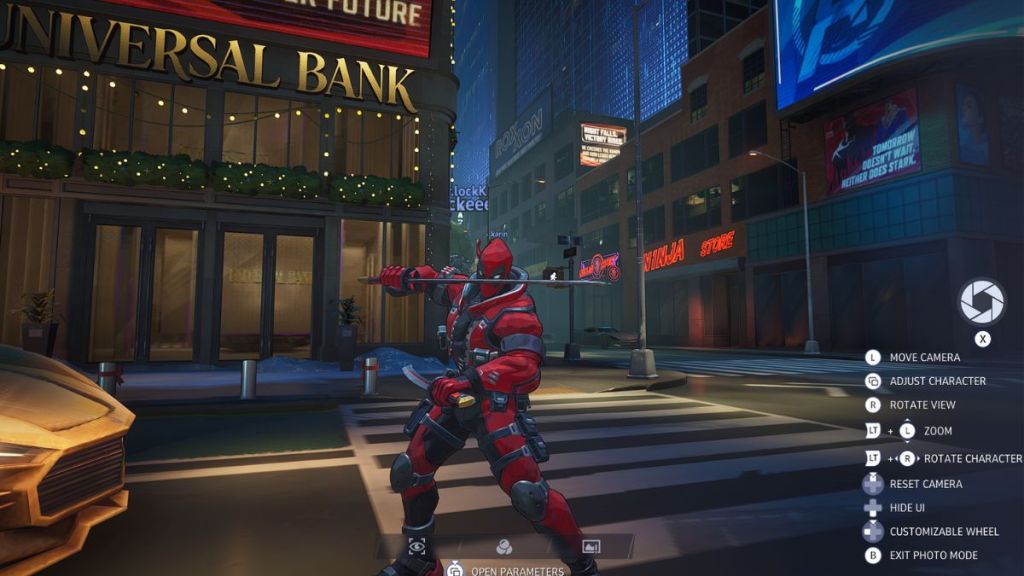
To access the Photo Mode in Times Square, use these commands:
- PlayStation: Long-Press (☰) Options Button, then Press (LS) Left Stick
- Xbox: Long-Press (☰) Start Button, then Press (LS) Left Stick
- PC: Long-Press O Key
Once in the mode, you can adjust camera zoom, rotate the view and character, and apply filters. You can also hide player names. Remember that while your character is stationary, other players can move around, potentially becoming surprise guests in your shots.
Can you use Photo Mode during Marvel Rivals matches?
Not yet. Photo Mode is restricted to the Times Square social hub. I see this as a missed opportunity. Imagine capturing a mid-air battle between Iron Man and Magneto, or a perfectly timed ultimate ability. Hopefully, Netease will expand Photo Mode to other game modes in the future.
After lining up your shot, press the key displayed under the Shutter Icon. The next screen shows your capture, which you’ll need to screenshot manually (using Windows Snipping Tool, Dualsense Capture Button, or Xbox Capture Button) to save it.
What photo mode settings are available in Marvel Rivals?
The available features are fairly streamlined. The toolset is like a basic set of watercolors compared to a fully stocked art studio. But even with limited options, the ability to pause the chaos and frame a moment is a welcome addition. You can adjust the camera angle, zoom, apply basic filters, and hide player names to create a cleaner image.
How does the Marvel Rivals Photo Mode compare to other games?
Many games, like Insomniac’s Spider-Man series, offer extensive Photo Mode features, including lighting adjustments, poses, and stickers. Marvel Rivals‘ Photo Mode is less complex, but its introduction in an online hero shooter is still a step forward. The fact that games like Overwatch 2, which has a thriving skin economy, have yet to implement a similar feature is surprising.
That’s what you need to know about the Marvel Rivals Photo Mode. Is this just a starting point for more advanced features to come?