
The screen flashed an error—a wall slammed in front of your Highguard launch. Frustration mounts; you just want to jump into the free-to-play PvP raid shooter. But this Secure Boot thing… it’s standing in your way. Let’s get you past the gatekeepers.
Highguard, the latest title making waves, employs Easy Anti-Cheat, a system-level security measure. This watchdog needs Secure Boot as backup, jointly scanning for anything that could give players an unfair advantage. Here’s how to make sure your system is ready, including enabling TPM 2.0 if needed.
First hurdle: Enabling Secure Boot to play Highguard
Think of Secure Boot as the bouncer at the club door—it checks IDs before letting anyone in. It lives deep within your system’s BIOS settings, often hidden from plain sight. Before you go spelunking, verify if Secure Boot is already active.
Follow these steps to check your Secure Boot status:
- Press the Windows Button + R Key to open the Run command.
- Now, type ‘msinfo32‘ in the search bar and hit enter.
- In the following menu, find the ‘Secure Boot State‘ item under ‘System Summary.’
- If it reads ‘On,’ you’re set.
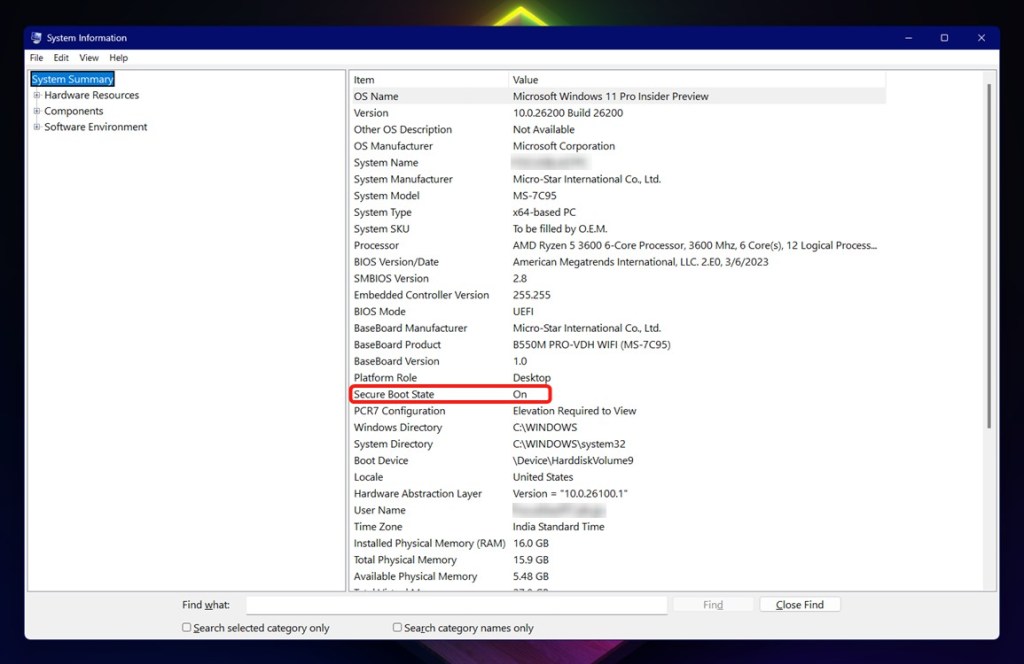
If it’s ‘Off,’ your system is currently barred from playing Highguard. Changing this involves adjustments within your system’s BIOS settings, which might include altering the BIOS Mode. If you’re comfortable tinkering, proceed; if not, consider asking a tech-savvy friend for assistance. It’s a bit like changing the oil in your car – doable, but potentially messy if you aren’t careful.
What if Secure Boot isn’t supported?
If you discover Secure Boot isn’t supported, investigate your motherboard’s compatibility. Older systems may lack the necessary hardware. Check your motherboard manufacturer’s website (ASUS, MSI, Gigabyte, ASRock etc.) for compatibility information and possible BIOS updates that might add support. Upgrading your motherboard might become the necessary move if all other solutions fail.
Next challenge: Enabling TPM 2.0 to play Highguard
Many users ran into TPM 2.0 roadblocks when Windows 11 arrived; if it’s missing, it’s usually a Windows 10 issue. Changing your BIOS Mode to UEFI often goes hand-in-hand with enabling TPM 2.0. Let’s verify its status:
- Hit the Windows Button + R key for the Run command.
- Type ‘tpm.msc‘ and press Enter. This opens the TPM Management menu.
- Check the ‘Status’ section. ‘The TPM is ready for use’ is what you want to see.
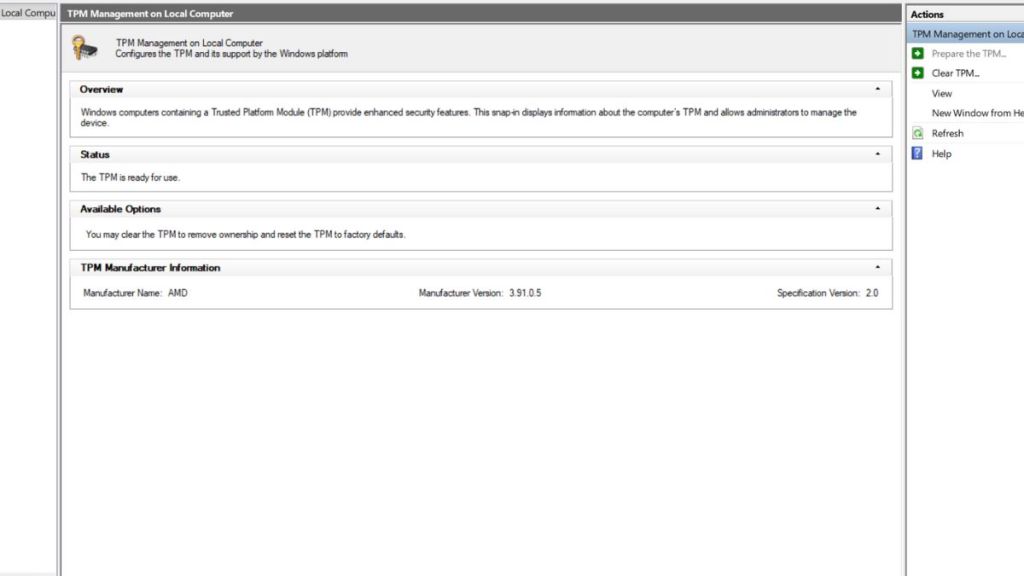
If you see “not ready for use,” the next step involves checking your Windows Boot Drive’s Partition Style:
- Right-click the Start button and click Disk Management.
- Right-click the (C:) Drive partition and select Properties.
- Go to the ‘Hardware‘ tab and click Properties again.
- Select the Volumes tab.
- Note whether the Partition Style is MBR or GPT.
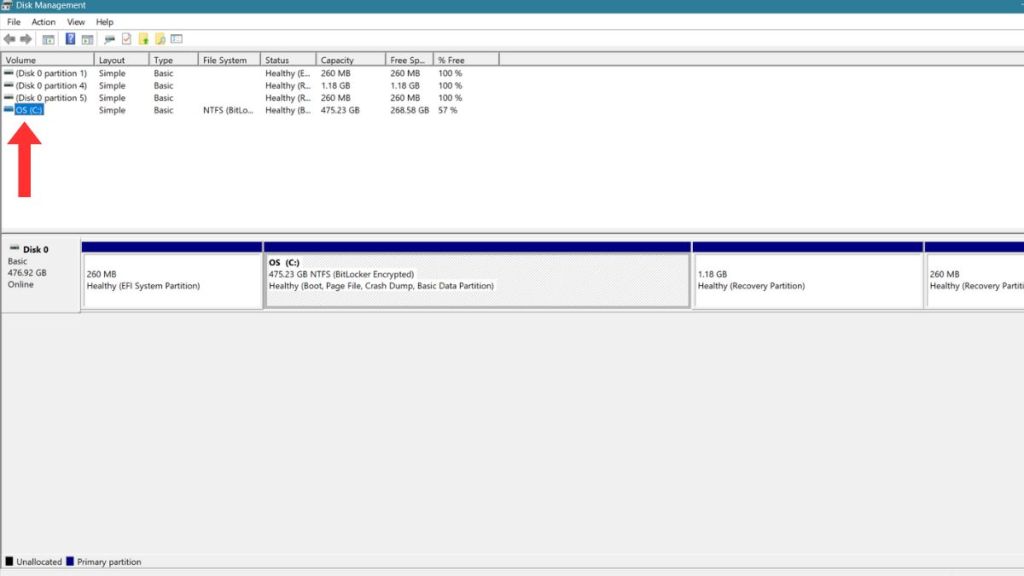
GPT is what you’re hoping for; if so, refer to the earlier Secure Boot instructions. If it’s MBR, conversion is needed. Back up your data before attempting this, as data loss can occur. Check Microsoft’s official documentation for the safest approach.
Keep in mind: TPM 2.0 activation steps differ based on your motherboard manufacturer. Consult their website for specific BIOS instructions. Once enabled, you can then enable Secure Boot in the BIOS.
Will enabling Secure Boot and TPM 2.0 slow down my PC?
Generally, no. These are security features with a minimal performance impact under normal conditions. Any performance hit is negligible compared to the security benefits gained. Some users even report increased system responsiveness after enabling these features, although this can vary.
Why the fuss? Understanding the need for Secure Boot and TPM 2.0
Secure Boot prevents unauthorized software, like cheats, from loading during startup. TPM 2.0 bolsters this with hardware-based security on Windows PCs, creating a layered defense.
Highguard needs these safeguards and might eventually require them. Most Windows 11 machines should have this by default; Windows 10 users might need to upgrade or tweak settings.
Can I play Highguard without Secure Boot?
No. Secure Boot is non-negotiable.
It’s tied to the game’s anti-cheat mechanisms, deemed necessary for online shooters. Battlefield 2042 and recent Call of Duty titles have similar requirements. Anti-cheat systems now see it as a base requirement.
With Secure Boot understood and (hopefully) enabled, the only thing standing between you and the game is that “play” button. Is the initial frustration now replaced with anticipation?