Just last week, I found myself in an intense Fortnite match, only to be abruptly taken down by a player clearly wielding unfair advantages. The frustration was palpable—here was a beautifully designed world, disrupted by the toxic presence of cheaters. Epic Games isn’t sitting idly by, though; they’re stepping up the security measures to preserve the integrity of the game.
To combat this growing concern, Fortnite is introducing mandatory security features for PC players, specifically the need to activate Secure Boot and TPM 2.0. These adjustments act as watchdogs for your system, ensuring that no sneaky programs can give rogue players a leg up. Let’s explore how you can enable these essential protections to secure your spot in competitive Fortnite.
How to Enable Secure Boot in Fortnite
Imagine preparing to leave your house but discovering the door is locked with a complex mechanism. That’s the same feeling you get when you try to enable Secure Boot—it can be a bit tricky. Before diving in, let’s check if your Secure Boot feature is already active.
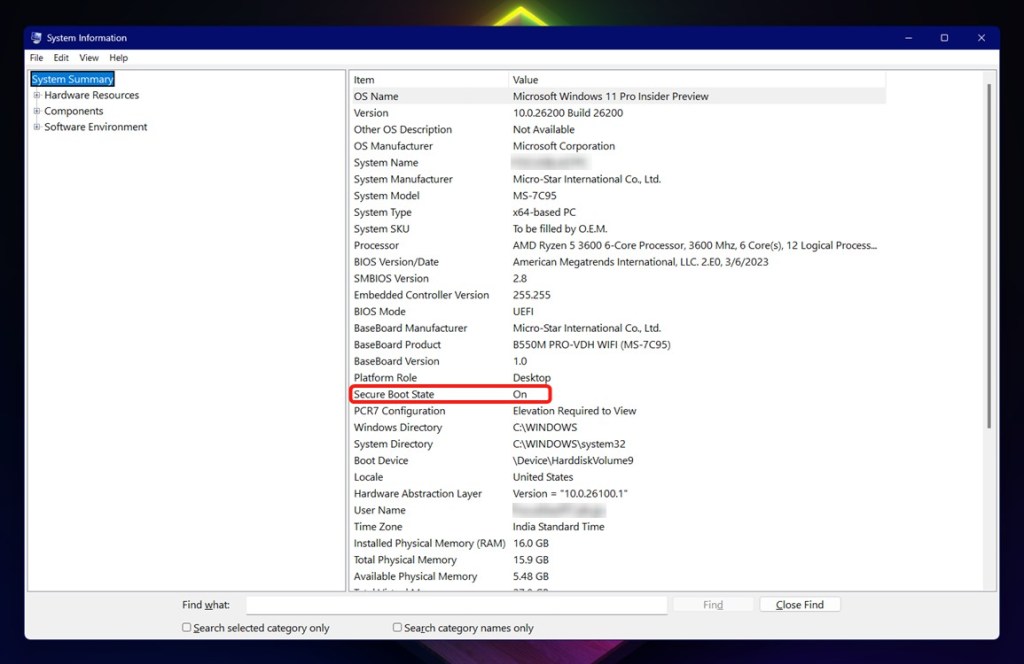
Follow these steps to verify your Secure Boot status:
- Press the Windows Button + R Key to open the Run command.
- Type ‘msinfo32‘ and press Enter.
- Look for ‘Secure Boot State’ under the ‘System Summary’ section.
- If it shows ‘On,’ you can proceed without worry.
If it reads ‘Off,’ you won’t be able to compete effectively in Fortnite. Activating Secure Boot requires navigating your system’s BIOS, akin to searching for a hidden treasure. If you’re unsure how to approach this, fear not. I’ve crafted a detailed guide just for you.
How to Enable TPM 2.0 in Fortnite
TPM 2.0 plays a crucial role similar to Secure Boot. It’s like having an extra lock on that door, keeping it doubly secure. If you’re on Windows 11, you might already be covered. But for Windows 10 users, we should check your TPM status too.
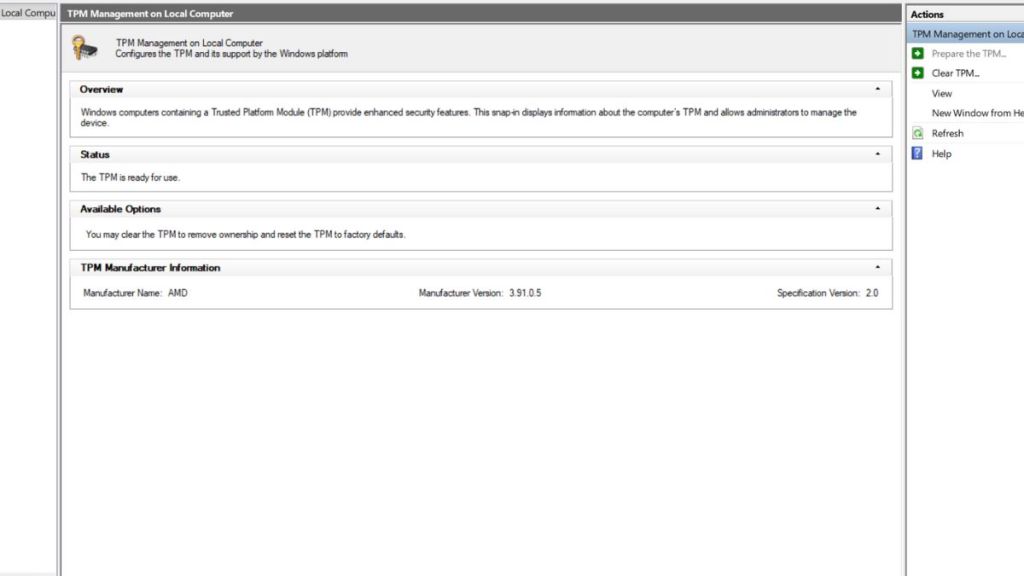
Use these steps to see if TPM 2.0 is active:
- Press the Windows Button + R Key to open the Run command.
- Type ‘tpm.msc‘ and hit Enter.
- In the TPM Management menu, check the Status section.
- If it states, ‘The TPM is ready to use,’ congratulations! You’re set.
But if it says ‘not ready for use,’ you’ll need to activate it, and this process can get intricate. Here’s how to prepare your TPM for Fortnite competition:
- Right-click the Start button and choose Disk Management.
- Right-click the (C:) Drive partition and select Properties.
- Go to the ‘Hardware’ tab and click Properties again.
- Select the Volumes tab.
- Check if the Partition Style is MBR or GPT.
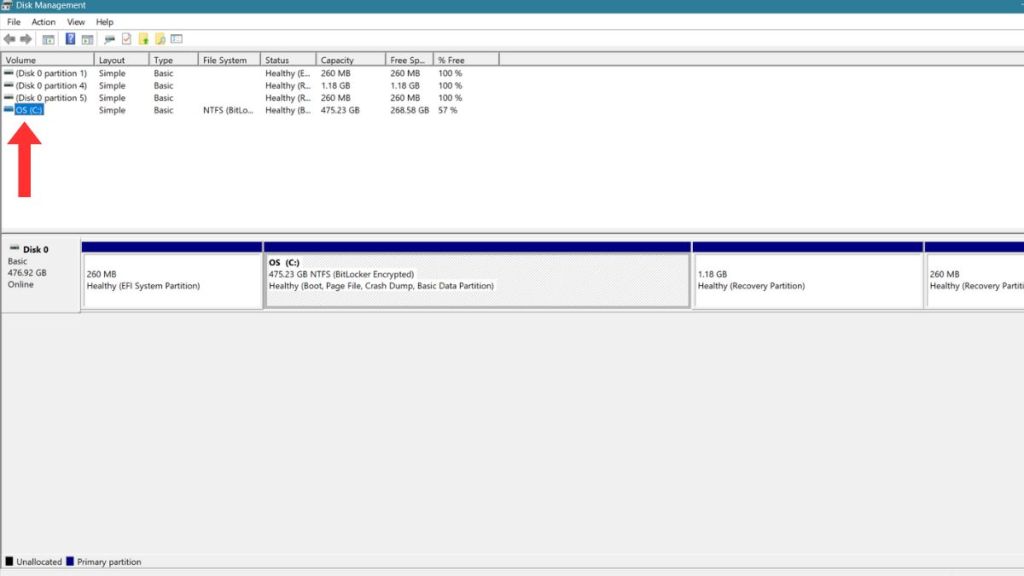
Your Partition Style should be set to GPT for TPM to function. If it’s MBR, converting it is akin to redirecting a river—complicated and requiring caution. Back up your data before starting this process. Depending on your motherboard, enabling TPM may vary; check your manufacturer’s website for tailored guidance.
Are you ready to take these steps and secure your competitive edge in Fortnite? Share your thoughts below!