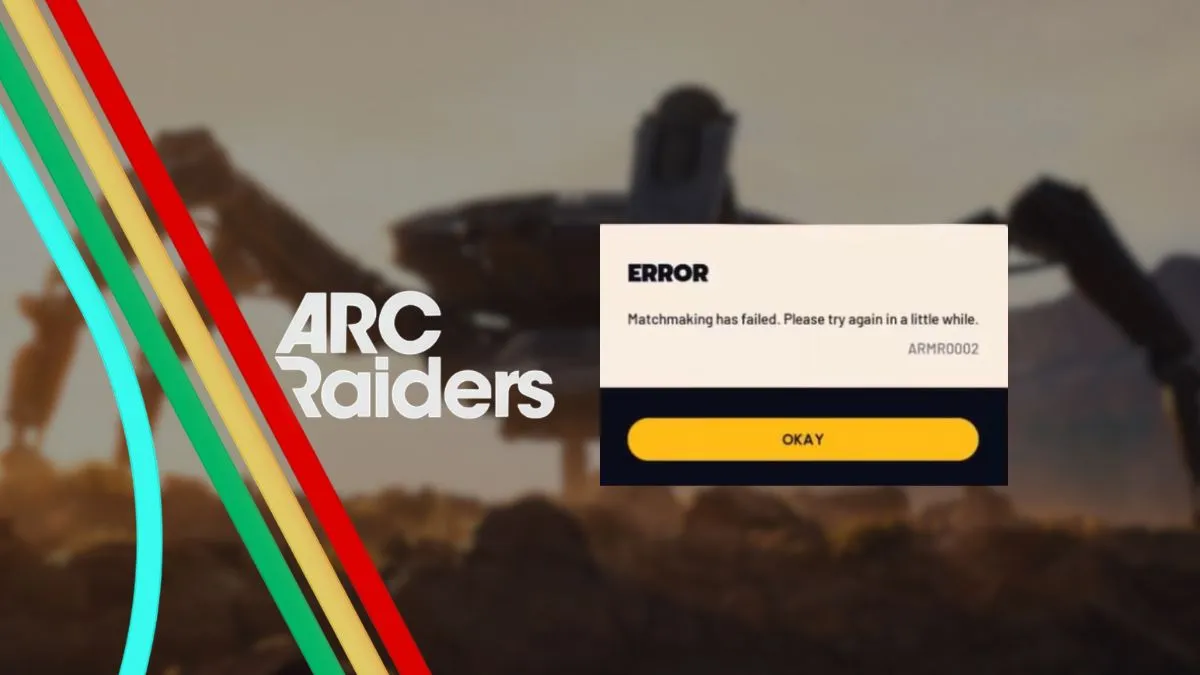
There you are, adrenaline coursing through your veins, ready to join your squad in Arc Raiders. Suddenly, the screen flashes an error: ARMR0002. That moment of anticipation evaporates into frustration as you grapple with the chaotic world of Raiders and ARC enemies, unable to jump into action. You’re not alone in this; many players have faced this vexing roadblock, and it lingers even after updates.
Taking Back Control: Fixing the Arc Raiders ARMR0002 Error
Imagine your internet connection as a gatekeeper. If it’s malfunctioning, it’s like having a rusty lock on a fancy gate—no match for the foes waiting on the other side. The ARMR0002 error often points to network issues, but don’t fret; I’ve gathered all the methods to help you break through this invisible barrier.
Reboot Your Network for Clarity
When your router’s DNS cache becomes congested, it’s like trying to hear a whisper in a roaring crowd. To refresh your connection, follow these quick steps:
- Unplug your router and modem.
- Pause for 60 seconds.
- Reconnect them.
- Wait for the network to stabilize.
- Restart your PC or console.
Restore Your Game Files to Health
Think of your game files as a library—if even one book is out of place, the whole system falters. Corrupted files can cause the ARMR0002 error to rear its ugly head. Here’s how to verify your game files:
Steam
- Open Steam.
- Right-click on Arc Raiders in your library.
- Select Properties under Installed Files.
- Click on Verify integrity of game files.
Epic Games
- Launch Epic Games Launcher.
- Head to your Library.
- Locate Arc Raiders and click on the three dots.
- Select Manage and then Verify.
Align Your Time for Synchronization
It may seem unrelated, but just as a clock must strike at the right moment, your system clock needs to match the game’s for seamless matchmaking. If your clock is even 30 seconds off, it can lead to failure. Syncing your system clock is simple:
- Right-click the Time/Date on the taskbar.
- Select Adjust date and time.
- Turn on Set time automatically.
- Click Sync now under Additional settings.
Speed Up Your DNS Settings
Often, your service provider’s DNS can feel like molasses, delaying your connection. Switching to a faster DNS might just clear your path. Here’s how:
- Open Control Panel.
- Go to Network and Internet, then Network and Sharing Center.
- Select Change adapter settings.
- Right-click your active connection and click Properties.
- Select Internet Protocol Version 4 (IPv4) and click Properties.
- Choose Use the following DNS server addresses and enter 8.8.8.8 (preferred) and 8.8.4.4 (alternate).
- Check Validate settings upon exit and click OK.
- Restart your computer.
If these steps don’t clear the ARMR0002 error, it might indicate a larger issue on the servers’ end. You can check if Arc Raiders is experiencing downtime and patiently wait for the storm to pass.
Did you manage to remedy the ARMR0002 error? Are there methods you discovered that worked wonders? Share your experiences in the comments.