
I landed on a quiet rooftop, heart ticking faster than the Battle Bus engine. A squad two buildings over started a full-blown dance party — and I hadn’t done the Jam Track quest yet. I hit the emote wheel, and everything clicked.
I’ve spent seasons chasing weekly quests so you don’t waste a drop of match time. Below I’ll walk you through the Jam Track Player step-by-step, the controls that actually matter, and quick tips that get the Use the Jam Track Player checkmark in under 30 seconds. Think of this as the short, sharp field guide from someone who’s tested it in sweaty lobbies and calm customs.
When the lobby is quiet and the lockers are full: How to add Jam Tracks to your wheel
Tiny prep goes a long way. Before you drop, open your Locker and look for the Music/Jam Track icon (this is different from Lobby Music).
- Add up to eight Jam Tracks to your emote wheel. If you don’t own any, check the Featured section for the daily free rotation.
- Some tracks are purchasable — for example, creator drops often land around 300 V-Bucks (~$3.00 / €3). Treat those as optional flair, not a requirement.
- Pick instrumentals if you prefer music without vocals; they’re handy for matches and satisfy the weekly quest just the same.
When the Battle Bus thins and rooftops go quiet: How to use the Jam Track Player in a match
Here’s the clean sequence I use every single time — it takes less than a minute from bus to checkmark.
- Load into a match and wait for the Battle Bus. Land somewhere calm — isolated POIs cut the chance of being interrupted.
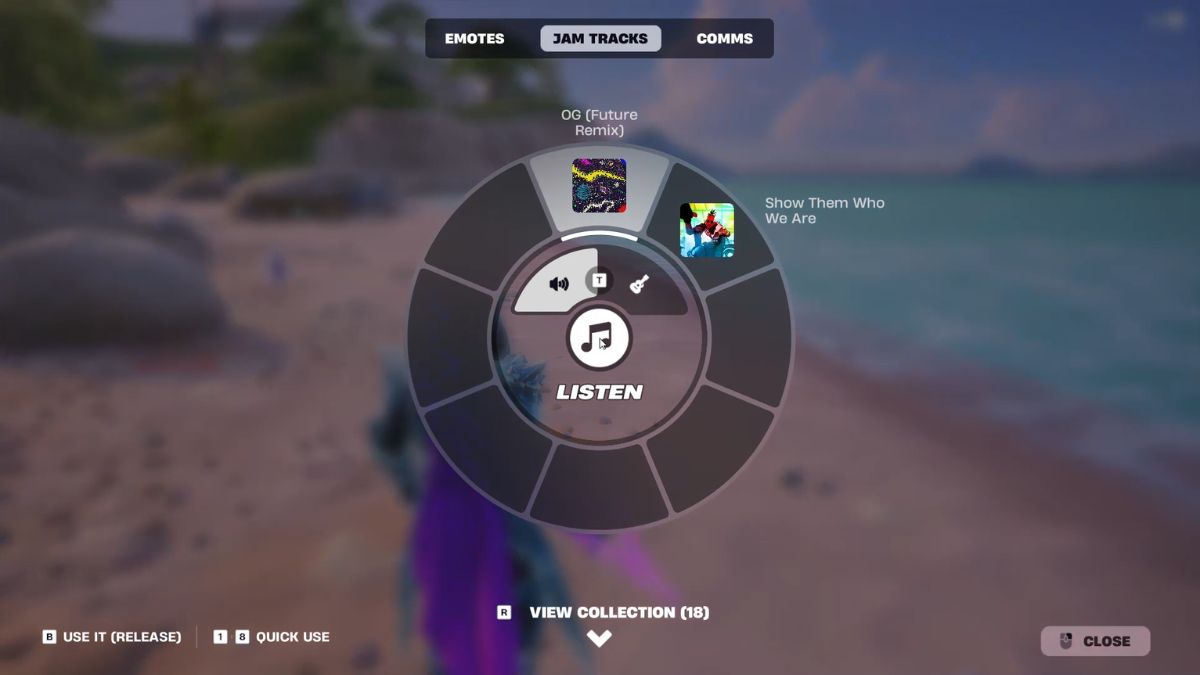
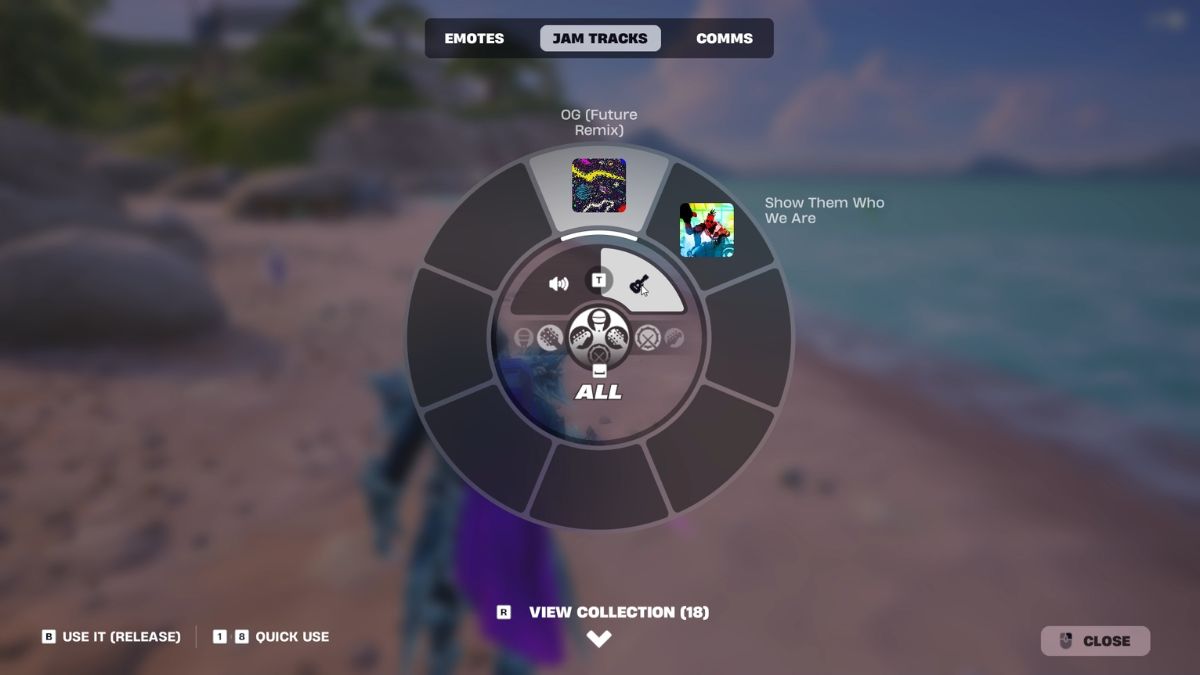
- Once on the Island, open the emote wheel: hold the D-Pad (controller) or press B (keyboard).
- Switch to the Jam Tracks category using RB/R1 or the mouse/scroll wheel.
- Highlight your chosen song and set it to Instrumental if needed.
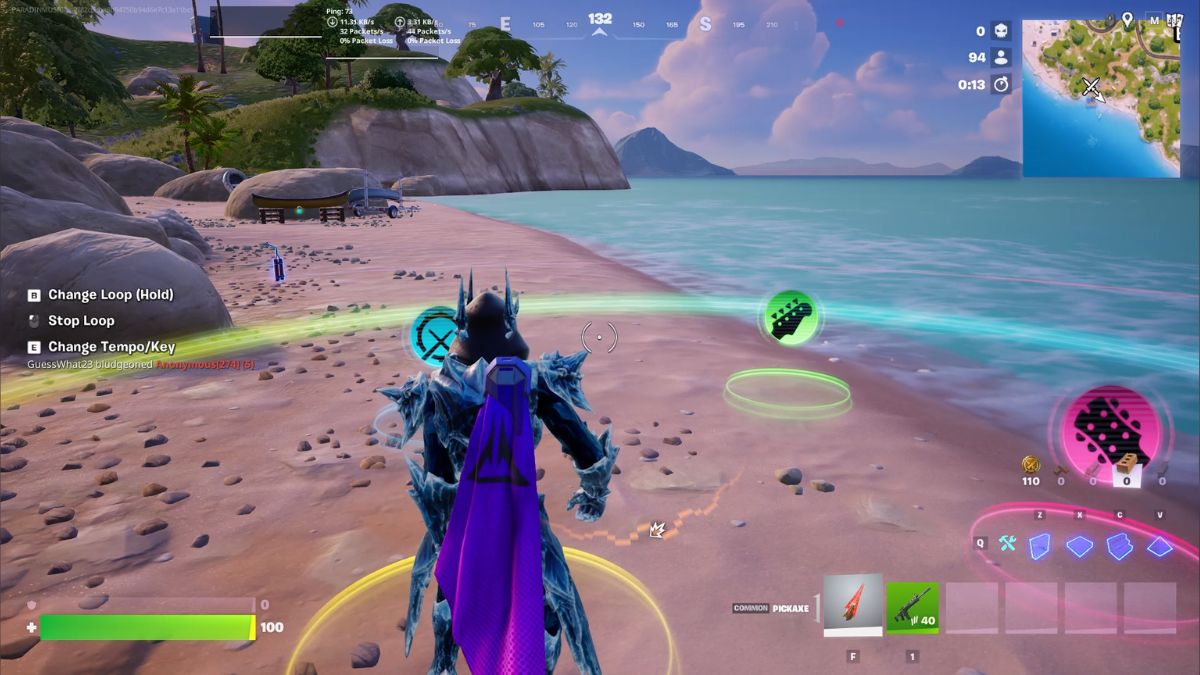
- Release the button to start performing the Jam Track. For the weekly quest you only need to perform it for about one second — the completion pops up on screen.
How do I use the Jam Track Player in Fortnite?
Short answer: add a Jam Track in Locker, load into a match, open the emote wheel, select Jam Tracks, and perform. I recommend doing this in a low-traffic drop so a downed enemy or a surprise rocket doesn’t steal your moment.
When the crowd shows up five seconds after you start: Quick tips and things that trip players up
Little mistakes waste time. Here are the quick fixes I teach every new teammate.
- Don’t confuse Lobby Music with Jam Tracks — the icons are different and the lobby selector won’t trigger the in-match quest.
- You must actually perform the Jam Track in a live match; replaying in Creator or Locker won’t count.
- If the quest doesn’t register, try toggling Instrumental mode or switch songs once — I’ve seen the quest register after a quick swap.
- If you’re streaming on Twitch or clipping for YouTube creators, Jam Tracks are a neat branding tool — they’re like flipping a jukebox in an arcade, instantly changing the vibe.
Where can I find Jam Tracks?
Locker → Music/Jam Track icon → Featured or Owned. The Featured page rotates daily with free options, and Epic Games sometimes bundles Jam Tracks with creator content or Battle Pass rewards. If you follow creators on Discord or YouTube, you’ll spot new drops and community favorites fast.
How long do I need to perform a Jam Track for the quest?
Just about one second of performance. The quest flag appears on-screen immediately. If it doesn’t, finish the Jam Track and check the side notification — it’s usually instant.
When your squad votes on what to play: Final performance and etiquette
If you care about winning, time your performance. Use Jam Tracks after you’ve looted and dealt with immediate threats. If you want to set a mood on stream or with friends, go all-in — a well-timed track can feel like a secret handshake at a concert.
There you have it: the fastest route from lobby to completion for the Use the Jam Track Player quest — and a couple of tricks that save you respawns. Which Jam Track will become the anthem of Chapter 7, and are you voting with your feet?