
I remember tapping Send and feeling my stomach drop—two perfect IVs gone because I hadn’t checked the moves. You can’t pull most Pokemon back from HOME to GO, and that truth bites when you lose a raid carry or event catch. I’m going to walk you through the exact moves so you don’t make that same mistake.
I write this as someone who’s moved hundreds of Pokemon between games; you’ll get straight steps, the traps to avoid, and the small rewards that make transfers worth your time.
How to Transfer Pokemon from Pokemon GO to HOME
I’ve seen players dump legendaries because they assumed transfers were reversible. Treat this like a one-way ticket.
You can send Pokemon caught in raids, events, or the wild from Pokemon GO to Pokemon HOME. Before you hit Transport, check IVs, movesets, and whether that mon will be useful in other games—because most transfers can’t be undone.
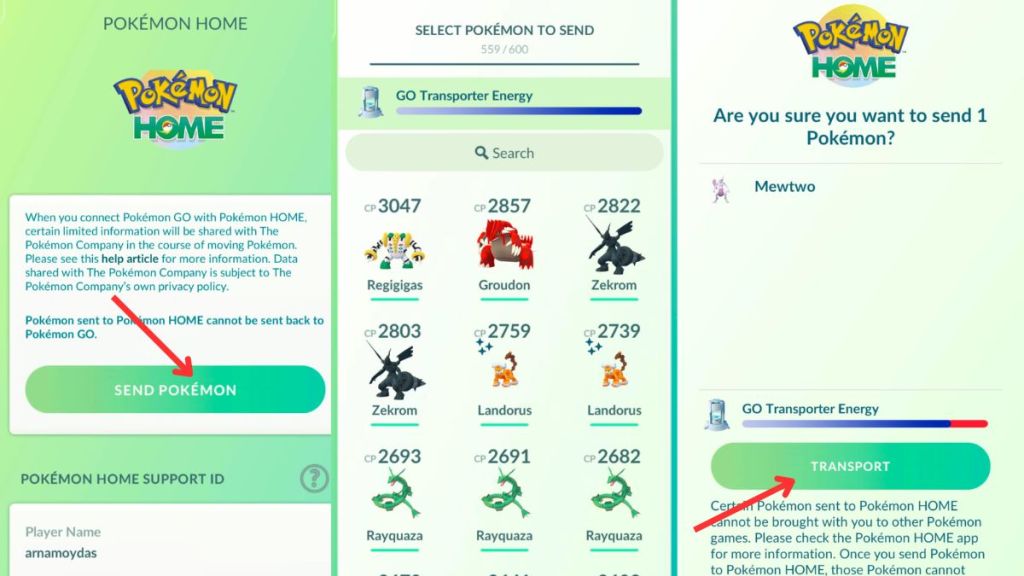
- Open Pokemon GO and tap the Poké Ball menu.
- Go to Settings > Connected Devices and Services.
- Select Pokemon HOME and sign in with the Nintendo Account tied to your HOME app.
- Tap Send Pokemon and confirm the target account.
- Ensure your GO Transporter Energy bar is filled (blue).
- Choose Continue, pick the Pokemon to send, then tap Transport.
After a transfer, Pokemon GO gives you a Mystery Box that acts like an incense for Meltan spawns for one hour. You can trigger it every three days by sending Pokemon—this is the primary way to obtain Meltan outside rare events.
Logging into Pokemon HOME after a transfer also hands out a few freebies on mobile/Switch:
- Pikachu: First login on mobile or Switch.
- Any one starter with hidden ability (Charmander, Bulbasaur, or Squirtle): First mobile login.
- Eevee: Through Wonder Box on mobile.
How to link Pokemon GO to Pokemon HOME?
You link them by signing into Pokemon HOME with the same Nintendo Account you use for Pokemon GO’s connection screen. I recommend confirming the Nintendo Account email on both apps before attempting a transfer to avoid surprises.
Can you bring Pokemon from HOME to GO?
No. Pokemon moved into HOME generally can’t go back to Pokemon GO. Treat transfers from GO to HOME as permanent for GO gameplay.
How to Transfer Pokemon from HOME to Champions
I tested the flow on both Switch and mobile and found it felt familiar if you’ve used HOME with other Switch titles.
To send Pokemon into Pokemon Champions you must use the same Nintendo Account across HOME, Champions, and your Switch or mobile device.
Pokemon HOME Nintendo Switch App
- Open Pokemon HOME on your Switch and pick the account you want.
- Link HOME to Pokemon Champions using that Nintendo Account.
- Choose Pokemon Champions in HOME and open the app’s boxes.
- Select the Pokemon you want to move, then confirm YES to transfer.
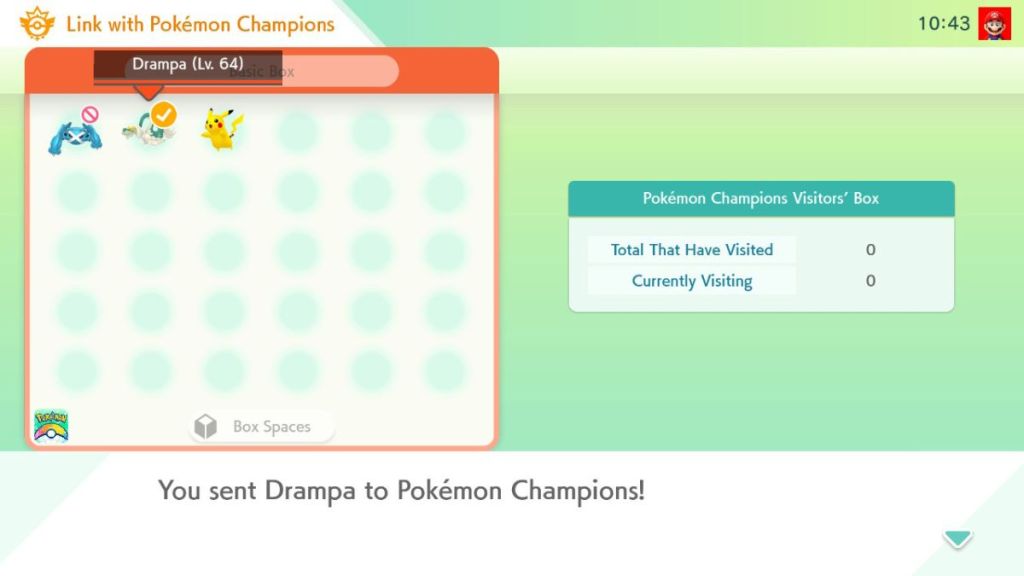
Pokemon HOME Mobile App
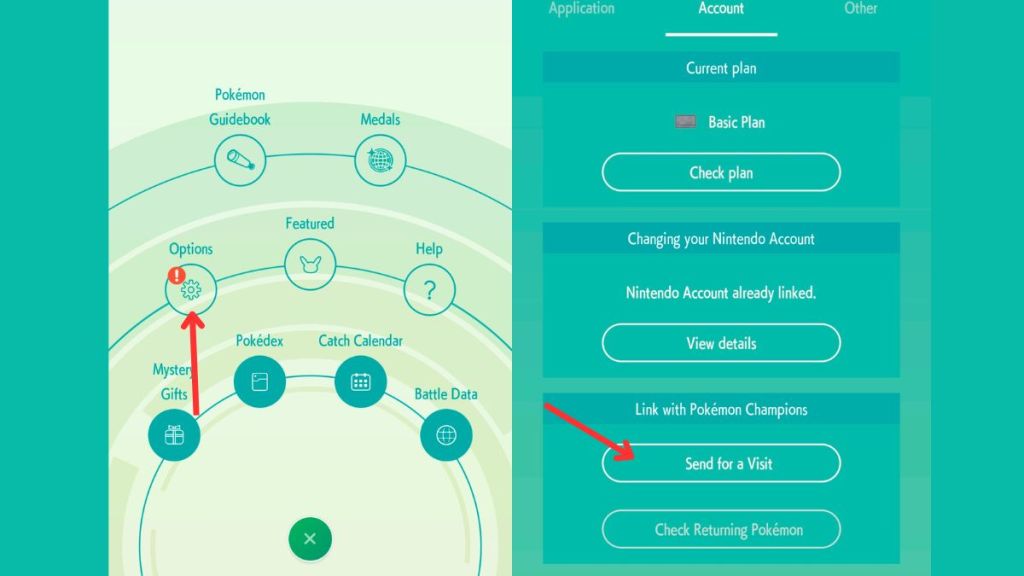
- Open Pokemon HOME on mobile and tap Menu > Options.
- Under Link with Pokemon Champions, tap Send for a Visit.
- Select the Pokemon you want to send and confirm.
If Champions goes live on Switch, the Switch flow will be the most seamless. Meanwhile, gather high-impact Pokemon in GO now—rare legendaries travel well to Champions.
Games Supported by Pokemon HOME
My friends have asked me whether their favorite titles will let them pull mons into HOME; the answer depends on platform.
| Game | Can Deposit Pokemon in HOME? | Can Withdraw Pokemon from HOME? |
|---|---|---|
| Pokemon GO | Yes | No |
| Pokemon Legends ZA | Yes (only Switch version of HOME) | Yes (only Switch version of HOME) |
| Pokemon Champions | Yes | Yes |
| Pokemon Scarlet & Violet | Yes (only Switch version of HOME) | Yes (only Switch version of HOME) |
| Pokemon Let’s Go Pikachu and Let’s Go Eevee | Yes (only Switch version of HOME) | No |
| Pokemon Bank | Yes (Pokemon HOME Premium needed) | No |
How to Transfer Pokemon From Other Games to HOME
I moved a whole box from Legends ZA in five minutes once I signed into the right Nintendo Account.
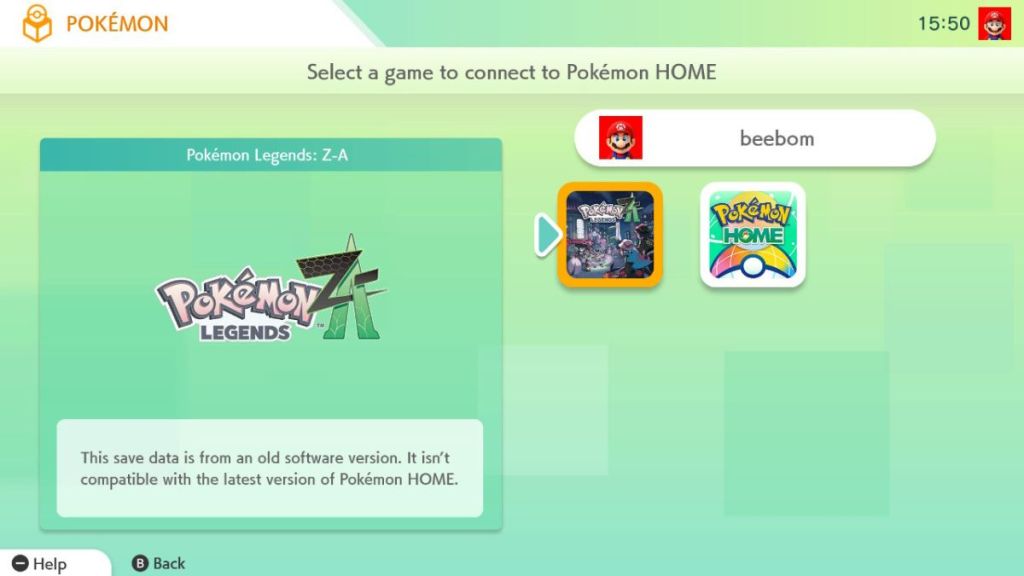
For Nintendo Switch titles (Scarlet & Violet, Legends Arceus, Legends ZA, Sword & Shield), log into HOME on the Switch with the same Nintendo Account that holds your save data, then drag mons between boxes in the Pokemon menu. Think of HOME like a postal service for your Pokemon collection—addresses matter.
Nintendo 3DS users can no longer install Pokemon Bank, but if you already have Bank connected to HOME you’ll need the Pokemon HOME Premium plan (paid subscription—for example, $2.99/month – €3) to move those older mons.
When you deposit from certain games you’ll also receive gift Pokemon:
- Scorbunny, Grookey, Sobble: Deposit from Pokemon Sword & Shield
- Turtwig, Chimchar, Piplup: Deposit from Brilliant Diamond & Shining Pearl
- Cyndaquil, Rowlet, Oshawott: Deposit from Legends Arceus
- Sprigatito, Fuecoco, Quaxly: Deposit from Scarlet & Violet
- Alpha Chikorita, Alpha Tepig, Alpha Totodile: Deposit from Legends ZA
Think of HOME as a safety deposit box for rare mons—store them carefully and label what you plan to use in battle.
How many Pokemon have you moved from GO to HOME so far, and which transfer did you regret most?