
I tapped Create in the Gemini app and watched a muddy sunset snap into razor clarity in seconds. My first thought was disbelief; my second was habit—could a tiny model really outpace the pros? You might feel the same jitter: curiosity, and a quick fear of missing what everyone will call the next big thing.
I’ve spent quiet hours testing Google’s image models so you don’t have to. I’ll walk you through what I tried, what changed from Nano Banana Pro, and how to start using Nano Banana 2 right now on Gemini.
On my Pixel the render locked in instantly — Nano Banana 2 is Built on Gemini 3.1 Flash Image
Google has slipped Nano Banana 2 into Gemini without fanfare; it runs on the new Gemini 3.1 Flash Image model. In practice that means faster iterations, tighter prompt fidelity, and cleaner handling of text inside images. I generated a 2816 × 1536 landscape (roughly 2.8K), and the output sat above QHD while stopping short of 4K—sharp, detailed, and strongly aligned to the prompt.
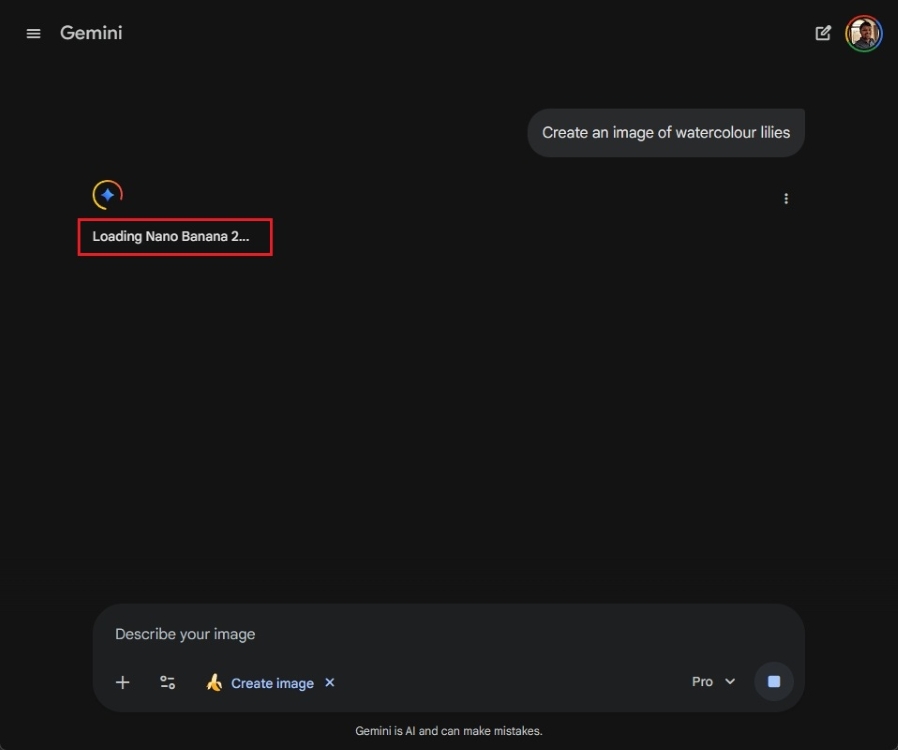
At my workstation the edits were immediate — Speed, cost, and where Nano Banana 2 fits
Nano Banana 2 arrives faster and cheaper than Nano Banana Pro, which many creators still favor for complex edits. The practical win here is low-latency iteration: you can refine a frame multiple times without the wait or the sticker-shock that comes with higher-tier APIs. It feels like a Swiss Army knife for images; small, versatile, and ready the moment you need it.
That faster cadence changes workflows—less time queuing renders in Midjourney or waiting on local Stable Diffusion variants, and more time trying different angles in Gemini. Creators who move quickly—mobile journalists, social video editors, designers on deadline—will notice the difference immediately.
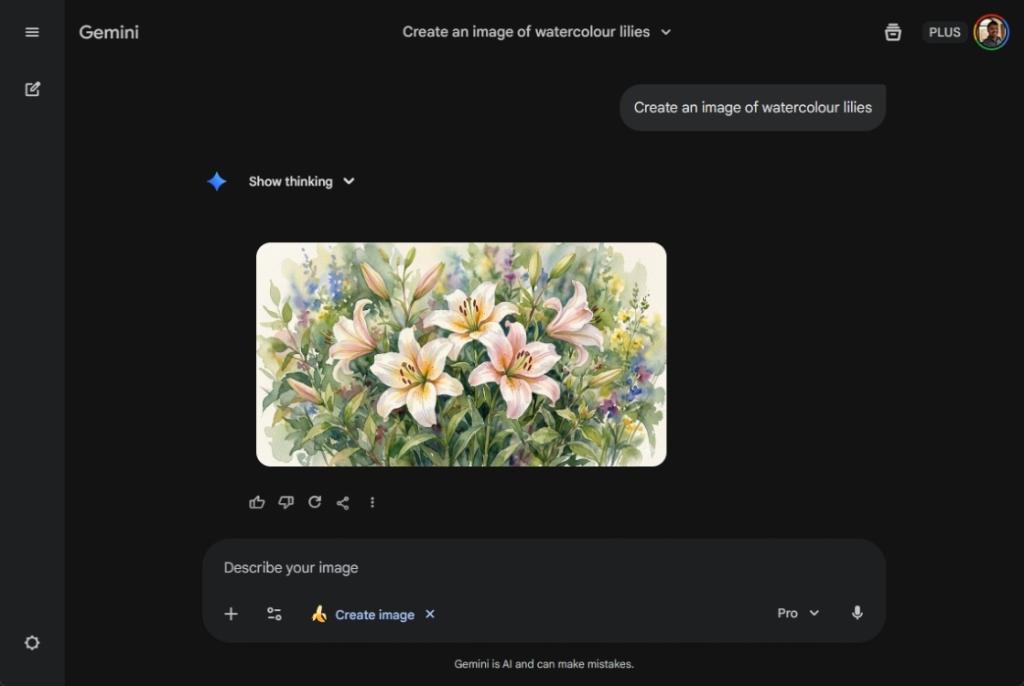
On my second test the text in the image read clean — Prompt fidelity and text handling
Text has been a weak spot for many image models; Nano Banana 2 tightens that up. My prompts that previously produced scrambled signage now returned legible lettering and correct layout. Results arrive as if the app had trained the pixels to follow your brief, which matters when you need mockups, thumbnails, or UI screenshots that read correctly at glance.
How do I use Nano Banana 2 on Gemini?
Open the Gemini app, tap Tools, and choose Create image. Select Nano Banana 2 from the model options if it does not appear by default. From there you can enter prompts, upload a photo to edit, or iterate on a generated result—the interface is similar to other Gemini features, so the learning curve is short if you’ve used Google’s image tools before.
Is Nano Banana 2 free for all users?
Yes. Google is rolling Nano Banana 2 out inside Gemini at no extra charge. That democratizes faster image iterations for broader audiences—students, indie creators, and small studios—without forcing you to switch to paid APIs immediately.
Is Nano Banana 2 better than Nano Banana Pro?
It depends on the job. Nano Banana Pro still holds ground for the most demanding edits and enterprise workflows, especially in finely controlled pipelines. Nano Banana 2 trades a slice of top-end capability for much lower latency and lower cost, which will make it the first stop for many everyday projects.
If you want to test it fast, use Gemini on Pixel or Android and compare a few identical prompts across Nano Banana Pro and Nano Banana 2—watch how many iterations each model takes to reach a version you’d publish. Will everyone switch to Nano Banana 2, or will Pro keep its niche of power users?