I hit Download, watched the progress bar flicker, then nothing—just a cold “Connection time out.” You stare at the Steam window while tens of thousands of players are doing the exact same thing. That small moment of dread tells you this isn’t your PC; it’s the launch chaos.
You click Download and Steam freezes—Marathon ‘Connection time out’ on Steam, explained
I’ve seen this pattern before: huge demand spikes overwhelm query handlers and the store throws an installation error instead of a polite queue. Valve’s Steam servers and the Marathon release are handling a tidal wave of requests; the servers are a jammed subway turnstile, refusing to let everyone through at once.
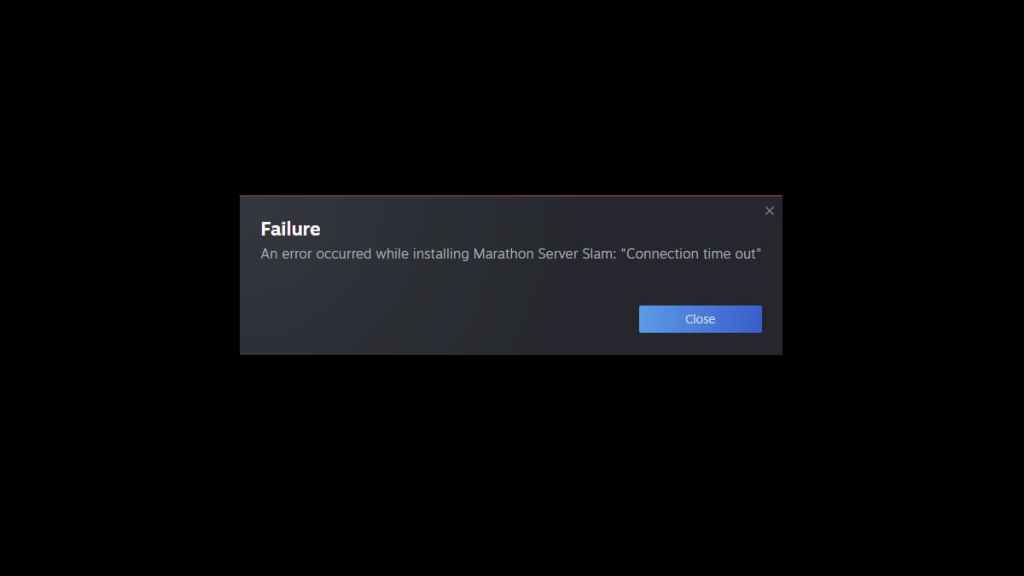
That error message—“An error occurred while installing Marathon server slam: ‘Connection time out’”—is Steam saying it didn’t get a response back from its servers fast enough. It’s rarely a single cause: server-side throttling, a hiccup in Steamworks API responses, or the store page failing to return the correct download token under heavy load.
Why does Steam say ‘Connection time out’ when installing Marathon?
You can blame three usual suspects: Steam’s backend struggling with concurrent installs, a local network/ISP hiccup, or the Steam client misreading the store reply. I’d check Steam’s global status pages and SteamDB first to see if the outage is widespread—if multiple regions report issues, it’s on Valve’s side.
Someone in the comments added the game to their library and it worked—what to try first
People solving this often report small, repeatable moves that force Steam to re-query the store. The Steam store page behaves as a misfiring scoreboard during these traffic spikes, and a simple refresh can correct the score.
- Add Marathon to your library: Click the store page’s “Add to Library” (or purchase) button, then go back and press Download. That refresh triggers a fresh token request and works for many players.
- Retry the download: Press Download again. If Steam initially times out, a second attempt often succeeds when the server processes your request properly.
How can I fix Steam ‘Connection time out’ error?
Here’s what I do, step by step—do them in order and stop when the install begins:
- Restart Steam and run it as administrator (Windows): close the client, right-click and choose “Run as administrator.” That clears certain permission-related failures and gives Steam cleaner network access.
- Change Download Region: Steam > Settings > Downloads > Download Region. Pick a nearby but less-popular region. This can route you around overloaded nodes.
- Clear Download Cache: Steam > Settings > Downloads > Clear Download Cache. It forces Steam to re-authenticate downloads.
- Disable VPN/proxy and check firewall: briefly turn off VPNs or proxies and add Steam/SteamService to your firewall exceptions. Windows Defender or third-party firewalls sometimes block the handshake.
- Try on a different network or tether to your phone: this isolates ISP problems.
- If you’re advanced: use steam://install/[appID] links or Steam console install commands, but only if you’re comfortable with manual installs.
Your download finally starts but you hit a queue—what to expect next
After you get past the time-out, there’s often a download queue and staged delivery; expect pauses and bursts. I recommend leaving the client open and letting Steam work through its queue—closing and reopening can reinsert you at the back.
If nothing fixes it quickly, patience is a valid strategy: Valve will scale servers and throttles will ease as the rush subsides. You’ll reach Tau Ceti eventually—do you want to fight the queue or watch it thin out and join calmly?