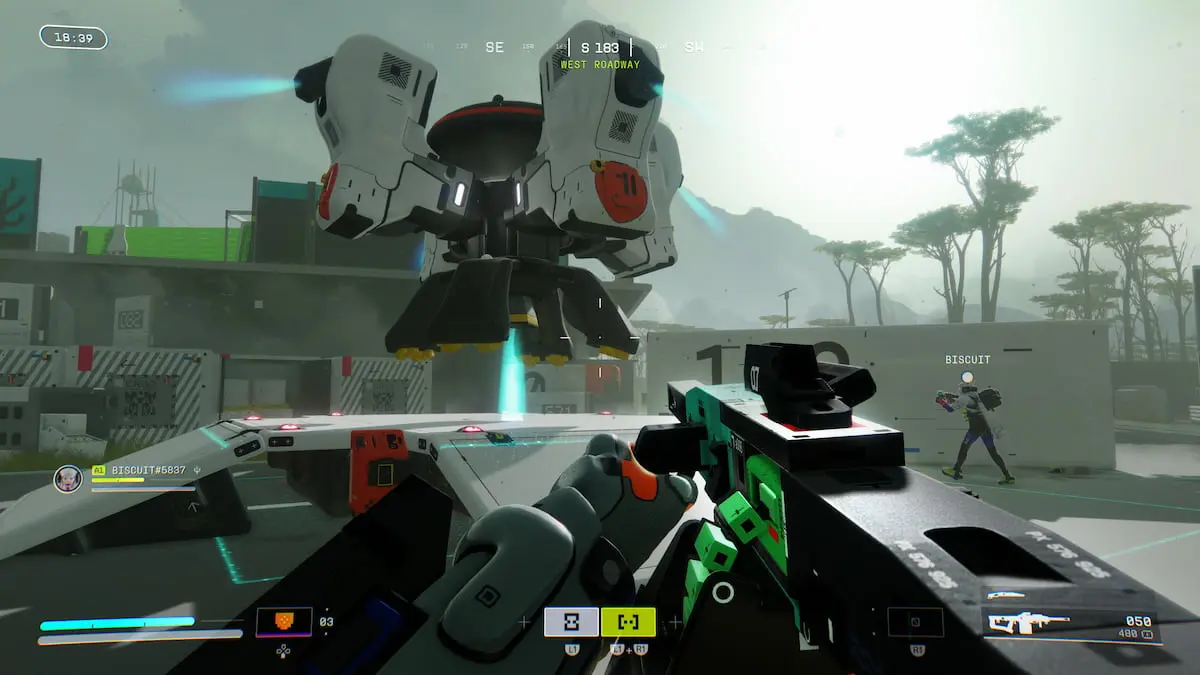
I was three kills from a clutch when my mouse stopped moving. The match timer kept running, and my hand went numb. You know the sick drop in your stomach that follows when controls fail at the worst moment.
I’ve been following reports from the Server Slam and Bungie’s official updates so you don’t have to panic mid-game. The studio has acknowledged mouse and other input issues on PC; a permanent patch isn’t out yet, but there are reliable workarounds you can try right now.
How to fix Mouse and other input issues in Marathon
Players on PC are reporting freezes and erratic input more than console users.
I’ll be blunt: most of these problems trace to screen overlays and capture tools interfering with the Server Slam client. Overlays become sand in the gears of your input, and a screen capturer turns into a second player tugging at your controls.
- If you stream: Stream the entire screen instead of only the Marathon game window. If you use an overlay (alerts, chat, widgets), include that overlay in the captured area so the client sees a single, consistent output.
- If you don’t stream: Disable the Steam Overlay. Open Steam → Settings → In-Game → toggle off Enable the Steam Overlay while in-game. Some Steam features will be unavailable while it’s off, but input stability will often improve.
- Close third-party utilities: Exit apps that inject overlays or hook into input—OBS, NVIDIA GeForce Experience overlay, AMD ReLive, Discord overlay, Razer Synapse, or any app that captures or shares your screen. If the Server Slam client is new to them, they can conflict.
- Restart the game after changes: Make the overlay and capture changes, then fully quit Marathon and relaunch the client so settings take effect.
- Check the Marathon Dev Team feed: The studio has posted guidance on Twitter and will share hotfix notes there. Follow @MarathonDevTeam and Bungie’s support channels for updates.
Why is my mouse lagging in Marathon?
Most lag reports point to software collisions rather than hardware failure. If your mouse works fine on the desktop but stutters in-game, overlays or capture hooks are the usual suspects. Test by closing overlays and running Marathon alone; if the stutter disappears, reintroduce apps one at a time to find the culprit.
Will disabling the Steam Overlay stop input drops?
It often does. The Steam Overlay can intercept input and compete with the game client, especially in new or specialized builds like Server Slam. Turning it off is a low-effort test that rules out one common interference.
Quick PC tweaks to smooth performance
If you’re trying to keep every frame and input crisp on launch day, small system checks pay off.
- Update GPU drivers via NVIDIA GeForce Experience or AMD Adrenalin. New driver builds frequently include fixes for newly released clients.
- Close background apps that use overlays or capture: OBS, Streamlabs, Discord, GeForce Experience, Xbox Game Bar. If you need to keep any, disable their overlays only.
- Give Marathon CPU priority: open Task Manager, find the Marathon process, right-click → Set priority → High. Don’t leave it on Realtime.
- Turn off unnecessary Windows features while playing—Game Bar and background apps in Settings → Privacy → Background apps—and check for any input remapping tools running.
- On consoles, input problems are rarer. If you see issues there, reboot the console and wired controller first; then check for system firmware updates.
Graphical performance looks solid for many players, but these tweaks will tighten your input path and reduce the chance of stutter or drop while Bungie rolls a permanent fix before the March 5 full launch.
If you’ve tried all of the above and still see issues, what changed on your system between a working session and a broken one—new driver, overlay, or utility—and who should take responsibility for stability: the game studio, platform holders, or third-party tool makers?