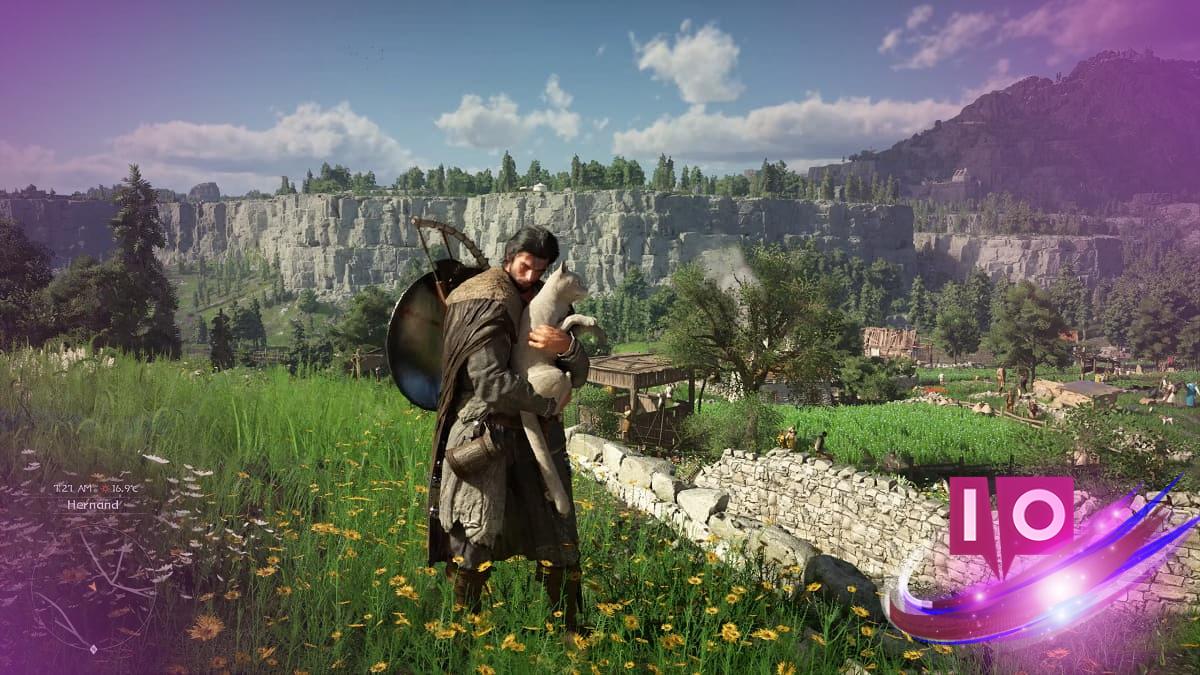
I dropped into Kareth’s market and the frame rate collapsed mid-sentence; NPCs jittered like broken puppets. You feel that cold nudge when the game’s beauty turns into a slideshow and you realize your settings are betraying you. I learned the hard way which switches you must flip and which switches you must never touch.
I play, test, and tune—so you don’t have to guess. Here’s a short, confident plan to get Crimson Desert running smooth on modern cards without sacrificing why the world looks gorgeous.

When my RTX machine hit 30 FPS in a cutscene — recommended settings for best performance
The moment was obvious: cinematic lighting killed my frame rate faster than anything else. You want those sweeping vistas to stay sweeping; the Lighting and Ray Tracing options are the main culprits. Keep most sliders high, but treat Lighting and Ray Regeneration/Reconstruction with suspicion.
What are the best graphics settings for Crimson Desert?
For powerful cards—think RTX 4070 Ti, RTX 5070 Ti, RX 7900 XT/XTX, or RX 9070 XT—use the Ultra or Cinematic preset as your starting point. Native upscaling (DLSS for Nvidia, FSR for AMD) is optional; you can run with Upscale Mode set to Off and use Native AA instead if you prefer image fidelity. The compromise is simple: keep geometry and textures high, keep expensive light processing controlled.
- Upscale Mode: Off (or Native AA)
- AMD FSR Ray Regeneration / Nvidia Ray Reconstruction: Off (unless you have an x80 or xx90-class GPU and are willing to accept the FPS cost)
- Model Quality: Ultra
- Texture Quality: Cinematic
- Shadow Quality: Ultra / High
- Raytracing: On (but tune Lighting)
- Lighting Quality: Ultra — don’t let RR force this to Max or your FPS will die
- Reflection Quality: Ultra
- Advanced Weather Effects: On
- Water Quality: High
- Foliage Density: High
- Volumetric Fog Quality: High
- Effect Quality: Ultra
- Simulation Quality: Ultra (lower this if your CPU is the limiter)
- Post-Processing Effect Quality: Ultra (lower if you see CPU bottlenecks)
I tried Ray Regeneration on and the world gained sharper shadows — why you might turn it off
I flipped RR on in a test and the lighting went from sweet to cinematic, but FPS dropped like an anchor. The developers currently force Lighting Quality toward the maximum when RR is enabled, and that combo chews 30–40 FPS on many GPUs. Turn RR off unless you have a recent x80/xx90 GPU and you can afford the hit.
Does Crimson Desert support DLSS or FSR?
Yes. Nvidia’s DLSS and AMD’s FSR are supported as your upscalers. Use them if you want extra frames with very little visible loss at moderate upscale factors. If you value native resolution purity, Native AA is fine—just be ready to trade some FPS for cleaner edges.
When the town fills with physics and my CPU drops frames — what to tune for CPU-bound systems
I once walked into a crowded port and my 8-core CPU started stuttering under simulation load. If you’re CPU-limited, drop Simulation, Effects, Water, Shadows, and Volumetrics first. Those are the settings that turn a pleasant stroll into an FPS bloodbath in densely populated or heavily forested areas.
If your rig is lower-end, set the overall preset to High, turn RR off, and focus on these reductions:
- Simulation Quality: Medium
- Effect Quality: Medium
- Volumetric Fog Quality: Medium
- Water Quality: Medium
- Shadow Quality: High/Medium
The Lighting slider is the single biggest lever for perceived performance versus visual impact; small reductions often buy big FPS returns. The Lighting slider is like a sun-dial: small tweaks cast long shadows. Turning RR on without the right GPU is like adding a turbo to a bicycle — dramatic performance change, not always useful.
How can I get max FPS in Crimson Desert?
Start with a preset that matches your card (Ultra/Cinematic for high-end, High for mid-range), then:
- Turn Ray Regeneration/Reconstruction Off unless you have a very recent top-tier GPU
- Keep textures and models high for visual fidelity; cut simulation and volumetrics if CPU-bound
- Use DLSS or FSR when you need extra frames without brutal quality loss
- Watch towns and forests—bench those areas and tune accordingly
I’ve tested these on machines with RTX and AMD flagship cards and the pattern is consistent: control lighting, avoid RR unless your card is ready, and pick your CPU-sensitive sliders carefully. Pearl Abyss built a stunning world—your job is to keep it moving like silk, not a slideshow. Ready to trade a little polish for a lot more frames, or will you keep chasing the perfect screenshot?