You load Crimson Desert, expecting to pick up where you left off. Instead, the character selection screen glares back empty and your stomach drops. I’ve been there — panic tight, fingers fumbling for a save.
I’ll walk you through exactly where that save lives on Windows, how to grab a copy, and what to watch for if you borrow someone else’s file. You won’t need fancy tools — just File Explorer, Steam settings, and a little caution.
On most Windows machines the C drive is where apps scatter their files — here’s where Crimson Desert keeps its saves
The game writes saves into your user profile under AppData. If you haven’t moved your Steam libraries or changed install options, check this path:
- C:\Users\
\AppData\Local\Pearl Abyss\CD\save
Open that folder and you’ll see two entries. One is a numbered folder; inside it are the save files the game produces. Remember AppData is hidden by default — enable “Show hidden files” in File Explorer if you don’t see it.
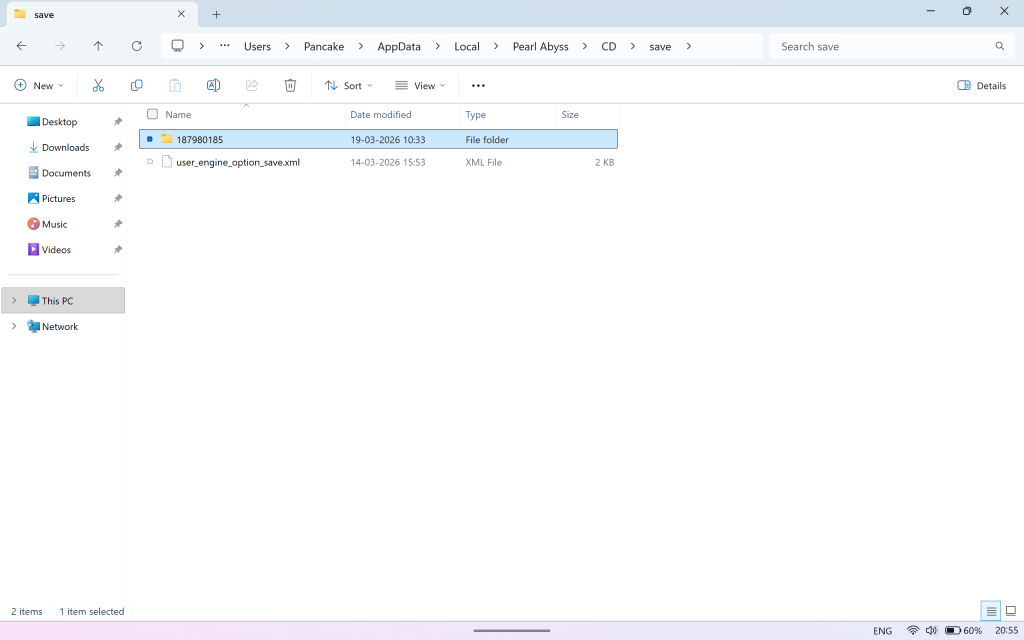
Where are Crimson Desert save files stored on PC?
Short answer: the Local AppData path for Pearl Abyss. If you moved your Steam library via Steam settings (Game Properties > Local Files), check that alternate drive instead. Steam and Pearl Abyss are the two brands to keep in mind here.
When you overwrite a quicksave you notice immediately — so make a backup before you risk progress
A save file is a safety net beneath your playthrough. If you want a manual restore point, copy the numbered save folder out of the CD save directory and paste it somewhere safe.
- Close Crimson Desert before copying files.
- Copy the entire numbered folder (not just individual files).
- Store the copy on OneDrive, Google Drive, an external USB, or a different folder — I recommend an external drive for large restores.
How do I back up Crimson Desert save files?
Follow these quick steps in File Explorer: locate C:\Users\
When friends trade saves over Discord you notice compatibility problems before you play — versions matter
Because Crimson Desert is single-player, you can technically drop another player’s save into your save folder. I haven’t fully tested cross-system restores, so proceed with caution.
Watch for these gotchas:
- Game version mismatches — if your friend’s patch differs from yours, the save may fail to load.
- File permissions — Windows can block copied files; right-click > Properties > Unblock if needed.
- Steam Cloud — if the game or your Steam settings try to sync, disable cloud sync briefly so local files aren’t overwritten.
Can you copy Crimson Desert save files between PCs?
Yes, but match game versions and pause any Steam Cloud sync. If you play on different Windows accounts, place the folder under the correct C:\Users\
If you want, I can walk you through a step-by-step restore on your machine — will you want that guided walkthrough or just the quick checklist?