
The bus drops you on the main island and a stray song starts blasting from your character — the quest pops up and you freeze. I remember hunting the Emote wheel like it was a hidden safe, sweating that the mission wouldn’t register. Once I found the exact button flow, it took ten seconds and felt almost unfair.
I’ll walk you through the shortest path to finish the “use the Jam Track Player” quest in Fortnite, with platform notes for PC and console and the tiny mistakes players make that waste time and XP.
How do you use the Jam Track Player in Fortnite?
Most players have stood in a POI while music suddenly starts — that accidental moment is exactly where this quest lives.
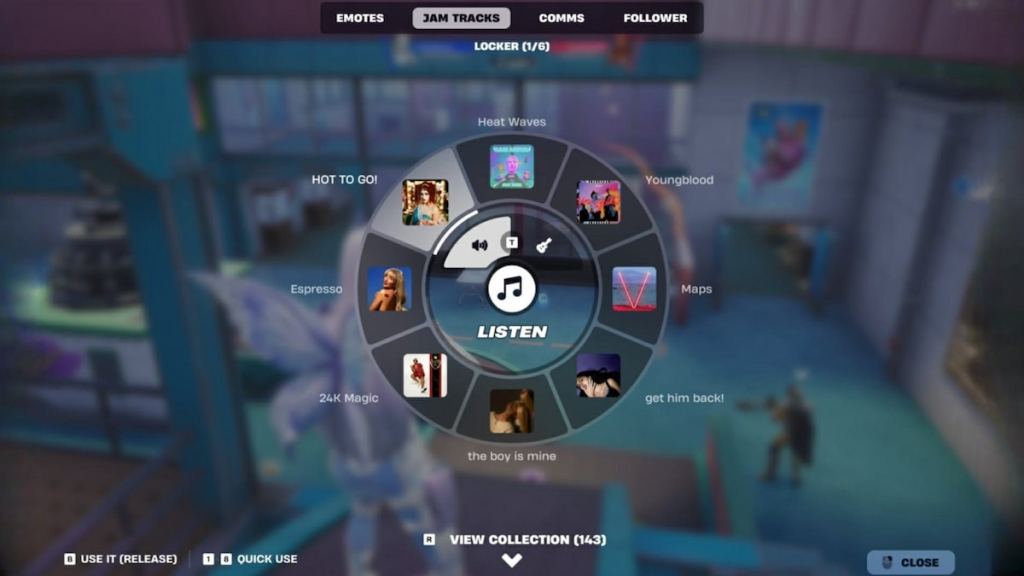
If you want the quick answer: you must select and play a Jam Track from the Emote menu while on the main island. Here’s the clean, step-by-step routine I use every match:
- Be on the main island. The quest won’t register in the starting island/lobby — you need to be in a real match area.
- Press and hold your Emote button. Default is B on PC, D-Pad on most consoles. If you remapped controls, check your bind.
- Flip to the Jam Tracks page. The emote wheel opens on Emotes by default; scroll horizontally to the Jam Tracks section.
- Highlight a Jam Track. Scroll the list and hover over any song. Any track counts toward the quest, so pick what you like.
- Release the Emote button while hovering the track. The music starts playing and the quest completes the moment audio begins.
If that sounds fiddly, think of it like tuning a vintage radio: a little adjustment and suddenly you have the right station.
Do Jam Tracks count for quests?
Yes. If the quest text asks you to “use the Jam Track Player,” simply playing any Jam Track while on the main island will complete it. This is the same across Kickstart-chain quests, dailies, and other mission sets tied to Epic Games’ seasonal objectives.
Where do I find the Jam Track Player?
The Jam Tracks live inside the Emote menu. You don’t need to open a kiosk or talk to an NPC — open Emotes, swipe to Jam Tracks, and select.
How to stop Jam Track Player in Fortnite
I’ve been on a run where a song looped for an entire battle — annoying, but easy to fix.
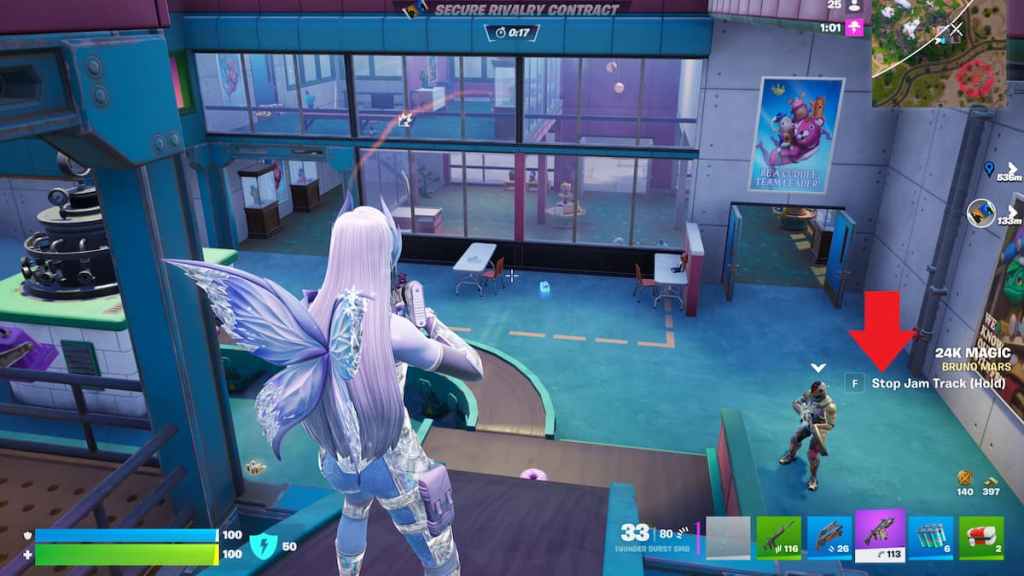
To stop music, press and hold the button shown next to the “Stop Jam Track” prompt in the bottom-right of the Emote menu. Hold until the music ends. Repeat the same Emote flow to start a different track later.
After you finish this quest, you can funnel that XP into visiting NPCs, hunting Chaos Cubes, or picking a side between Team Foundation and Team Ice King. The Emote menu works the same on PC, Xbox, PlayStation, and Nintendo Switch, so the trick you just learned applies across platforms.
If the Jam Track quest is handing out easy XP, why are so many players still missing it — and what small tweak to your routine will make your next game smoother?