
I was in the middle of the first chapter when the image juddered and my heart sank. I’ve chased stubborn stutters through driver updates and Steam overlays until the annoyance became louder than the story. By the time I fixed the settings, the scene played smooth again, like a curtain snapping shut on a play.
The cafe alley scene chews frames on my rig — Best Life is Strange Reunion Graphics settings for no lag and max FPS
I tested on my everyday rig so you get practical choices, not theory. If you own a modern, overbuilt desktop, these changes will be mild; if you’re on a modest machine, they matter.
- Resolution: Your preference — I run 1920×1080.
- Window Mode: Borderless (handy with two monitors).
- Max Frame Rate: 60 FPS (my sweet spot for stability).
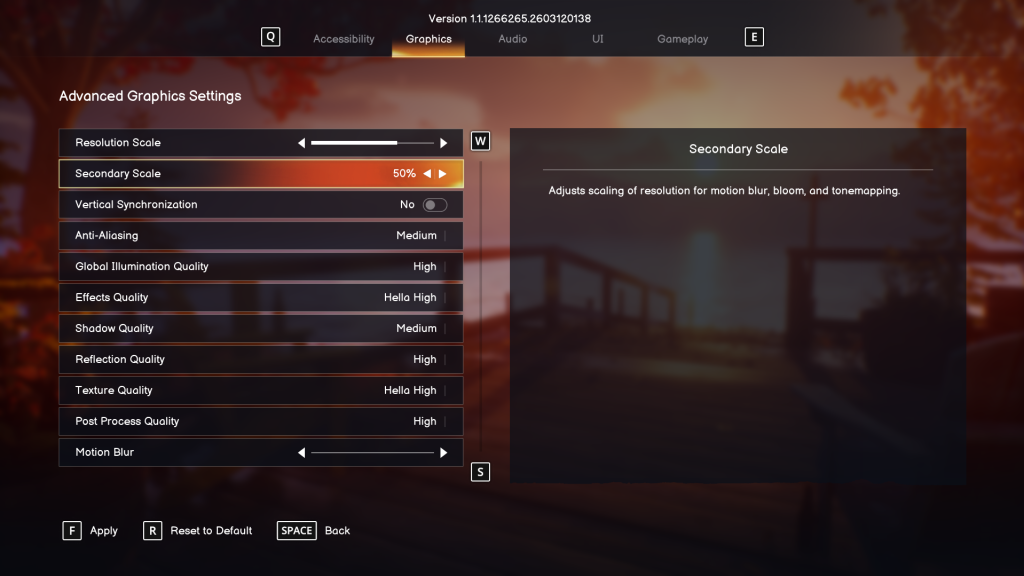
- Resolution Scale: 75% (3/4th bar).
- Secondary Scale: 50%.
- VSync: Off — more on that below.
- Anti-Aliasing: Medium.
- Global Illumination Quality: High.
- Effects: Medium.
- Shadow Quality: Medium.
- Reflection Quality: Medium.
- Texture Quality: Medium.
- Post Process Quality: Medium to High — try High if your rig holds up; the visuals jump a lot.
What settings fix stuttering in Life is Strange Reunion?
Short answer: cap the frame rate, lower a few heavy effects, and kill overlays. I use an AMD Ryzen 5600G with an NVIDIA RTX 3060 12 GB and 16 GB DDR5; your mileage varies, but these moves are universal.
- Cap FPS to 60: Uncapped sometimes adds micro-stutter on my machine.
- Turn off VSync: It can add input lag without solving micro-stutter; use a frame cap instead.
- Lower Resolution Scale: 75% removes pressure from GPU while keeping UI sharp.
- Reduce Post Process and Effects: These hit performance hard; dropping them a notch helps more than lowering textures.
- Disable overlays: Turn off Steam, Discord, and GeForce overlays during play.
- Update drivers: Use NVIDIA GeForce Experience or AMD Adrenalin to get the latest GPU drivers.
- Check background tasks: Close browser tabs and recording software. I rely on MSI Afterburner to watch temps and frame times.
- Try DLSS or FSR if available: If the game supports NVIDIA DLSS or AMD FSR, those are powerful quality/performance tools.
The uncapped test introduced hiccups — why I kept FPS capped at 60
I let the frame rate run free, and small hitches appeared during cutscenes and crowd-heavy moments. Locking to 60 smoothed those spikes and kept CPU/GPU demand steadier.
Here’s the pragmatic logic: steady frames feel better than spiky highs. If you have a high-refresh monitor and a stronger rig, try uncapped after toggling the settings above. If you see stutter, bring the cap back down or try a 120 FPS target and monitor frame times with CapFrameX or MSI Afterburner.
- Power plan: Set Windows to High Performance so the CPU doesn’t scale sluggishly.
- Driver settings: Use the NVIDIA Control Panel or AMD Adrenalin to prioritize performance for the game executable.
- VRAM: Keep texture quality at Medium if your GPU has 6–8 GB VRAM; RTX 3060 12 GB can handle Medium comfortably.
Should I use VSync or cap FPS in Life is Strange Reunion?
I prefer a hard cap over VSync. VSync can hide tearing but often introduces input lag and uneven frame pacing. A cap at 60 or at your monitor’s refresh, combined with the settings above, gives smoother playback without the downsides of VSync.
Treat these tweaks like a careful repair: small adjustments matter and will breathe life back into the scenes. Tweaking settings is surgical, not theatrical.
Ready to test which change gave you the biggest boost — cap, scale, or post-process — and stake your claim: which one fixed your worst stutter?