
I hit a rocky section of dirt road and the frame rate chopped—brief, brutal, and enough to make me climb out of the cockpit and check cables. I closed the game, muttered at the GPU, then reopened and shaved settings until the world flowed again. You can get there without guessing; I’ll show you which switches matter and why.
I play-tested Road to Vostok on a mid-range PC so you don’t have to. You’ll get my exact presets, the reasoning behind each toggle, and a handful of fixes that target the usual culprits: CPU spikes, GPU overload, and shader hiccups.
The first time my RTX dipped under 60 FPS on a road, I noticed trees were the trigger.
Best graphics settings in Road to Vostok
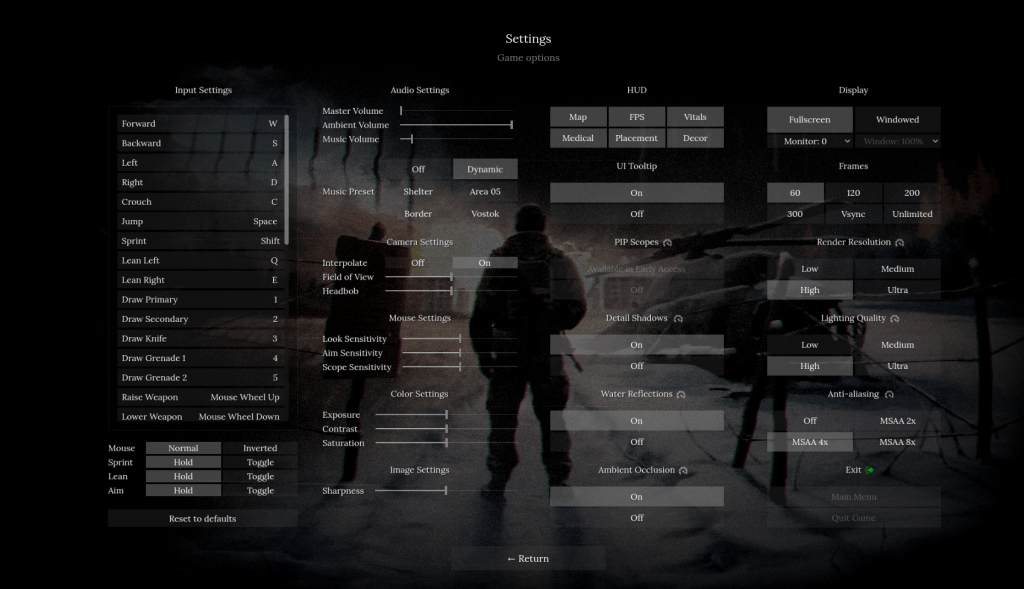
Set these if you want steady frames and minimal stutter.
- Display: Fullscreen
- Frames: 60
- Vsync: Off
- Render Resolution: Medium
- Lighting Quality: Medium
- Anti-aliasing: MSAA 4X or Off (see note)
- Detail Shadows: Off
- Water Reflection: On
- Ambient Occlusion: Off
These settings trade a small hit to visual fidelity for far fewer micro-stutters. MSAA is a soft lens that smooths jagged edges, and when frames matter you can switch it off.
I booted the game on a system with a mid-range GPU and felt how much headroom matters.
My setup
- AMD Ryzen 5 5600G
- 16 GB DDR5 RAM
- 12 GB NVIDIA RTX 3060
This combination hits 60 FPS consistently with the list above. If you have an RTX 40-series card, you’ll get even more headroom. If you’re on integrated or older Pascal cards, reduce render resolution and shadows first.
How do I stop stuttering in Road to Vostok?
Stutter usually comes from frame pacing issues or background processes stealing CPU time. Close overlays (Discord, Steam, GeForce Experience), set the game to Fullscreen, and use the Windows Game Mode. In GeForce Experience, enable Low Latency if you care about input response; in the NVIDIA Control Panel, set power management to Prefer maximum performance.
On a cold morning test run, disabling shadows shaved noticeable CPU overhead.
Why each key setting helps
- Frames 60: Caps reduce fluctuation and keep the GPU from hunting for every last frame.
- VSync Off: VSync can introduce input lag and prevents manual FPS caps; leave it off unless you have guaranteed frame stability.
- Render Resolution Medium: Reduces GPU load but keeps UI and HUD crisp.
- Lighting Quality Medium: Cuts shader complexity that spikes when you drive into bright scenes.
- Detail Shadows Off: Shadows are expensive and often inconsistent; turning them off eliminates many micro-hitches.
- Water Reflection On: Reflections are costly, but they’re surprisingly well-implemented here and don’t spike as badly as shadows.
- Ambient Occlusion Off: Subtle effect with a big performance cost; switch it off for smoother play.
What settings give the highest FPS in Road to Vostok?
If max FPS is the goal, prioritize render resolution, shadows, and ambient occlusion. Use Fullscreen, cap to a stable value (60 or your monitor’s refresh rate), and disable MSAA. If you still need more, drop lighting to Low and use GPU driver optimizations.
During one patch hour I watched CPU threads spike from unrelated services.
Quick fixes that squash stutter
- Close Chrome and heavy background apps; open Task Manager and sort by CPU to find offenders.
- Disable overlays (Steam, Discord, GeForce Experience).
- Add launch options in Steam: -high to raise process priority and -novid to skip intro videos.
- Update GPU drivers via NVIDIA GeForce Experience or AMD Radeon Software.
- Turn Windows Game Mode on and power plan to High Performance.
I also suggest a short hardware tweak: set your GPU fan curve in MSI Afterburner or use NVIDIA’s performance slider to prioritize steady clocks. VSync is a leash on your GPU—turn it off unless you see tearing and can’t cap frames another way.
On my second day of testing, the game received a small performance patch that smoothed some shaders.
What to expect post-launch
The developer has promised incremental fixes and new early access content. Expect shader optimizations and memory-use improvements over the coming weeks. Keep drivers current and watch patch notes on Steam.
If you want to test my exact setup: run Fullscreen at 60 FPS, VSync off, Medium render, MSAA off if you feel lag, and disable detail shadows and AO. Apply those changes, then boot the game and drive a full loop to spot any remaining spikes.
I’ve given you the settings, the why, and a short troubleshooting list—your rig will tell the final story when you run a route at dusk. Will your system hold steady, or will you still be tuning settings next week?