
I logged in on launch night and the world stuttered: a herd of mobs spawned and my frame counter dove. Chat filled with players blaming servers while my screen juddered like a strobe. By the time I restarted, I knew this would be a settings fight, not a beauty pageant.
I’ve tested Crystallfall across multiple sessions so you don’t have to. You’ll get clear recommendations, what I changed on my rig, and the trade-offs I accepted to keep gameplay smooth.
Best Crystalfall graphics settings
I watched my FPS drop to single digits when a mob appears and the first thing I did was simplify.
My rig:
- AMD Ryzen 5600G
- 16 GB DDR5 RAM
- NVIDIA RTX 3060 12 GB
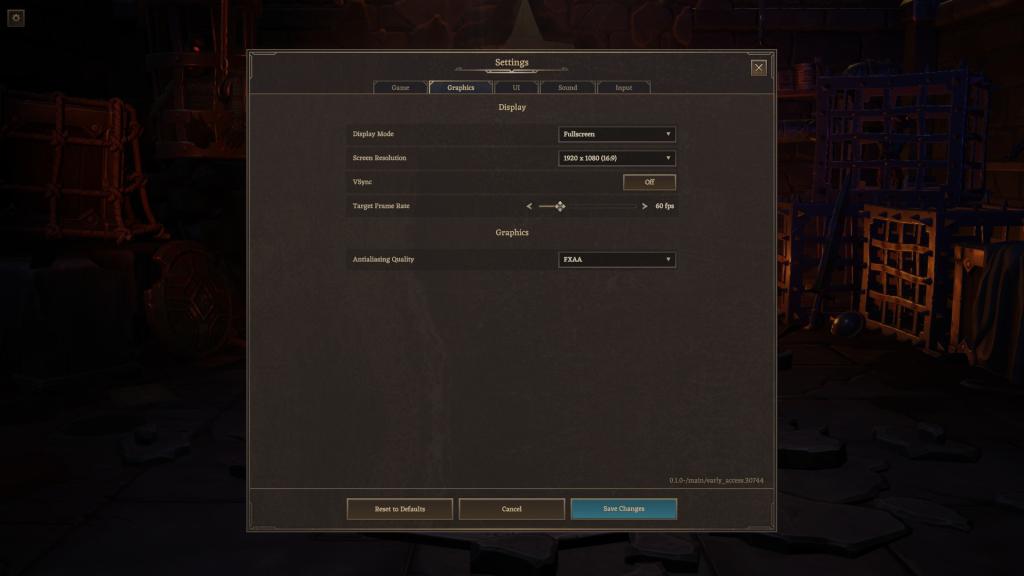
Settings I run for steady 60+ FPS:
- Display mode: Fullscreen/Borderless Window
- Resolution: 1920×1080
- VSync: Off
- Target Frame Rate: 60 FPS
- Anti-Aliasing: FXAA
Why these choices matter: Fullscreen gives the GPU exclusive access, which helps reduce micro-stutters. At 1080p the RTX 3060 hits a reliable sweet spot for frame pacing. VSync off removed the hitching I saw on launch, and a firm 60 FPS cap kept things consistent through crowded encounters.
How do I reduce lag in Crystallfall?
Start with server health and work back to your PC. If Discord and Steam channels report widespread lag, the problem is on the backend — patience matters. On your end, update drivers with NVIDIA GeForce Experience or AMD Adrenalin, close overlays (Steam, Discord, GeForce), and set your Windows power plan to High Performance. If you’re on Wi‑Fi, switch to wired; network jitter worsens perceived frame drops.
Why I switched off damage and healing numbers
During a raid the screen filled with flying numbers and my frames tanked.
I turned off Damage Numbers and Healing Numbers because they tax the UI thread when dozens of enemies spawn. The numbers are like confetti in a downpour, cluttering the render pipeline and spiking CPU usage. You won’t lose tactical clarity — enemy health bars remain visible — but you gain several FPS and steadier frame timing.
Does VSync help in Crystallfall?
VSync will remove tearing but can introduce stutter when the frame rate dips below the refresh rate. I found VSync off plus a hard 60 FPS cap produced smoother results. If you have a FreeSync/G‑Sync monitor, enable it via your GPU control panel (NVIDIA or AMD) and keep in‑game VSync off.
Practical tweaks that actually move the needle
On launch night Discord and Steam channels blew up with reports; the fixes below separate what’s cosmetic from what’s performance‑critical.
- Turn off overlays: Steam, GeForce Experience, and Discord overlay increase CPU load.
- Limit background apps: Browsers, capture software, and large cloud syncs steal CPU and disk I/O.
- Update drivers: Use GeForce Experience or AMD Adrenalin for the latest GPU fixes.
- Lock your FPS: Cap at 60 for stable frame delivery rather than chasing higher but inconsistent counts.
- Check network: Wired Ethernet, QoS on your router, or closing peer‑to‑peer apps reduces packet spikes tied to perceived lag.
If you want platform-specific tools: use GeForce Experience for driver and capture settings, AMD Adrenalin for Radeon tuning, and check the game’s Steam forum or official Discord for live server updates and hotfix threads.
What are the best settings for Crystallfall to get max FPS?
Prioritize Display mode, resolution, and capping FPS. Keep Anti‑Aliasing at FXAA, set VSync off, and disable UI effects like damage numbers. If you need more headroom, drop resolution scale or shadow quality where available. These changes give the biggest FPS gain for the smallest visual cost.
I believe a large share of the launch day graphical issues came from server strain and not purely client-side rendering. Treat server instability as the first suspect, then apply the client tweaks above to protect your play session from sudden drops.
If you try one change first, make it capping your FPS and disabling damage/heal numbers — that combo fixed the worst micro‑stutters for me. But which tweak will feel best for you: chasing raw numbers or defending a steady 60 FPS experience?