
I unearthed a sun-faded school portrait in a shoebox and froze. The eyes were a blur, the edges a smudge — I had to know if it could be saved. I opened HitPaw FotorPea and waited to see what would happen.
I found a torn 1998 graduation photo in a shoebox: What is HitPaw FotorPea Image Upscaler?
I’ll be blunt: FotorPea is an AI-powered image upscaler meant to restore, sharpen, and clean low-quality photos with very little fiddling. You don’t face a sea of sliders like in Topaz Photo AI or the non-stop prompts of Remini — FotorPea trades complexity for speed and simplicity. HitPaw partners with Comfy for the model backbone, so it feels like a pro-grade engine tucked under a user-friendly hood.
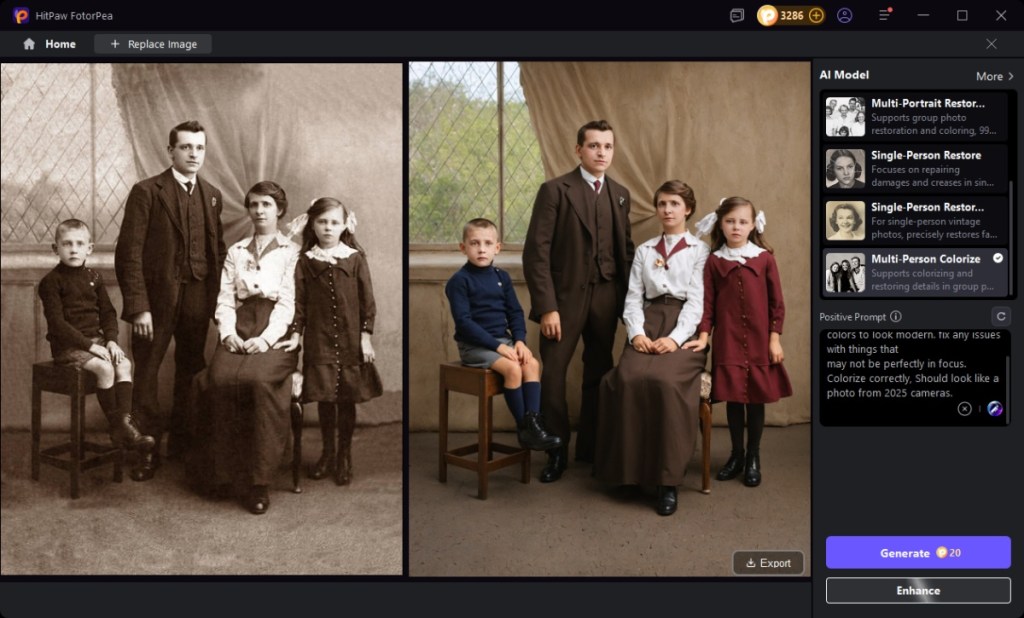
How do I use HitPaw FotorPea?
Open the app, pick an effect, drop in the image, export. That’s the promise — and most of the time, it’s true. The interface won’t hold your hand with tutorials, but it’s so simple you’ll feel confident after a few runs.
Installing on my Mac Mini took five minutes: Getting Started with HitPaw FotorPea
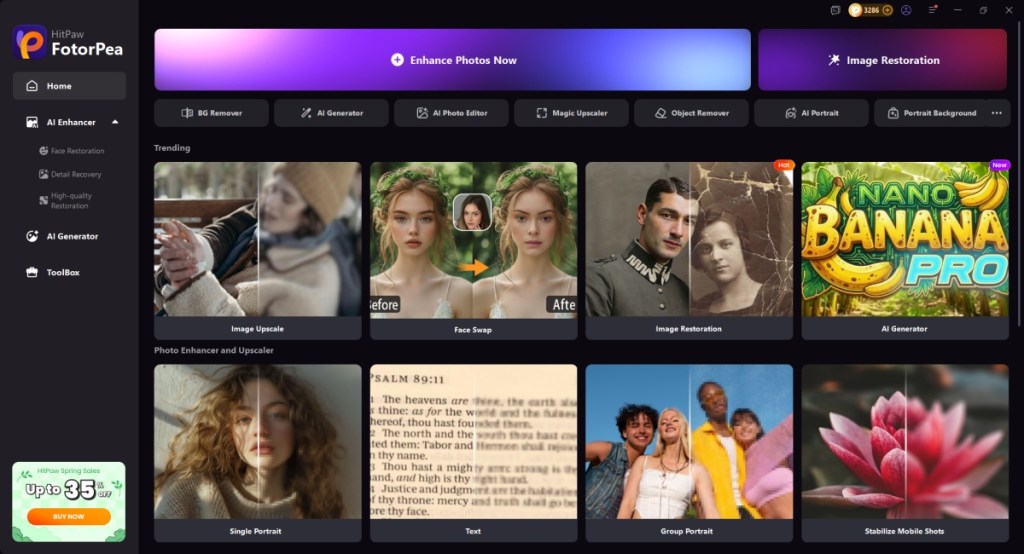
Go to the HitPaw FotorPea site, hit Try for free, download the ZIP for Windows or macOS, unzip, and follow the setup wizard. On my M4 Mac Mini with 16GB RAM it was a couple of minutes. After an hour of testing I felt comfortable with the layout — clean labels, no hunt-and-peck.
Can HitPaw FotorPea restore old photos?
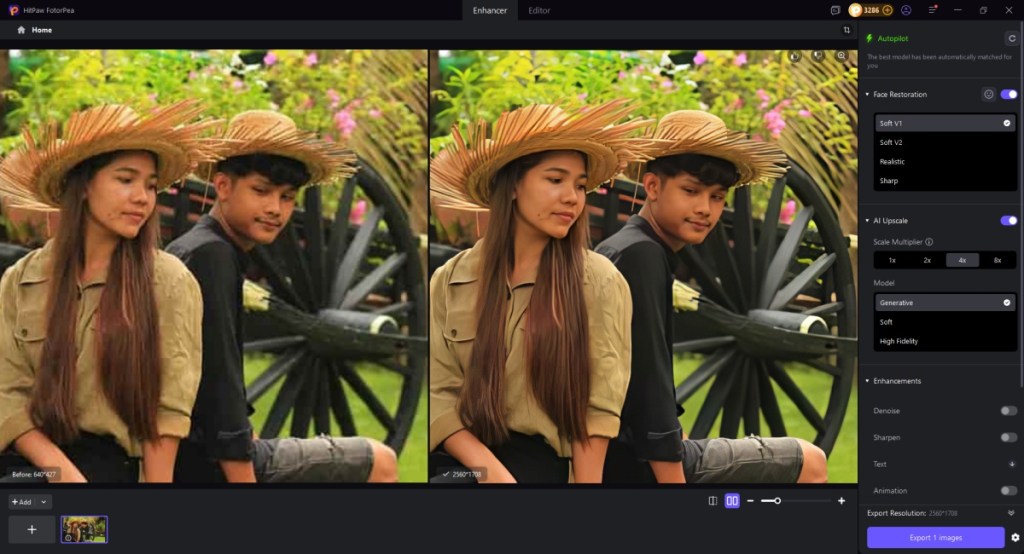
Yes — its restoration model addresses blur, compression artifacts, and soft faces without over-smoothing. In several tests it brought faded detail back to life like tuning a dusty radio into clear FM.
I fed it a folder of holiday snaps: Key Features of HitPaw FotorPea AI Image Upscaler
Features matter when you need speed plus quality. FotorPea offers a compact feature set that covers the most common demands.
- AI enhancement models: Multiple models that preserve texture and edges while increasing resolution.
- Photo restoration and sharpening: Targets faces and compressed artifacts, improving clarity without a waxy finish.
- Basic editing tools: Crop, rotate, mirror — useful for quick fixes before export.
- Batch processing: Process dozens of files at once; saves hours compared with single-image workflows in Photoshop.
- AI background removal: Fast cutouts and object erase that cut manual work on complex subjects.
- Beginner-friendly UI: Minimal fuss, so hobbyists and pros both get results fast.
It rescued a dozen smartphone scans in one pass and produced natural-looking results — like replacing fogged glass with a clean window for fine detail.
My M4 Mac Mini handled a batch in minutes: Processing Speed and System Requirements
On Apple Silicon, FotorPea runs smoothly. HitPaw supports Apple M-series chips and modern Intel/AMD hardware. Here are the minimums to keep in mind:
- Supported OS: Windows 11/10 64-bit, macOS 10.15 or later
- CPU: Intel i3 4th gen or AMD Ryzen 3 equivalent or above
- Disk space: 2GB free or more
- RAM: 8GB or more
- GPU: NVIDIA GTX 950 or AMD Radeon 460 equivalent or above
- OpenGL: 3.3+
- DirectX: 12
- Display: 1366×768 or larger
I stacked results against Topaz and Remini: Choosing the Best Image Upscaler
When you compare output, learning curve, and speed, each tool has trade-offs. Topaz Photo AI often recovers micro-detail better but takes time to master and costs more; Remini is quick on mobile but sometimes over-processes. FotorPea sits between: easier than Topaz, more controlled than many phone apps.
Community commentary backs this up — Reddit threads and reviews cite FotorPea’s broad appeal for photographers, collectors, and casual users. The Silicon Review praised its feature set for beginners and pros alike.
I checked my credit card before exporting: HitPaw FotorPea Pricing
HitPaw offers a 7-day free trial so you can test the AI enhancer, restoration, and batch export. If you like it, here are the paid options:
| HitPaw FotorPea Plans | Pricing |
|---|---|
| 7-day Trial | Free |
| Monthly plan | $29.99 (€28) |
| Annual plan | $99.99 (€95) |
| Perpetual License | $179.99 (€171) |
Is HitPaw FotorPea worth the price?
If you need a steady, low-friction tool for restoration, batch work, or quick upscales, the perpetual license is a strong value compared with recurring monthly fees. For occasional fixes, the trial helps you decide without paying first.
I read user threads and vendor reviews: Choosing The Best Image Upscaler By Comparing Reviews
Most reviews judge on three axes: output quality, ease of use, and processing time. FotorPea scores well across those. Professionals chasing every pixel might still prefer Topaz or manual Photoshop workflows, but for most creators, FotorPea hits the right balance.
After two weeks of steady use it became my go-to quick fix: HitPaw FotorPea Image Upscaler — The Tool I Keep Returning To
It won’t replace complex retouching in Photoshop, but for straightforward restoration, upscaling to 4K, or cleaning WhatsApp photos, it removes friction. The interface is light, the models are competent, and offline operation matters when privacy and speed are priorities. You can pair it with Lightroom for a final color pass or use it as a quick pre-process before heavy editing in Photoshop or Topaz Photo AI.
So — will you keep the faded photo as a memory in a drawer or give it a second life with a tool that gets out of your way?