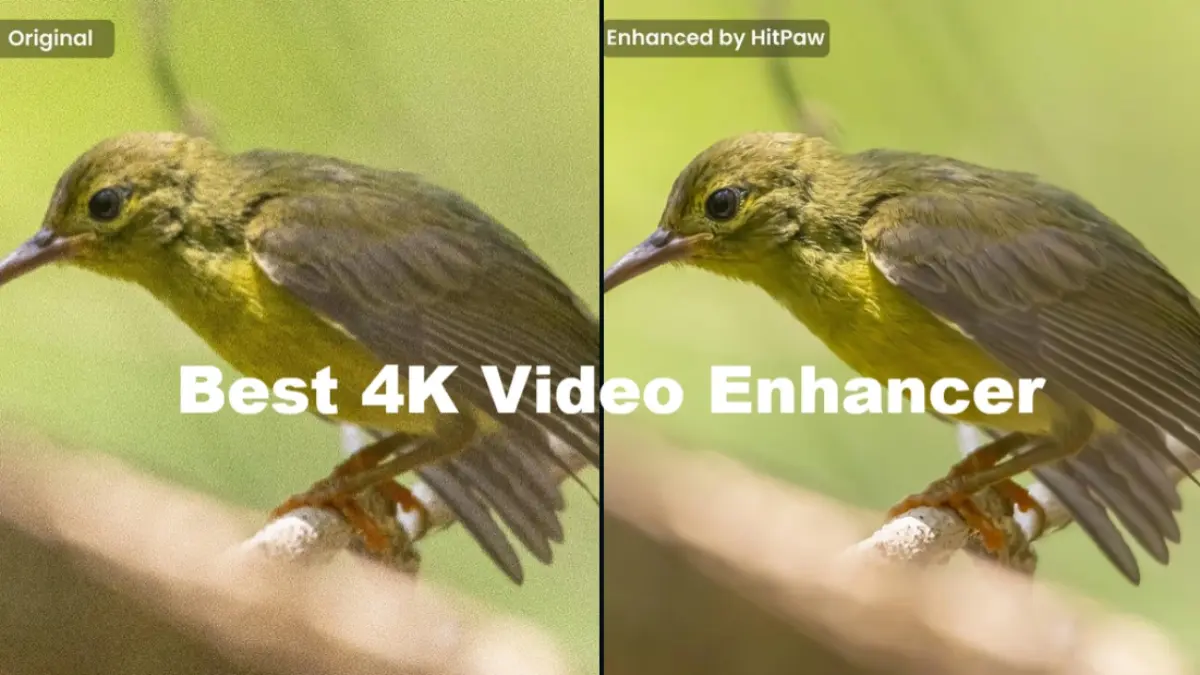
I opened an old wedding clip and felt a small shock: faces that used to glow had flattened into grain and fuzz. For a moment I wondered whether those moments were lost to time. So I fed the file to HitPaw’s VikPea and watched what happened.
I Tried HitPaw’s VikPea AI Video Enhancer to Upscale, Denoise, and Restore Videos
I’ve tested plenty of AI tools, and I’ll be blunt: some make footage worse. You don’t have to be a pro to tell when an algorithm has overcooked skin or painted away the texture that made the moment feel real.
Which AI Video Enhancer is the Best?
At family gatherings the old clips always look softer than you remember.
You want a tool that raises resolution without producing neon edges, trims noise from low-light frames, and restores compressed footage without the waxy, over-smoothed look. HitPaw VikPea hits those points more often than not. It pairs HitPaw’s engineering with Comfy’s AI to bring enhancement models directly into a creator-friendly workflow, so you upload, pick a model, preview a short clip, and export.
VikPea is a magnifying glass for old footage. It doesn’t try to be every tool at once — it focuses on believable reconstruction.
What is the best AI video enhancer?
If your question is straight ROI — ease-of-use plus consistently natural results — I found VikPea to be the most balanced. Topaz Video AI, AVCLabs, and Aiarty all have strengths: Topaz holds detail well but can over-smooth faces; AVCLabs is affordable but softens edges; Aiarty is fast but inconsistent. VikPea sits between those extremes and is particularly friendly for quick restores and batch jobs.
HitPaw VikPea: Installation, Set Up, and UI Overview
I installed it on both Windows and macOS in under five minutes.
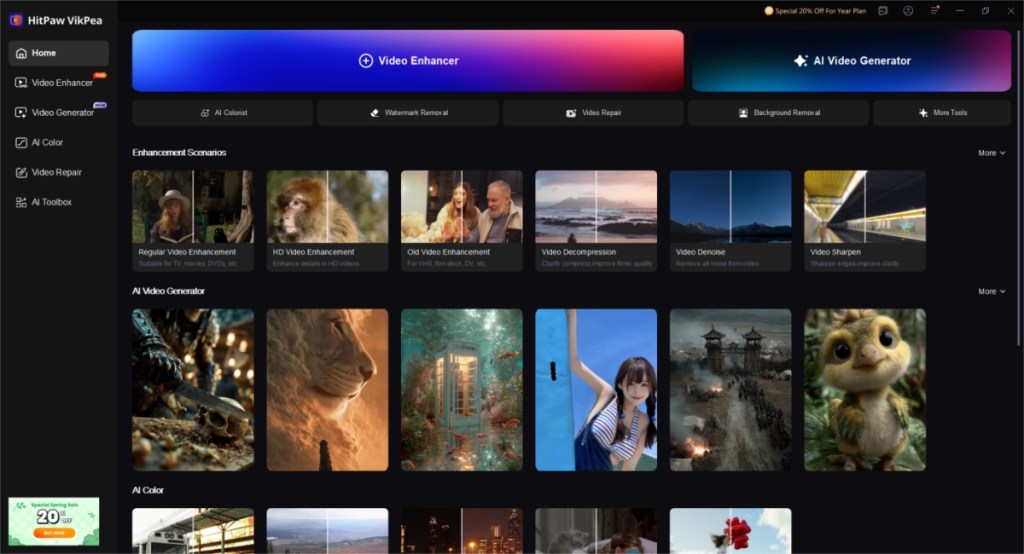
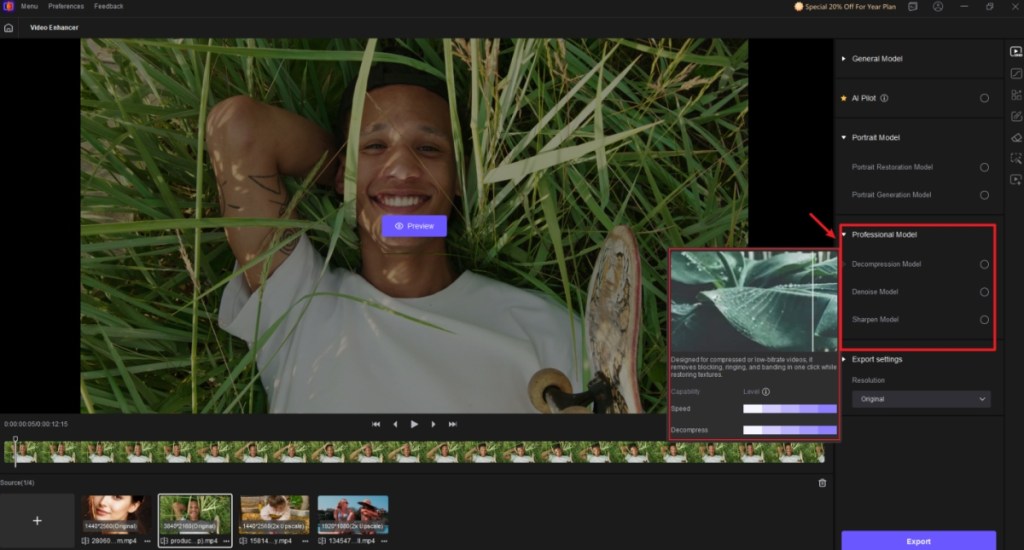
The installer is simple: choose OS, click Try it Free, unzip, run the setup wizard, and the app opens fast. The interface is clean and intentionally minimal. You won’t need a week of tutorials to get comfortable — everything sits in a labeled sidebar and the main action is plainly sequenced: import, pick model, set output, preview, export.
The interface is a tidy kitchen where every spice sits in a jar. That clarity is helpful when you’re processing several clips and don’t want to hunt for settings.
Key Features of HitPaw VikPea Video Enhancer
On a desk piled with old SD tapes, you immediately want the features that matter.
- AI Upscaling — up to 4K, with conservative sharpening to avoid halos.
- AI Video Generator — for simple motion backgrounds and filler clips using integrated models.
- De-noising and artifact reduction — effective in low-light and compressed footage.
- Frame-rate interpolation — smooths choppy motion and raises FPS when needed.
- Color and tonal adjustments — automated corrections that don’t flatten character.
- Batch processing — process several clips at once, useful for creators with archives.
- Purpose-built modes for anime and game capture, plus repair tools, watermark removal, background removal, stabilization, and more.
- Cross-platform support for Windows, macOS, Android, and iOS.
The HitPaw VikPea AI Models
In my tests the difference came down to choosing the right model for the footage you care about.
VikPea ships several models tuned for different material. That specialization is why it avoids the one-size-fits-all mistakes other tools make.
Can AI upscale video to 4K?
Yes — and it matters how the model treats edges and texture. I tested a wedding clip shot on an iPhone 13 and a 480p handheld from a decade ago. The General model handled most clips with balanced sharpening, the Portrait model improved faces without that plastic look some algorithms produce, and the Professional model reconstructed compressed, damaged footage remarkably well.
General Model
My real-world test: an iPhone 13 clip that looked dull. The General model recovered fine detail and improved contrast without painting over skin texture. It’s the default for a reason.
Portrait Model
My real-world test: a selfie vlog. The Portrait model prioritizes facial detail and avoids over-smoothing. It refines edges and keeps skin texture believable.
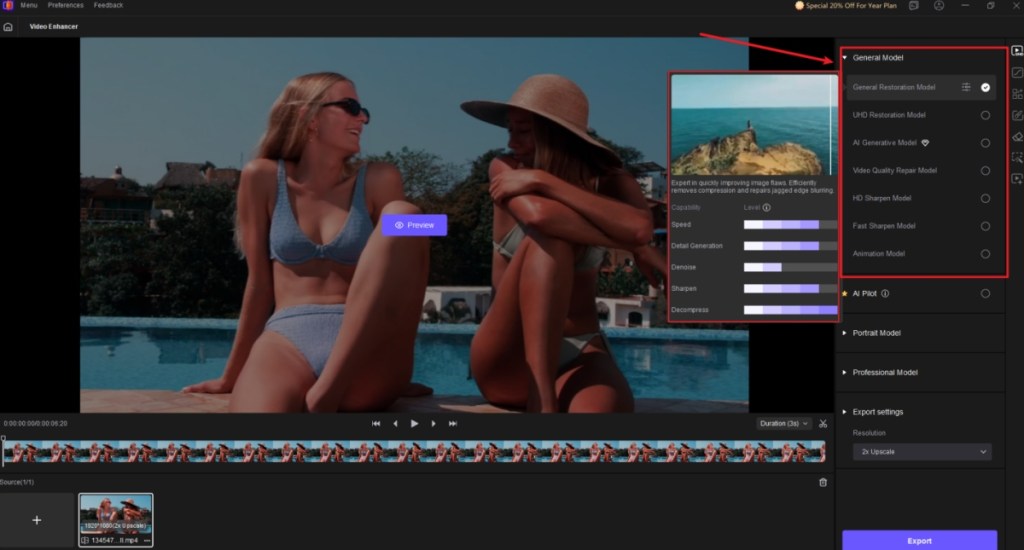
Professional Model
My real-world test: a 480p clip from an old phone. The Professional model reconstructed details and suppressed compression artifacts without making eyes or hair look artificial. It’s the best pick for degraded archives.
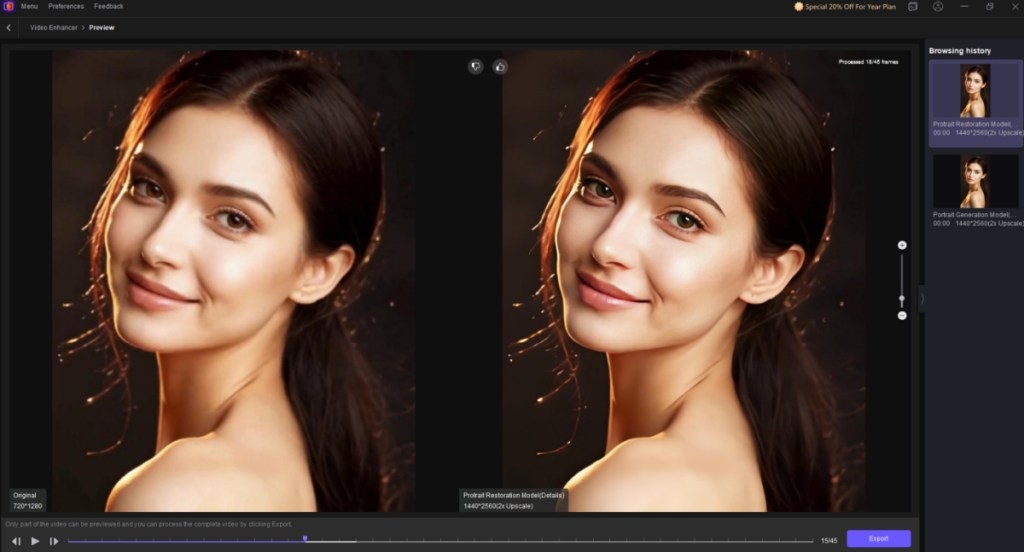
Results and Real-World Applications
On the desktop, a noisy night clip suddenly read as usable footage.
VikPea’s cloud-accelerated rendering sped exports up to about 4x faster than some heavier local tools I tested. The output felt natural: softer noise, recovered detail, and minimal artifacts. That makes the app useful for creators polishing YouTube uploads, people restoring family tapes, and devs who capture game footage and want cleaner frames for montages.
| Video Enhancer Tools | Features | Output Quality |
|---|---|---|
| HitPaw VikPea AI Video Enhancer | AI upscaling to 4K+, smart de-noising, artifact and background removal, detail enhancements, batch processing, purpose specific AI models, cloud accelerated rendering, easy to use workflow | Very clean and natural improvements to the video, authentic looking results, superior quality, few visible artifacts, better consistency and 4x faster exports |
| Topaz Video AI | Supports 4K upscaling, artifact reduction, detail and edge refinements, batch editing and motion smoothening | Good upscales with preserved textures, maintains authentic details, over smoothens the skin, making it look artificial and exports take longer |
| AVCLabs Video Enhancer | AI upscaling, noise reduction, color and contrast enhancement, batch processing and support for popular formats | Produces decent improvements, but results often feel softer with haloing effects around edges, fine details don’t look good |
| Aiarty Video Enhancer | 4k upscaling, de-noises videos, face detail enhancements, color correction, user-friendly presets | Delivers cleaner footage but the results are inconsistent, over smoothens edges which results in loss of details, final output looks “processed” instead of natural |
HitPaw VikPea: Pricing
On a budget whiteboard, you pencil the options before buying.
There’s a free trial so you can test exports. Paid tiers open full-resolution exports, batch processing, and faster cloud rendering.
| HitPaw VikPea Plans | Pricing |
|---|---|
| 7-day Free Trial | Free |
| Monthly | $69.99 (≈ €64) |
| Annual | $109.99 (≈ €102) |
| Perpetual License | $349.99 (≈ €322) |
If you plan to process archives or multiple projects, the perpetual license is the best financial bet over time.
Final Verdict: HitPaw VikPea Is the Best AI Video Enhancer
After testing wedding footage, phone captures, and compressed clips, what stayed with me was how often the results felt authentic rather than processed.
VikPea won’t replace a full NLE like DaVinci Resolve for color grading, nor will it satisfy every pro who demands frame-by-frame manual control. But for rescuing old videos, creating clean uploads for YouTube, or tidying game capture and anime recordings, it’s fast, forgiving, and designed for people who want results without a steep learning curve. I recommend you try the free trial and compare exports with Topaz and AVCLabs to see which aesthetic you prefer.
Which side do you fall on — preservation of grain or an aggressively clean finish?