
Why Is Grok Acting Up?
It happened to a friend just yesterday: Grok refused to answer a simple question. If your Grok is playing possum, refusing to reply or seemingly unavailable, here’s a breakdown of potential culprits:
- Service hiccups: Grok’s infrastructure, including models such as Grok 4 Fast Reasoning, can experience temporary outages, crashes, or performance slowdowns.
- Account verification snags: Issues like expired logins, subscription discrepancies (mismatched app store vs. web subscriptions), or invalid API keys can lock you out.
- Local gremlins: Spotty internet, outdated browsers or apps, corrupted cache, VPNs, or rogue browser extensions can all disrupt Grok’s operation.
- Usage limits breached: You might have bumped against the usage ceiling for your current subscription.
- Content filter misfires: The content safety filter may have become overzealous due to backend instability or overly strict settings.
- Regional access roadblocks: Certain regions may have restricted or blocked Grok access, potentially impacting availability.
Decoding Grok’s Silent Treatment: Common Symptoms
A colleague mentioned Grok was spitting out gibberish last week. When Grok malfunctions, it often announces its distress through a range of error messages or odd behaviors, including:
- “Error calling moderation service” / “Content moderated”: This usually signals a temporary backend hiccup or stricter content guidelines, rather than a rejection of your input.
- “Oops, error retry friend”: This is a catch-all for temporary failures, often triggered by internet hiccups, session timeouts, or brief server disruptions.
- Chat unresponsive / freezing: This could point to a major outage, network snag, or a browser cache issue.
- Message limit exceeded: This indicates you’ve hit your subscription’s usage cap or there’s an account or billing problem, not necessarily a technical glitch.
- Sluggish or inaccurate replies: This could stem from server overload, unclear prompts, or stale model data (unless real-time search is enabled).
Resuscitating Grok: Troubleshooting Tactics
I’ve been there, frantically Googling why my AI assistant is on the fritz. If Grok is on strike, these steps can help revive it across your devices:
Is Grok down for everyone? How to check the Grok Service Page
Before you tear your hair out, check Grok’s pulse via the service page. More often than not, the problem originates from Grok’s end, not yours. Here’s how to investigate:
-
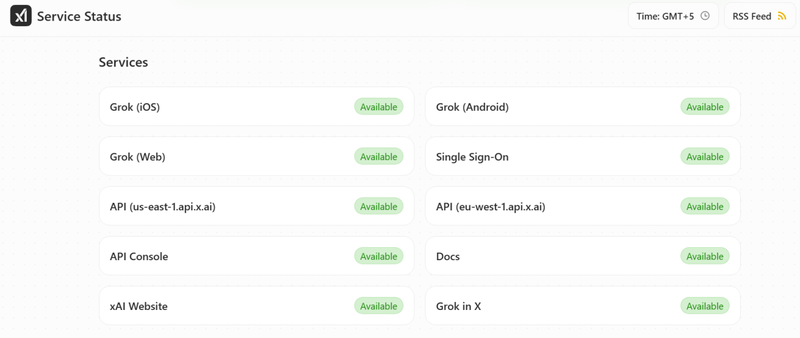
The most reliable source is the Official Grok Status Page. It provides a bird’s-eye view of overall service health. If the main page boasts “Service fully operational,” the issue likely resides elsewhere.
-
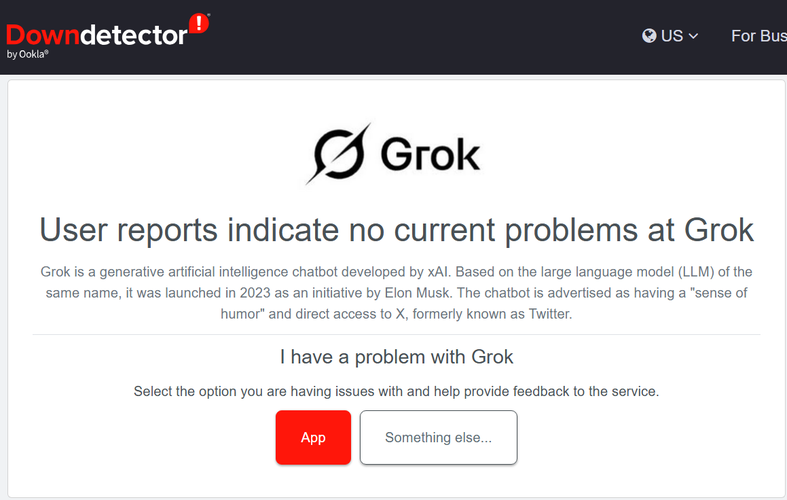
Crowdsourced insights: Websites like “Downdetector” offer real-time user-reported outages. Spikes under AI Generation, Website, or App categories may indicate widespread problems.
Is my internet connection the problem? How to check your internet connection for Grok
A shaky internet connection can trigger Grok meltdowns. Likewise, VPNs might throttle or block the service. Here’s how to diagnose your connection:
-
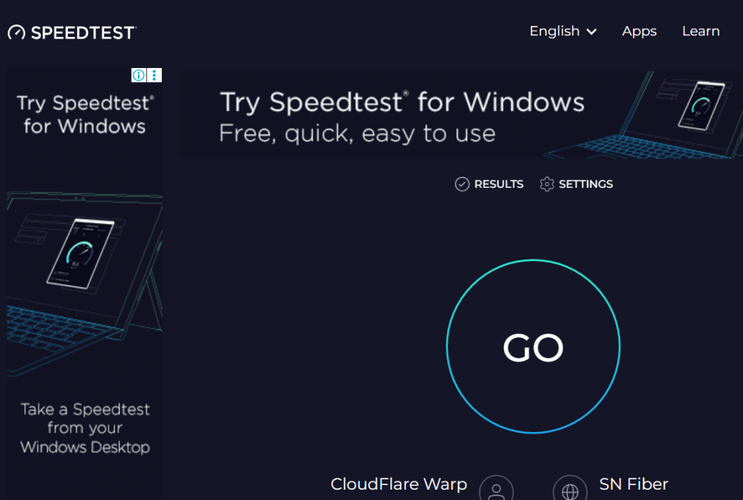
Internet speed check: Head to fast.com or speedtest.net to gauge ping/latency (aim for under 100 ms) and download speed (5-10 Mbps should suffice for text-based apps like Grok).
-
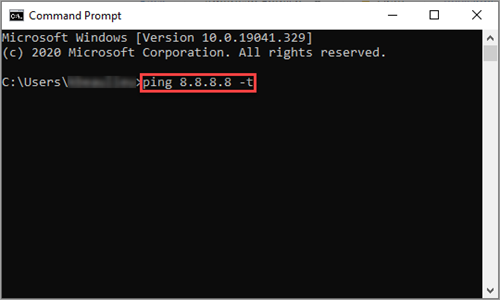
Stability test: On Windows, open “Command Prompt” and run “ping 8.8.8.8 -t”. On Mac, use ‘ping 8.8.8.8’ for 30 seconds. Halt with “Ctrl + C.” Packet loss exceeding 1-2% signifies an unstable connection.
- Wi-Fi troubleshooting: Reboot your router and modem (wait 30 seconds). Move closer to the router or try a different network (e.g., a mobile hotspot).
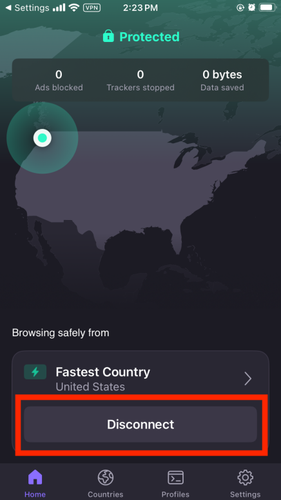
- VPN deactivation: Disconnect from your VPN via the system tray or menu bar (desktop) or the VPN app (iPhone/Android).
Could clearing my browser cache help? How to clear your browser or device’s cache
If Grok’s servers are stable and your internet is humming, a corrupted cache might be the culprit. Flushing the cache forces the app to fetch fresh data. Here’s how to clear the decks:
On the Web:
-
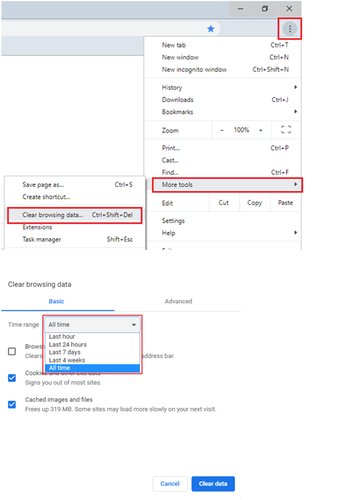
Chrome: Access “History” via the “⋮ More” menu, then “Clear browsing data.” Select “Cached images and files,” choose “All time,” and confirm.
-
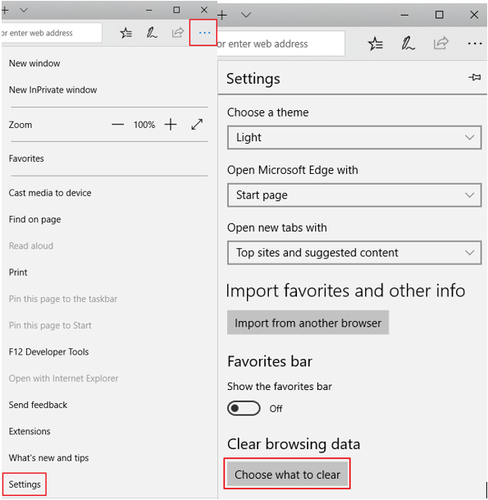
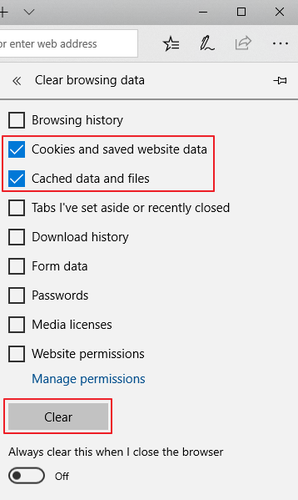
Edge: Navigate to “Settings” via “•••,” then “Privacy, search, and services.” Under “Clear browsing data,” select “Choose what to clear,” pick “Cached images and files,” specify a time range, and confirm.
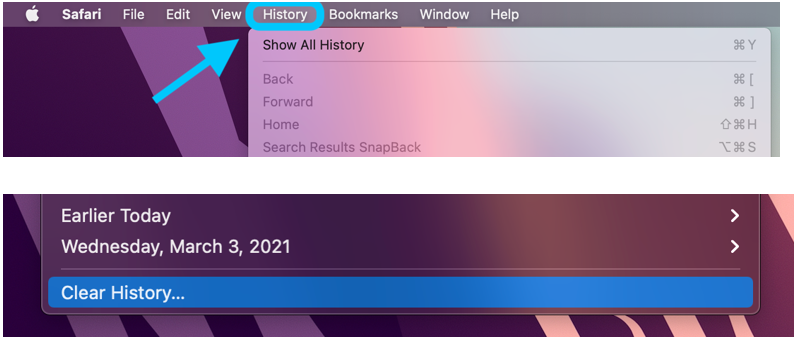
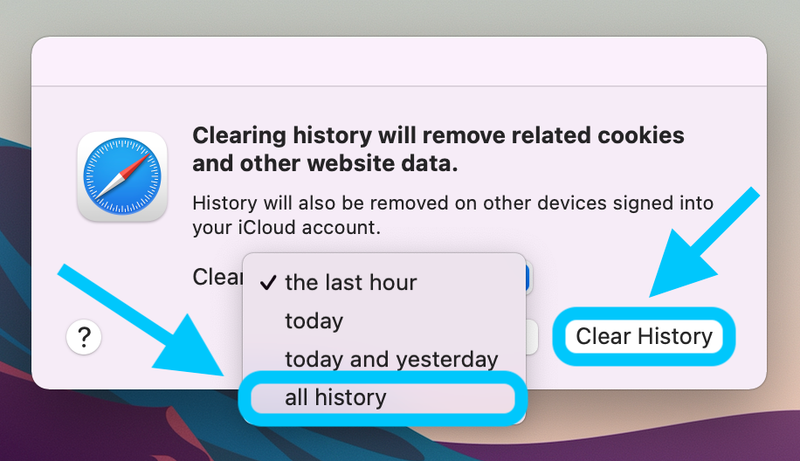
- Safari: Open “History” in the menu bar, then “Clear History.” Select “all history” and click “Clear History” again.
On Android:
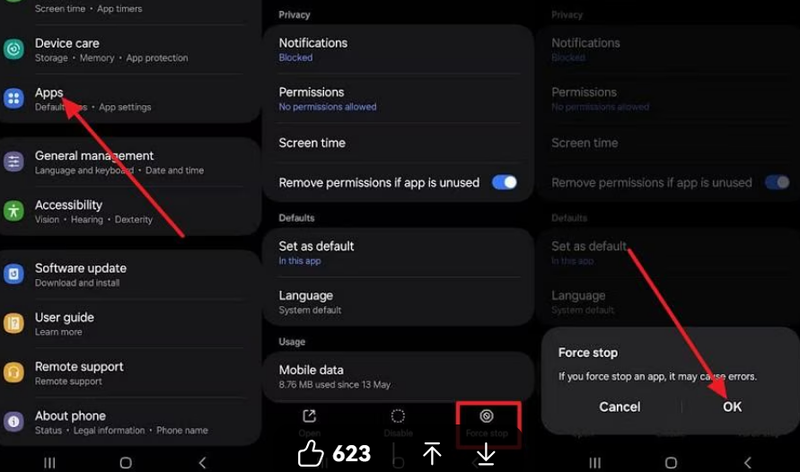
- Open “Settings,” then “Apps.” Tap “Grok.”
-
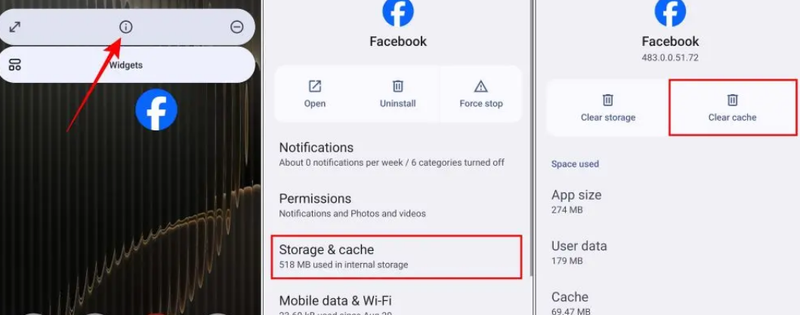
Click “Force Stop.” Long-press the “Grok” icon, tap the “i” icon, and select “Storage & cache.” Click “Clear cache.”
- Re-login: Log out of the Grok app, then log back in to see if it’s revived.
On iPhone:
Since iPhones lack a dedicated cache-clearing function, you’ll need to fully remove and reinstall the app:
-
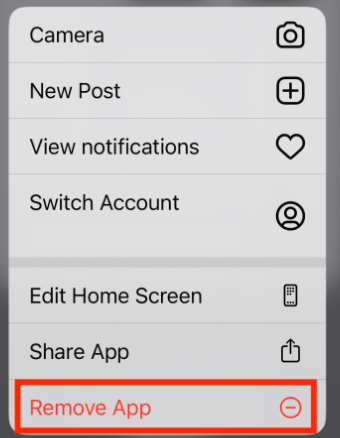
Long-press the Grok app icon and tap “Remove App.”
-
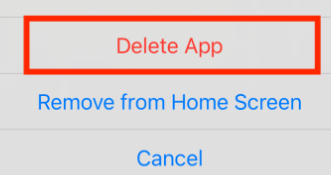
Tap “Delete App,” then reinstall Grok from the App Store.
Have I reached my Grok limit? How to check your account status and limit type
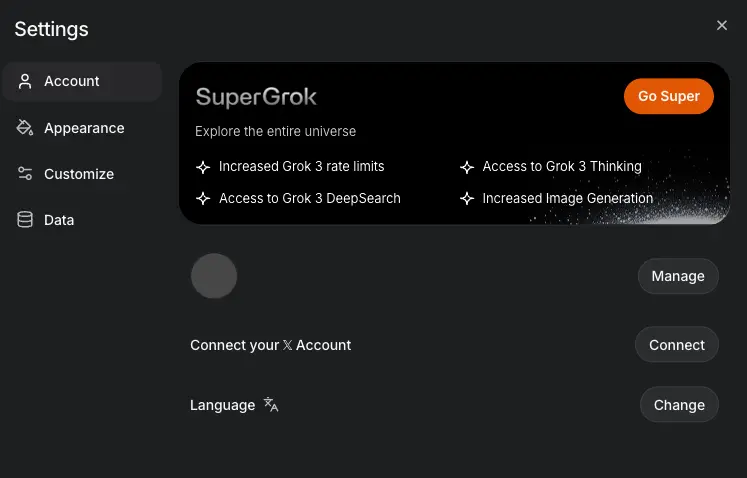
Grok might be unresponsive if you’ve exceeded your account limits. These limits hinge on your X (formerly Twitter) subscription. Check your status under “Settings” → “Subscriptions” within Grok. Premium+ unlocks higher or unlimited caps.
Free trials impose draconian quotas. Paid plans offer fixed caps that reset periodically (often every 2-3 hours or daily). To manage your Grok allowance:
- Allow for automatic resets: Message limits typically refresh after a few hours.
- Pace yourself: Space out messages post-reset.
- Optimize prompts: Be clear, concise, and combine follow-ups into single chats.
- Avoid long texts and sensitive terms; request summaries instead.
- Refresh your status: Log out of Grok across all devices, then log back in.
- Upgrade: Jump to X Premium+ for higher or boundless message allowances.
Is a browser extension interfering? How to try incognito mode
If Grok acts up in Chrome or another browser, browser extensions could be the spanner in the works. Fire up Incognito Mode to bypass them:
- Launch Incognito Mode:
-
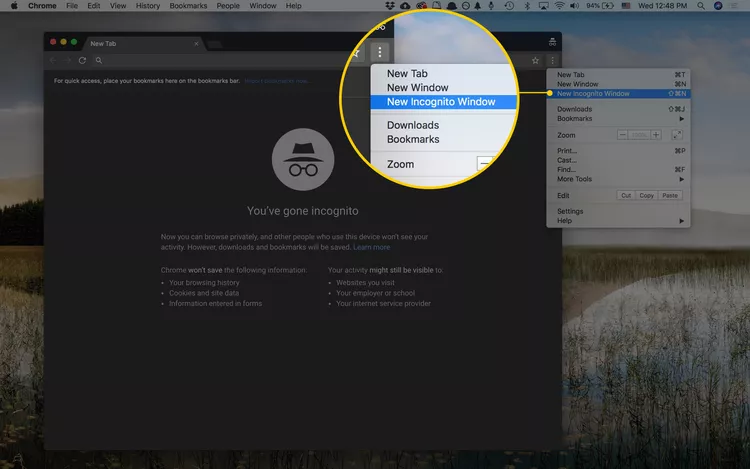
Chrome: Click the “three-dot menu (⋮),” and select “New Incognito Window.”
-
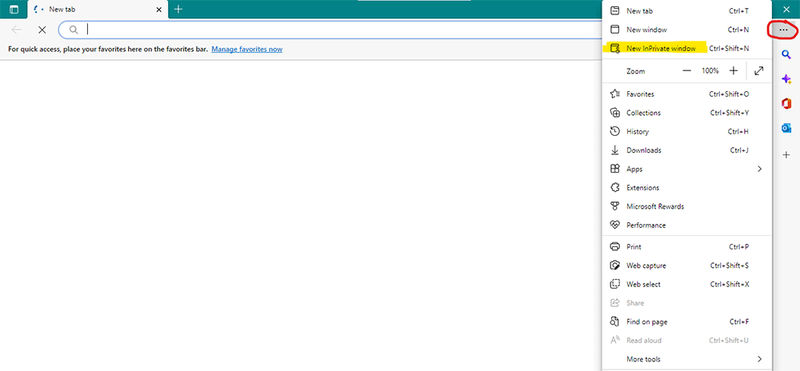
Edge: Click the “three-dot menu (…),” and choose “New InPrivate Window.”
-
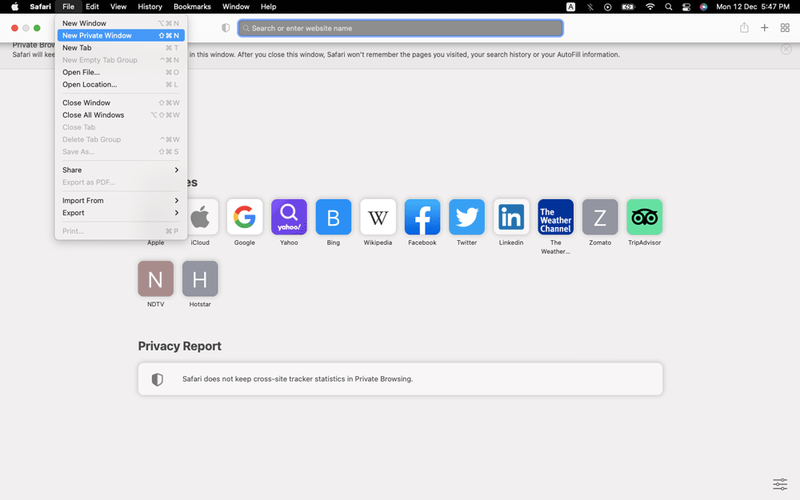
Safari: Open Safari, and go to “File.” Choose “New Private Window.”
If Grok behaves in Incognito, extensions are likely to blame. Disable them:
- Open the extensions page:
-
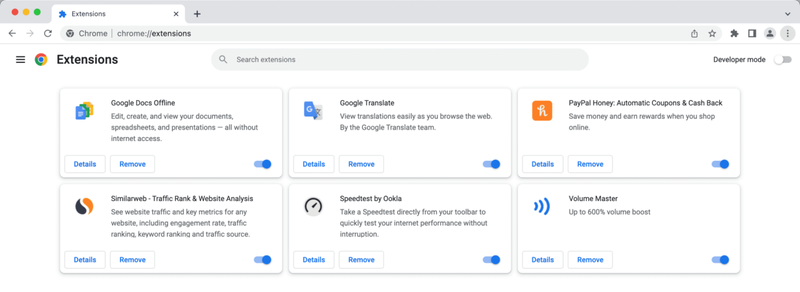
Google Chrome: Type “chrome://extensions/” in the address bar and press “Enter.”
-
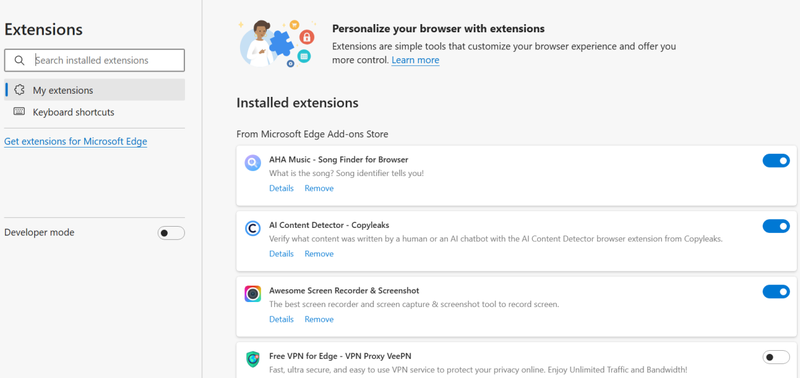
Edge: Type “edge://extensions/” in the address bar and press “Enter.”
-
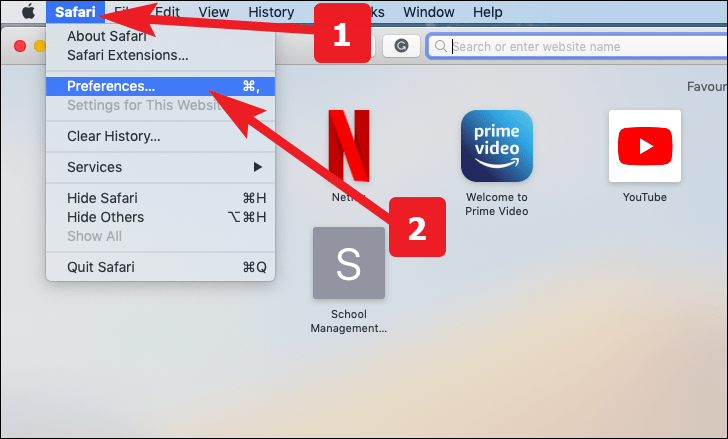
Safari: Click Safari in the top menu bar, then select “Settings…” Choose “Preferences,” and go to the “Extensions” tab.
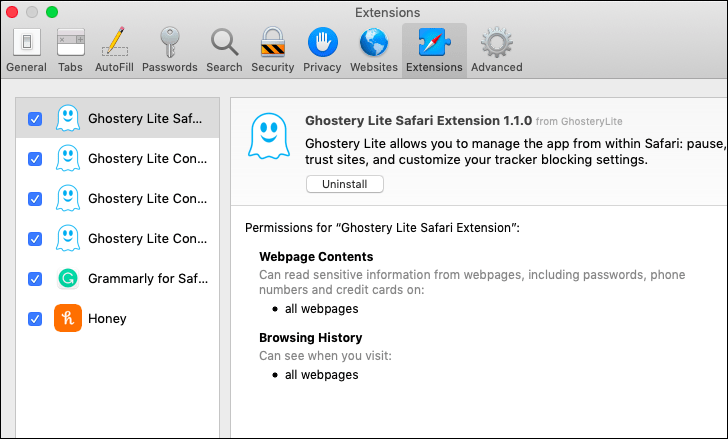
- Disable all extensions, reload Grok, then re-enable them one by one.
- Once identified, either disable, remove, update, or tweak the problematic extension.
- As a final measure, test Grok in another browser (Firefox, Edge). If it works there, your primary browser configuration is the root cause.
When All Else Fails: Grok Alternatives
Sometimes, Grok can be as stubborn as a mule. When all troubleshooting avenues are exhausted, consider these alternatives:
Final Thoughts
Think of Grok as a finely tuned instrument; when it’s out of tune, the music suffers. A myriad of factors can disrupt Grok’s performance, ranging from server-side wobbles and account hiccups to internet gremlins and browser add-on conflicts. Start by consulting the Grok Status Page and validating your internet connection. Then, clear caches, scrutinize account limits, and deploy Incognito mode to pinpoint extension-related interference. But in an AI-driven world, should we accept these periodic glitches as simply the cost of progress?