
The phone slipped from my grasp. For a split second, suspended between the sky and the hard pavement, I imagined what it would be like to fall—to float, even. This uncanny feeling is exactly what sky-falling AI videos capture, and it’s easy to see why they’re so popular. They tap into a desire for freedom, a sense of escape from the weight of the world.
Creating a skyfall video isn’t about mastering arcane technology. With the right guidance, you can make eye-catching visuals with a few simple steps. This guide will walk you through how to craft your own sky-falling AI video. Plus, I’ll share examples to spark your creativity and make the process even easier!
What Exactly is a Skyfall Animation AI Video?
Ever scrolled past a video where someone appears to be falling from the sky in slow motion? That’s likely a sky-falling animation, created using AI. These videos usually involve generating two AI images of a person: one far away, and one close up. AI video tools then animate the “fall” between these images.
Don’t confuse this effect with the Skyfall meme from 2023. That one used Adele’s James Bond theme song to soundtrack a chase scene.

Create Your Own Sky-Falling AI Video (Step-by-Step)
There are essentially four steps to creating a sky-falling video: preparation, creating the start frame, creating the end frame, and animating the video. Here’s how it’s done:
1. Preparation
Start with a clear, full-body photo of yourself (or your subject) in a horizontal, “lying down” pose. This pose helps sell the illusion that the person is actually floating.
2. Create Start Frame
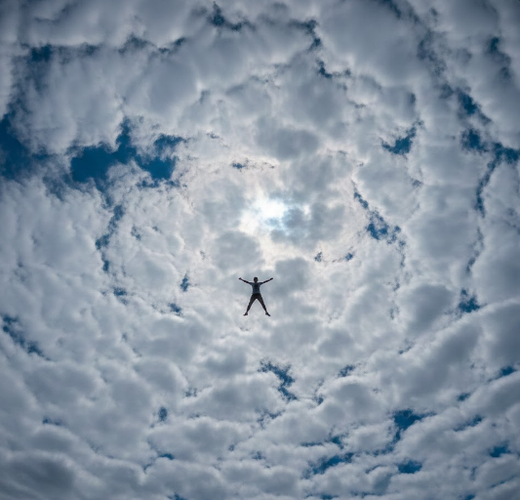
Next, generate a wide shot of yourself, appearing tiny and high in the sky. Nano Banana Pro (Image-to-Image AI) works well for this. The key is to keep the subject small within the frame to emphasize height and distance.
-
Prompt example:
“Take a picture from below the person, as this person is very high in
the sky, very small, and lying flat on their back, but not standing.
The camera is looking up at the sky.”

3. Create End Frame
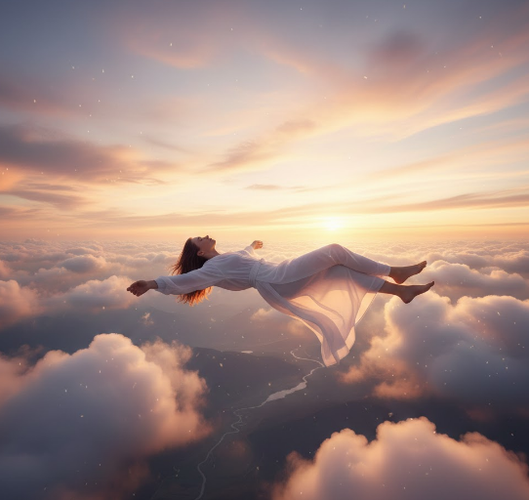
Now, create a close-up shot of yourself floating among clouds. Again, Nano Banana Pro (Image-to-Image AI) can help. Focus on the details: aim for a serene, zero-gravity aesthetic.
-
Prompt example:
“Create a cinematic shot of the person floating horizontally… high
in the sky above soft pink/golden sunset clouds. Zero gravity, calm
face.”

4. Animate the Video
With your start and end frames ready, it’s time to create the falling motion. Tools like Kling O1 or Veo 3.1 (Image-to-Video AI) can do this. Simply upload the wide shot as the “Start Frame” and the close-up as the “End Frame.” The AI will handle the in-between frames, creating the zoom and the falling effect.
Sky’s the Limit: 10+ Skyfall AI Video Prompt Examples
Remember those old cartoon strips where characters would run off a cliff, only to stay suspended in mid-air until they realised what happened? Skyfall videos are the opposite: controlled, deliberate, and often beautiful.
If you’re after speed, platforms like Pippit.ai offer “Skyfall Cinematic” templates. These let you quickly add photos or clips to a pre-made effect, if you prefer a less customized approach. Or, use these examples for starting/ending images and video animation.
Prompts for Key Video Frames
The standard method is to generate two key images: a distant “start” shot and a close-up “end” shot, and then animate them. Here are some example prompts to get you started:
1. Wide/Distant Start Frame Prompt
Take a picture from below, as this person is very high in the sky, very small, and lying flat on their back. The camera is angled up, so the sky fills the frame.
Details to Adjust: Keep the subject size “very small” for dramatic effect, and specify a “lying flat” pose.
2. Cinematic Close-Up End Frame Prompt
Create a cinematic shot of the person floating horizontally (lying flat on their back) high in the sky above soft pink/golden sunset clouds. Zero gravity, calm face, with gently drifting hair and clothing.
Details to Adjust: Change the clouds to stormy grey or the face to screaming, if you’re aiming for humor.

3. Action-Packed Single Image Prompt
An ultra-realistic cinematic scene of a person floating and falling in midair above the clouds. They’re in a dynamic, upside-down pose with bent legs and slightly raised arms, conveying a dramatic sense of motion. Use a wide-angle shot for an epic scale.
Adjust the Details: Specify the outfit, or add elements like fighter jets.
4. Minimalist Wide Shot Prompt
A cinematic, wide, low-angle shot of a person floating high in the open sky midair. The subject is very small in the frame, leaving lots of empty sky. Use soft, natural daylight and a dramatic scale.
Adjust the Details: Change daylight to sunset/night or add a shallow depth of field.
Video Animation Prompt
Wide, long shot from below: the person is very high in the sky, tiny in the frame, floating horizontally/falling backwards. The setting is soft pink, orange, and golden sunset clouds, cinematic movie shot, slight atmospheric haze, beautiful color grading.

Prompt Categories for Creative Variations
Here are some prompt examples. Just copy and paste them into your AI video tool, filling in the bracketed details:
1. Outfit Reveal Prompt: A cinematic shot of [person] floating horizontally in a stunning [color/style] outfit against [sunset/stormy] clouds. The camera swirls around to showcase the outfit details in slow motion.
2. Dynamic Action Prompt: [Character] in a dynamic, twisted pose, plummeting from the sky past [skyscrapers/mountains]. This is a heart-pounding, cinematic action scene with motion blur.

3. Couple/Romantic Prompt: Two people holding hands, floating peacefully back-to-back high above cotton candy clouds at golden hour. Dreamy, romantic, soft lighting.
4. Funny & Unexpected Prompt: [Person] in a business suit, sitting upright at a desk that is falling from the sky, typing calmly on a laptop as clouds whip by. Absurd, humorous.
5. Brand/Product Flex Prompt: Smooth, slow-motion shot of [person] floating, holding [product] prominently. Clean, professional lighting, focus on product details.

6. Fantasy/Superhero Prompt: [Character] soaring upwards through a portal in the clouds, glowing with energy, cape flowing. Epic fantasy, divine lighting, digital art style.
7. Emotional Portrait Prompt: Extreme close-up on [person]’s serene face as they float, hair drifting. A single ray of sunlight breaks through the clouds. Soulful, intimate, photorealistic.
8. Surreal & Abstract Art: A figure falling from the sky and dissolving into or emerging from a surreal landscape of floating geometric shapes and liquid chrome clouds. Conceptual, abstract, surrealist art inspired by [artists like Dali or Giger].

9. Cozy & Whimsical: A person cozily tucked into a fluffy bed or a giant teacup, floating gently among puffy white clouds and pastel balloons, as if in a peaceful dream. Soft, warm, illustrated storybook style.
10. Horror & Thriller: A person tumbling downwards into a deep, dark abyss of swirling storm clouds, a single menacing silhouette watching from above. Sinister, chilling, high-contrast horror movie atmosphere.
11. Sci-Fi & Cyberpunk: A cyberpunk [runner/hacker] in neon-lit gear is free-falling through a vertical megacity canyon at night. Digital rain and holographic ads are flickering past. Blade Runner aesthetic, neon noir.

12. Mythological & Divine: A [deity/mythical being] like [Zeus/an angel], glowing with divine light, descending from the heavens through parting clouds. Epic, reverent, classical painting style with dramatic lighting.
Want a New Look? Bonus Tip: Clothing Swaps for Your Skyfall Picture
Ever wish you could be floating in your favorite dress? You can! First, change the outfit in your original shots. Then, use those shots to generate your Skyfall pictures and video.
Tenorshare PixPretty provides an online clothes changer where you can upload a photo and swap outfits, or select from pre-designed templates. You can add accessories and mix-and-match clothing. This tool adapts any dress to a person’s body shape, pose, and lighting.
Step 1: Upload your picture, and the image of the dress you want to preview.

Step 2: Pick from the available dresses or combine tops and bottoms. Add shoes and accessories.
Step 3: Click “Generate,” and the PixPretty Clothes Changer will swap the dress.

Final Thoughts
Creating a sky-falling AI video involves using two AI images: a distant starting shot and a close-up ending shot. Animating them creates the dramatic falling effect.
With a full-body photo, AI image tools, and AI video models, anyone can create these cinematic videos. Want to change outfits first? Tenorshare PixPretty provides a clothes changer for realistic HD results.