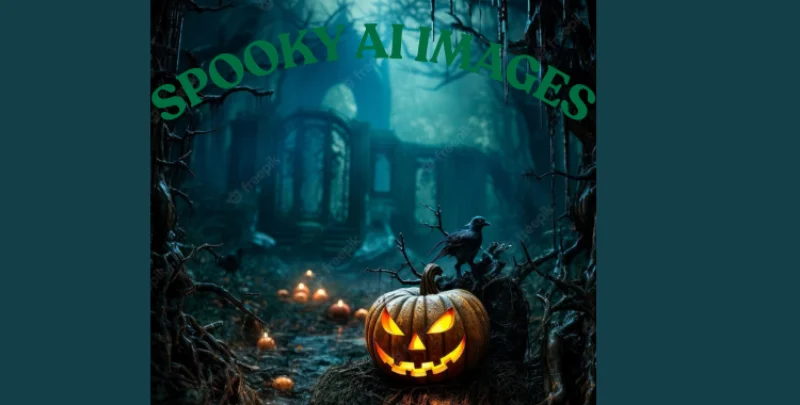
As the clock struck midnight, shadows danced across the walls, weaving unsettling tales only the brave would dare to uncover. You can almost hear whispers echoing through empty hallways, and suddenly, the longing for chilling artistry grips your imagination. The world of spooky AI art is your canvas, primed for creating harrowing visuals that leave a lasting impression.
In this guide, I will walk you through the most effective spooky AI prompts, reveal the finest tools for crafting Halloween images, and share tips on using PixPretty to elevate your projects. Let’s dive into the eerie possibilities of AI-generated horror.
Part 1. The Allure of Spooky AI Art
In the age of technology, spooky AI artwork captivates creators eager to blend realism with the uncanny. This unique fusion is ideal for countless applications, including:
Part 2. Crafting Compelling Spooky AI Prompts
To summon fearsome visuals, your prompts must encompass:
1. Eerie Character Descriptions
Think “ghost girl with hollow eyes,” or “cursed scarecrow.” Details breathe life into your frightening creations.
2. Atmospheric Settings
Consider “abandoned hospital” or “foggy Victorian forest” to set the scene.
3. Art Style
Employ styles like “hyperrealist” or “dark Gothic” to evoke the perfect mood for your visuals.

4. Mood and Tone
Use words like “ominous” or “ghostly” to evoke the paranormal.
5. Visual Effects
Incorporate effects such as “floating dust particles” to amplify the eerie atmosphere. With thoughtful combinations, your AI-generated artwork can feel disturbingly real.
Part 3. Top Spooky AI Prompts
1. Ghosts & Spirits
“A ghostly Victorian woman drifting through a candlelit corridor, hyper-realistic, with pale glowing eyes.”
“A shadowy spirit in an abandoned forest, fog swirling ominously, lit by cinematic horror effects.”
2. Haunted Houses & Mansions
“A haunted mansion at night, with broken windows and ghostly silhouettes flickering inside.”
“An old wooden cabin shrouded in mist and carved with chilling symbols.”
3. Witches & Dark Magic
“A wicked witch casting spells amidst glowing smoke, enveloped in an eerie atmosphere.”
“A coven of witches around a fire, chanting under a blood moon.”
4. Halloween Scenes
“Pumpkin demon rising from a field of flaming jack-o’-lanterns, a true Halloween horror.”
5. Zombies and Undead Creatures
“Hyper-realistic zombies emerging from the fog, their decaying skin textures stark against the abandoned cityscape.”

Part 4. Choosing Your Spooky AI Generator
The effectiveness of your spooky art can hinge upon the AI generator you select. Consider these popular options:
| Tool | Best For | Style Strength | Skill Level |
| Midjourney | Horror realism & cinematic spooky art | Dark, terrifying, and hyper-realistic | Intermediate–Advanced |
| DALL·E 3 | Cute, whimsical Halloween art | Illustrated, friendly spooky art | Beginner–Advanced |
| Stable Diffusion | Full artistic customization | Any style (editable) | Advanced |
| Fast & easy creepy images | Simple, guided Halloween art | Beginner |
Part 5. Tools for Creating Spooky AI Art
1. Midjourney
Renowned for its stunning realism, Midjourney crafts atmospheric scenes that pull you into their dark narratives. Its shadows and digital textures evoke haunting realism, making it perfect for horror-themed visuals.
Main Features
With its polished artistic touch, Midjourney excels in combining horror imagery with vivid detail.
2. OpenAI DALL·E 3
DALL·E 3 attracts users with its charming and imaginative illustrations, providing a delightful take on spooky art rather than pure horror. Its creativity shines when portraying whimsical yet eerie themes.
Main Features
DALL·E 3 captivates with its unique ability to interpret complex prompts into captivating visuals.
3. Stable Diffusion
This open-source generator grants unparalleled creative control, making it ideal for seasoned users looking to craft truly unique spooky art.
Main Features
Users can personalize their projects, train specific styles, and overcome limitations often found in closed platforms.
4.
This user-friendly tool simplifies the spooky image creation process, perfect for quick and captivating projects.
Extra Tips: Background Removal with PixPretty
Step 1: Open PixPretty’s web app and upload your image.

Step 2: Alter background colors or images using the intuitive interface.

Step 3: Download your edited image with the background tailored to your needs.
Conclusion
Creating haunting art is now at your fingertips. With the right AI prompts and tools, you can craft chilling characters and atmospheric scenes that resonate deeply with viewers. What terrifying stories will your artwork tell this Halloween?