
The horde closed in and my frame counter slipped from a steady 60 to a jittery 30. I watched my aim wobble while a stun-locked animation chewed precious seconds. I swapped settings mid-fight and the run lived to fight another wave.
I’ve spent opening night testing settings so you don’t have to guess in the middle of combat. I’ll tell you what I change, why I change it, and how to get the game feeling steady with hardware you might already own. You’ll get clear picks for DLSS, shadows, textures and a few small tools that make a big difference.
Best John Carpenter’s Toxic Commando graphics settings
On first boot I noticed shadows and volumetrics were the first things to tank framerate.
I’m sharing the exact settings I used on launch that turned stutters into a consistent 60 FPS experience. Your mileage will vary, but this is the quickest route from jagged chaos to smooth combat.
- Cinematic Ambiance: Off
- Display Mode: Personal preference
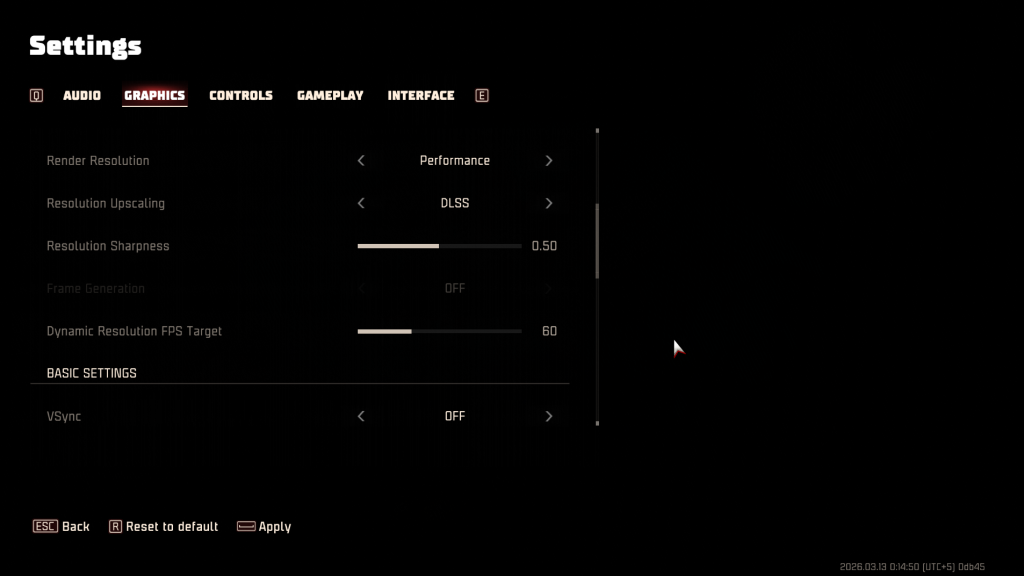
- Render Resolution: Performance
- Resolution Upscaling: DLSS (NVIDIA)
- Resolution Sharpness: 0.50
- Dynamic Resolution FPS Target: 60
- VSync: Off
- Motion Blur Intensity: Off
- FPS Limit: 60
- Visual Quality Preset: Custom
- Texture Filtering: Medium
- Texture: Low
- Shadows: Low
- SSAO: Low
- SSR: Low
- Effects: Medium
- Details: Low
- Volumetric Effects: Medium
How do I get better FPS in John Carpenter’s Toxic Commando?
Drop shadows, lower textures, and force DLSS Performance on RTX cards. If you’re on an RTX 3060, switching to DLSS Performance plus a 60 FPS dynamic target stabilizes frame pacing far more than maxed-out shadows or ultra textures.
My rig and why those choices matter
The very first map hammered my GPU more than my CPU, so I tuned visual load away from the card’s worst offenders.
Here’s the machine I tested on so you can scale expectations:
- AMD Ryzen 5600G
- 16 GB DDR4 RAM
- NVIDIA RTX 3060 12GB
On this hardware, DLSS Performance + Resolution Sharpness 0.50 keeps clarity while giving the GPU breathing room. Your GPU becomes a wild horse, steady under your hand.
Should I use DLSS for Toxic Commando?
Yes if you have an NVIDIA RTX card—DLSS Performance gives the best FPS boost with minimal visual sacrifice. If you’re on AMD, check for FSR or the game’s native upscaling options and set them to performance-oriented presets.
Quick tweaks, tools and small habits that stop stutters
During a run I noticed one driver update and a background app caused bigger hiccups than any in-game toggle.
Practical steps I apply every session:
- Turn off VSync: VSync smooths tearing but can introduce latency and stutters on systems that can’t keep a locked framerate—turn it off while you stabilize FPS.
- Cap FPS to 60: Capping stops wild fluctuations when a big group of enemies spawns and gives you consistent input timing.
- Disable Motion Blur & Cinematic Effects: They cost frames and add visual noise that hurts target clarity.
- Use DLSS/FSR: Upscaling is the single biggest FPS win on modern GPUs—set to Performance on NVIDIA RTX cards.
- Lower Shadows & SSAO: These are heavy; set them to Low first and increase only if you have headroom.
- Keep drivers fresh: Use NVIDIA GeForce Experience or AMD Radeon Software to install Game Ready drivers before a play session.
- Monitor temps and clocks: MSI Afterburner or HWiNFO helps you spot thermal throttling or power limits.
- Close background apps: Discord overlays, browser tabs, and streaming tools can bite CPU/GPU time—quit them for a competitive run.
The settings are a surgeon’s scalpel, removing unnecessary weight from each frame while keeping what matters for aim and clarity.
Expect a few post-launch patches to smooth rough edges; until then, these settings give you the best balance of clarity and frame stability. Are you willing to trade some visual flair for the assurance of consistent kills?