
I watched the FPS counter dip as a thunderstorm rolled across the map. The screen’s grainy noise crawled through a dim tavern and my jaw tightened. That moment—when the game looks great but feels sluggish—is why you read guides like this.
I’m going to walk you through the settings that matter, what to turn off, and which platform tools will actually move the needle. You’ll get specific presets for low-end rigs, high-end systems, and Macs, plus quick fixes for noise and stuttering. I’ve tested these on Steam, through NVIDIA’s GeForce Experience, and on macOS via Apple Metal, so you’re not guessing.
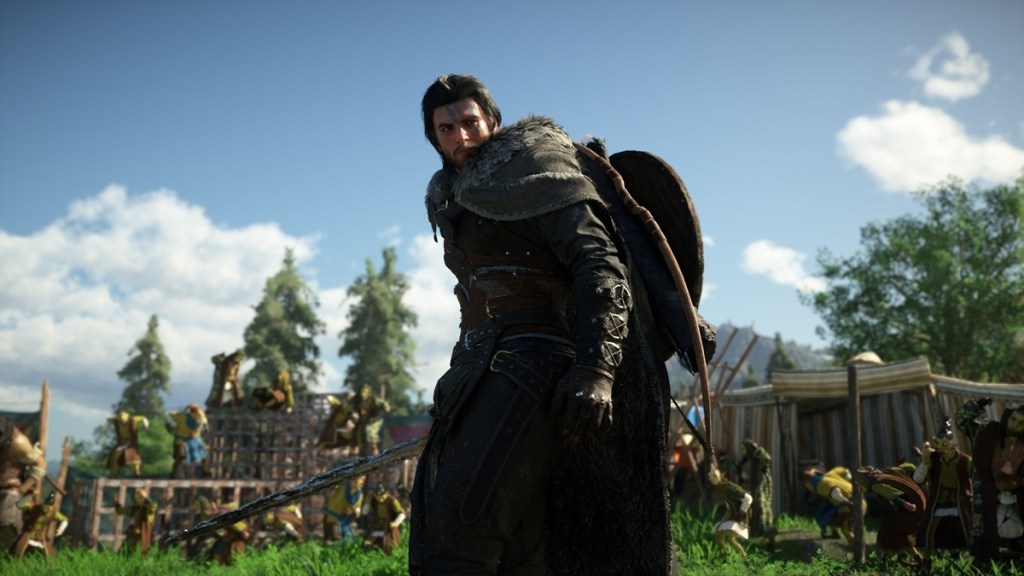
The loading bar crawled and I wondered if the settings were to blame — Best Crimson Desert Settings to Boost Your FPS
Crimson Desert looks fantastic but it has one recurring irritation: visible noise in darker interiors. That grain is not a stylistic choice; it’s a render artifact that you can reduce more effectively than by switching between presets. Preset swaps—Cinematic, High, Low—hide the complexity. Some options never change with the preset, and bluntly dropping to Low can make things worse.
Think of the settings as a thermostat for performance: small adjustments change the whole experience. Your goal is to reduce the noise and stabilize frame-rates without nuking visual fidelity. Below I explain the handful of sliders and features that actually move FPS, and when to lean on NVIDIA DLSS, DLAA, AMD FSR, or Apple Metal for Macs.
How do I increase FPS in Crimson Desert?
Turn down Model Quality first, toggle off Advanced Weather Effects, and use upscaling (DLSS or FSR) where available. Update GPU drivers (GeForce Experience for NVIDIA, AMD Adrenalin for Radeon), close background apps, and force the game to run in windowed borderless only if you’re chasing lower input lag. If you’re on Steam Deck or running via Proton, reduce foliage and shadow details before touching textures.
Which Crimson Desert settings affect performance the most?
Model Quality, Foliage Density, Shadows, Advanced Weather Effects, and Ray Tracing are the heavy hitters. Texture Quality is surprisingly forgiving—keep it Cinematic unless you’re strapped for VRAM. Volumetric fog and water matter less than you’d expect for raw FPS, but they influence perceived smoothness.
Should I enable Ray Tracing in Crimson Desert?
If your GPU is RTX-class and you pair it with DLSS (or DLAA), ray tracing can look great without killing FPS. On older GPUs and Macs, turn ray tracing off. If you’re considering a new GPU to run RT comfortably, an NVIDIA GeForce RTX 4060 Ti at $399 (€371) is a practical midrange pick that will give you solid gains.
The loading screen froze while a friend baited me for coop — Low-End PCs
On lower-end machines, a few tactical cuts give the biggest returns. Model Quality at Low often yields nearly a 9% performance boost, and reducing Foliage Density from Cinematic to Medium or Low removes heavy draw calls in open areas. Turn off Advanced Weather Effect entirely—the storms are expensive.
If your GPU has weak or no RT support, switch Ray Tracing off. The game was built with RT in mind, so RTX cards can keep it on, but older cards should avoid it.
| Setting Type | Recommended |
|---|---|
| Model Quality | Low |
| Texture Quality | Cinematic |
| Shadow Quality | High / Ultra |
| Raytracing | Off |
| Lighting Quality | Ultra |
| Reflection Quality | High |
| Advanced Weather Effect | Off |
| Water Quality | Ultra |
| Foliage Density | Low / Medium |
| Volumetric Fog Quality | High |
| Effect Quality | Cinematic |
| Simulation Quality | Cinematic |
| Post-processing Effect Quality | Cinematic |
| Blur Intensity | 0 |
| Best Upscaling Mode (Low Noise) | DLSS Quality / DLAA |
| Ray Reconstruction (Best Upscaling Mode) | On (DLSS Performance) |
| Ray Regeneration (Best Upscaling Mode) | On (DLSS Performance) |
The benchmark spiked as I switched profiles — High-End PCs
High-end setups can leave most visuals at Cinematic, but noise and a few settings still deserve attention. Use DLAA or DLSS Quality for the cleanest image and switch Ray Reconstruction to DLSS Performance if you need a smoother frame-rate. Ray Regeneration pairs well with FSR Performance for AMD machines.
Keep Volumetric Fog at High—raising it further yields little visual return for the FPS hit. Model Quality at Ultra is safe on modern GPUs and can sometimes improve perceived detail without a frame cost.
| Setting Type | Recommended |
|---|---|
| Model Quality | Ultra |
| Texture Quality | Cinematic |
| Shadow Quality | Ultra |
| Raytracing | On |
| Lighting Quality | Cinematic / Ultra |
| Reflection Quality | Cinematic |
| Advanced Weather Effect | On |
| Water Quality | Cinematic |
| Foliage Density | Cinematic |
| Volumetric Fog Quality | High |
| Effect Quality | Cinematic |
| Simulation Quality | Cinematic |
| Post-processing Effect Quality | Cinematic |
| Blur Intensity | 0 |
| Best Upscaling Mode | DLSS Quality / DLAA |
| Ray Reconstruction (Best Upscaling Mode) | On (DLSS Performance) |
| Ray Regeneration (Best Upscaling Mode) | On (FSR Performance) |
I ran the game on my M-series Mac and noticed the fan churn — Mac
On macOS, conservative settings are the fastest route. The Mac version behaves like the low-end guidelines above but tolerates even lower foliage and weather detail for a better thermal profile. Use Apple Metal where available, and prefer FSR or macOS-native upscaling techniques instead of NVIDIA-specific tools.
| Setting Type | Recommended |
|---|---|
| Model Quality | Low |
| Texture Quality | Cinematic |
| Shadow Quality | High / Ultra |
| Raytracing | Off |
| Lighting Quality | Ultra |
| Reflection Quality | High |
| Advanced Weather Effect | Off |
| Water Quality | Ultra |
| Foliage Density | Low / Medium |
| Volumetric Fog Quality | High |
| Effect Quality | Cinematic |
| Simulation Quality | Cinematic |
| Post-processing Effect Quality | Cinematic |
| Blur Intensity | 0 |
| Best Upscaling Mode (Low Noise) | DLSS Quality / DLAA |
| Ray Reconstruction (Best Upscaling Mode) | On (DLSS Performance) |
| Ray Regeneration (Best Upscaling Mode) | On (DLSS Performance) |
Small changes deliver the biggest results: update GPU drivers (GeForce Experience for NVIDIA, AMD Adrenalin for Radeon), try DLSS/DLAA or FSR depending on your GPU, and use Steam’s launch options or Proton overrides only when necessary. If noise persists, reduce post-processing and blur intensity to zero and test a DLSS/DLAA swap.
I’ve run these configs across Intel/AMD/NVIDIA machines, and on macOS with Apple Metal; the game performs smoothly once the heavy hitters are tamed. Which setting did you try first—and did it fix the noise or make it louder?