
I logged into Path of Exile 2 on day one and felt my plan evaporate—too many nodes, not enough time. You stare at the Passive Skill Tree and realize every wrong point is a slow bleed of progress. I learned to stop guessing and start importing.
I’ll walk you through the Build Planner as if I were standing beside you, pointing to the exact folder and the precise button you need to press. You won’t need to memorize every node or hunt down dozens of creator videos; you’ll copy a single file and let the game guide you. This is practical, quick, and built to save the kind of hours that ruin an early-season push.
How does the Build Planner work in Path of Exile 2
I once followed a streamer’s spoken instructions and hit the wrong cluster three times in a row.
The Build Planner is a file-driven shortcut: a creator or community member exports a BUILD file and you import it into your game. Open the file inside Path of Exile 2 and the Passive Skill Tree will show a blue guided path that tells you exactly where to spend points. Think of it like loading a map into a navigation device—no guesswork, just follow the line.
How do I import a build into Path of Exile 2?
Find a build you trust—one from a YouTuber, Twitch creator, or a community site like PoE Vault—and download the .BUILD file. Then:
- Save the file somewhere obvious on your PC.
- Copy the file into the Build Planner folder inside Documents > My Games > Path of Exile 2 (the folder is labeled Build Planner or similar).
- Launch the game, press P to open the Passive Skill Tree, click the menu in the top-left, and select the build you pasted into the folder.
The tree will repaint itself with a blue sequence of nodes. Follow that sequence as you level and your character will shape itself the way the creator intended.
Downloading the build
I have a folder filled with creator builds that I’ve tried and abandoned over time; some were perfect, some were close.
When you find a build you like, hit download and note the file name. The file type will read as a BUILD file—keep track of where your browser saves it. If you prefer sources, follow creators who post their builds on YouTube, Twitch, or community databases like PoE Vault; many creators include the .BUILD for direct use.
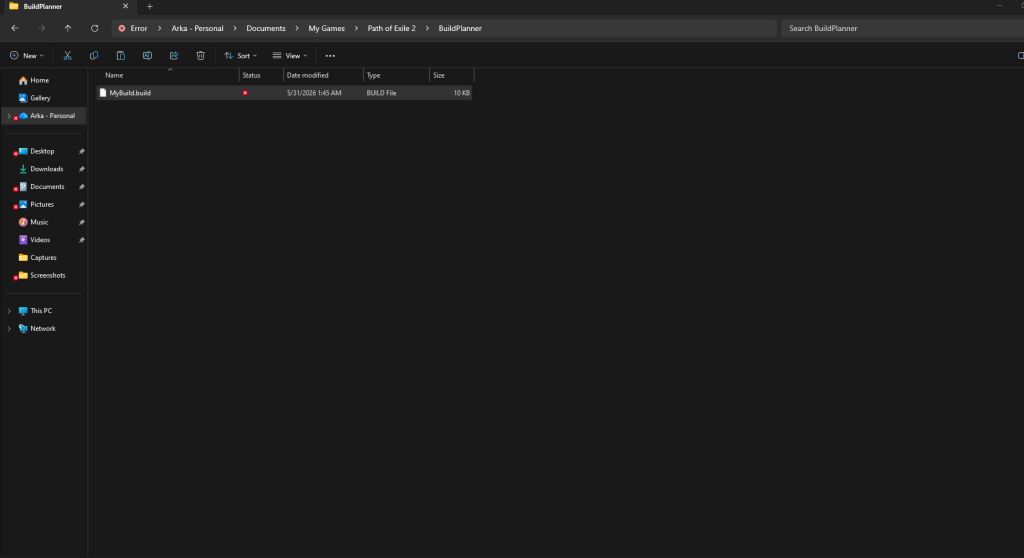
Where do I put Build Planner files?
On Windows the path is simple: Documents > My Games > Path of Exile 2 > Build Planner (or a folder with a very similar name). Copy the downloaded .BUILD into that folder, then start the game. If you use a cloud-synced Documents folder (OneDrive, Google Drive), be mindful of sync delays—copy locally if the build doesn’t appear immediately in-game.
Importing the downloaded build
I once saw a guildmate paste files into the wrong folder and blame the game for not finding his plan.
With the file in place, load Path of Exile 2, press P, and open the Passive Skill Tree. The top-left menu lists builds found in the Build Planner folder. Select your file and watch the tree highlight a route—the blue line shows the exact sequence to take while leveling. The interface also highlights required support gems in Gemcutting and flags specific gear pieces in your inventory, so you won’t miss the small but important items that make a build work.

Will the Build Planner set my gear and skills automatically?
The Build Planner won’t equip items for you, but it points to them. Support gems and required affixes are flagged in the Gemcutting interface and inventory highlights will show items the build needs. You still manage trading, buying, or crafting—this tool reduces cognitive load, not mechanical work. If you follow a creator who pairs a video with their .BUILD, you get a near-complete guide: the file maps the tree and the video explains the fine gear choices and craft priorities.

Practical tips and warnings before you copy a creator’s build
I’ve lost hours chasing a perfect item only to realize the creator was testing on endgame gear.
Watch the source: creators like those on YouTube or Twitch will label whether a build is beginner-friendly or requires expensive items. If a guide mentions stash purchases or high-value crafts, expect to pay in currency or time—trading and crafting can become significant overhead during a league launch. Treat the .BUILD file as a blueprint for your character; it’s not a complete shopping list, but it will tell you where to place your points and which gem setups to aim for. The Build Planner is a compass, not a magic wand: follow it and you cut mistakes; ignore it and you write your own, slower guide.
Is the Build Planner safe to use with third-party sites?
Yes—.BUILD files are simple text-based exports created by Grinding Gear Games’ tools. Prefer official or well-known community sources (established creators, PoE community sites) and avoid strange downloads from unknown hosts. If you’re in doubt, open the file in a text editor first; a quick glance will show readable build data rather than obfuscated content.
The Build Planner changes how you manage a Path of Exile 2 character: it removes guesswork, syncs creator expertise to your tree, and highlights the small pieces that matter. It’s a time-saver that protects you from early mistakes and makes your gameplay feel more deliberate—like reading a blueprint before you start hammering nails.
Which creator build will you try first and why will it define your league sprint?