
My loot timer hits zero and someone I barely know teleports into my server and grabs the drop. I sit there, cursor over the shop, watching my grind evaporate in real time. That small, sudden intrusion is the exact moment I learned to stop letting other people gatecrash my play.
I’ve spent too many hours soloing raids and farming rare spawns to leave that feeling to chance. I’ll show you, step by step, how to shut off Joins so you can play alone when you want to—fast, on mobile or PC, and without hunting through menus. You’ll keep inviting privileges if you want them; this is about privacy, not isolation.
What Is Joins in Roblox?
On almost every profile you’ll notice a link that shows the game a player is in.
Joins is the profile-based privacy toggle that lets other players hop into the exact experience you’re playing. Turn it off and your current game stops appearing on your profile—think of it like a closed front door for anyone trying to walk in through your page. You’ll still be able to appear online to friends or invite people directly, but random arrivals through your profile will stop.
How to Turn Joins Off in Roblox on Mobile
When you open the Roblox app you’ll usually see the hamburger menu in the corner—tap that and the settings are a few clicks away.
Follow these quick steps on iOS or Android to hide your current game:
- Open Roblox and tap the three lines (hamburger menu) in the top-left corner.
- Tap the Settings (gear icon).
- Choose Privacy & content restrictions.
- Open Visibility & private servers, then tap Visibility.
- Find Show current game and set it to No one.
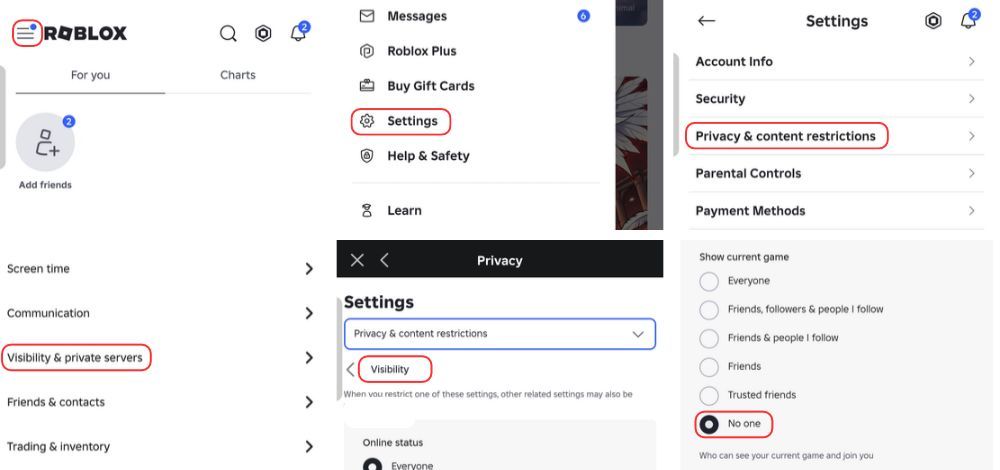
If you want extra quiet, turn off Share activity updates so friends won’t get a notification that you’ve been in a game. It’s a small setting, but it feels like a dimmer switch for your presence.
How to Turn Joins Off in Roblox on PC
On desktop the layout mirrors the app: the hamburger menu is still the gateway to settings.
Do this in the Windows app or web version:
- Open Roblox and click the three lines (hamburger menu) in the top-left corner.
- Click Settings (gear icon).
- Click Privacy & content restrictions.
- Open Visibility & private servers, then choose Visibility.
- Scroll to Show current game and set it to No one.
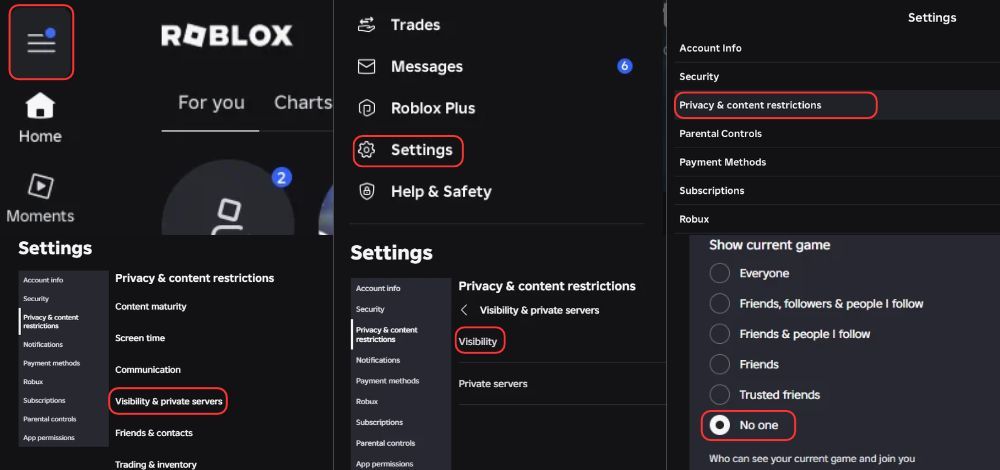
After you change that setting, your profile will no longer present a direct join link to whoever clicks it. That means your solo runs in games like Blox Fruits or private Fisch grinds stay private unless you send an invite.
Can I still invite friends after turning joins off?
Yes. Turning Joins off only stops profile-based arrivals. You keep the ability to invite players inside the game through Roblox’s invite system or private servers.
Does turning joins off work for every Roblox game?
Yes. The setting applies account-wide, across the platform—whether you’re in a user-made obby, a Roblox Studio test, or a large MMOG. It’s a global visibility setting tied to your profile, not individual places.
Can accounts under 13 turn joins off?
Sometimes you’ll hit a parental gate. Accounts set as under 13 may require a parent or guardian PIN to change restricted privacy controls. If that happens, the parent controls on iOS/Android or the Roblox account settings managed by a guardian are the route to follow.
If you care about privacy, this slider is one of the easiest wins in Roblox’s settings. Want more granular tools—like per-game visibility toggles or friend-group exceptions—or should privacy stay global and simple?