I launched Minecraft, hit Play, and watched the scene stutter as chunks tried to load. You know that heartbeat—the one that tells you the renderer is the bottleneck. I flipped through the new 26.2 Snapshot and found a simple toggle that can change how the game talks to your GPU.
I tested the snapshot on a mid-range gaming laptop so you don’t have to guess whether Vulkan is worth the trouble. Below I show you the exact steps to turn Vulkan on, what to expect, and the real FPS numbers I measured—no hype, just results.
At the Options screen I noticed a new “Graphics API” option — What is Vulkan in Minecraft?
Vulkan is a modern graphics API that gives developers and drivers more direct control over the GPU compared with OpenGL. That extra control can translate into higher frame rates, better CPU-to-GPU work distribution, and fewer micro-stutters—especially on systems with a dedicated graphics card from NVIDIA or AMD.
Mojang shipped Vulkan as an experimental option in Minecraft 26.2 snapshots for Java Edition. It will fall back to OpenGL on older drivers and hardware. On macOS, Mojang uses MoltenVK to translate Vulkan calls into Metal, so performance varies by Apple chip generation.
Is Vulkan better than OpenGL?
Short answer: often, yes. In my hands Vulkan delivered smoother, higher peak FPS while keeping frame delivery steadier. Think of OpenGL as an old bicycle and Vulkan as a sports car—both get you there, but one handles heavy traffic with much less sweat.
I opened the latest snapshot and clicked through Video Settings — How to enable Vulkan in Minecraft
Enabling Vulkan is a few clicks. You only need the latest 26.2 snapshot or later installed in the Minecraft Launcher.
- Open the Minecraft Launcher and select the latest snapshot version to the left of the Play button. Download it if you haven’t already, then click Play.
- In-game, go to Options → Video Settings.
- Find the Graphics API setting and toggle away from Default to Prefer Vulkan.
- Click Done and then restart the game so the change takes effect.
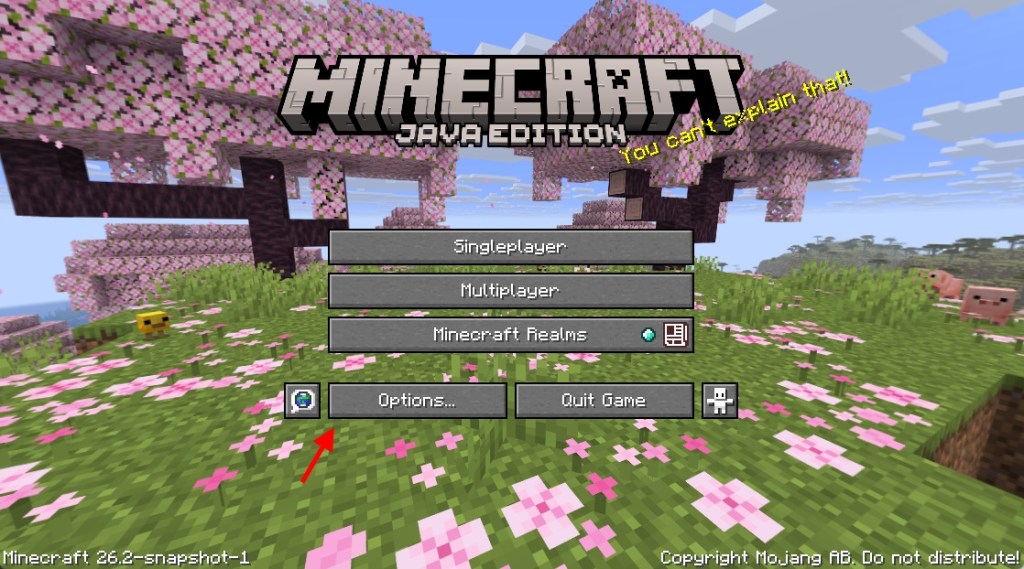
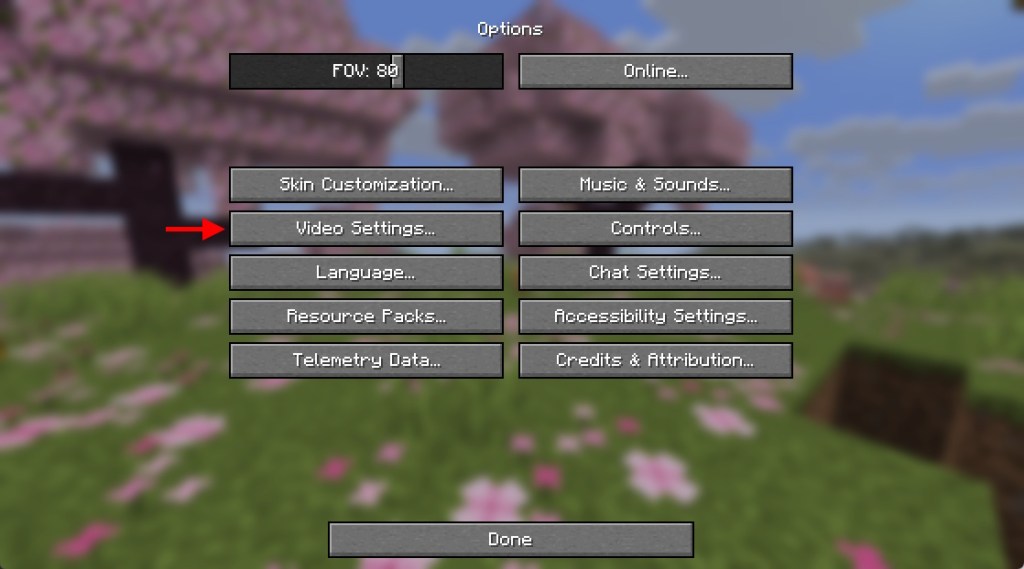
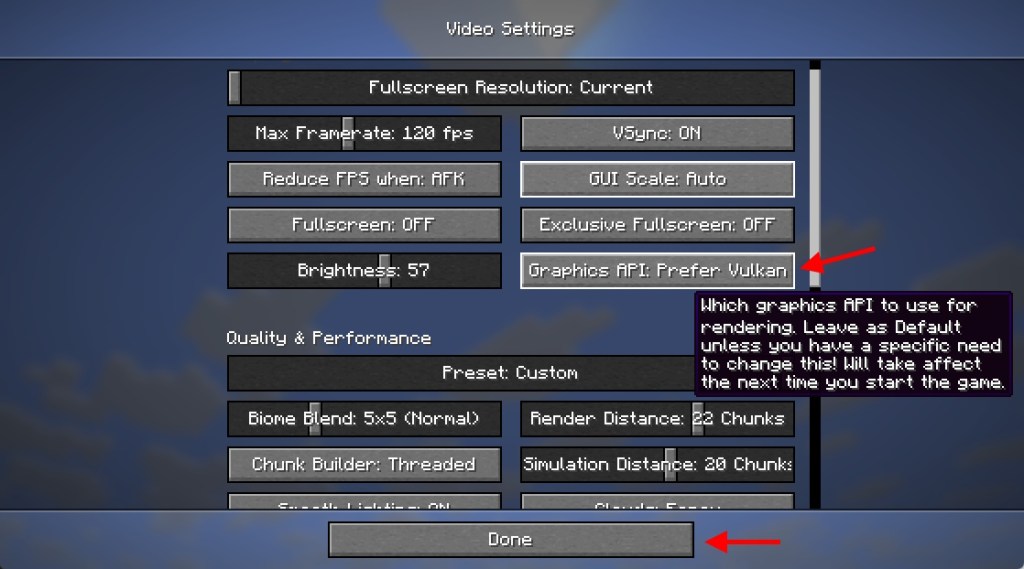
After switching, restart Minecraft. Note that while Vulkan is active the game will prefer your dedicated GPU over integrated graphics—set that in Windows or your GPU control panel if needed.
How do I enable Vulkan in Minecraft?
Install Minecraft 26.2 Snapshot 1 or later in the Launcher, open Video Settings, switch Graphics API to Prefer Vulkan, then restart the game. That’s the whole procedure for Java Edition.
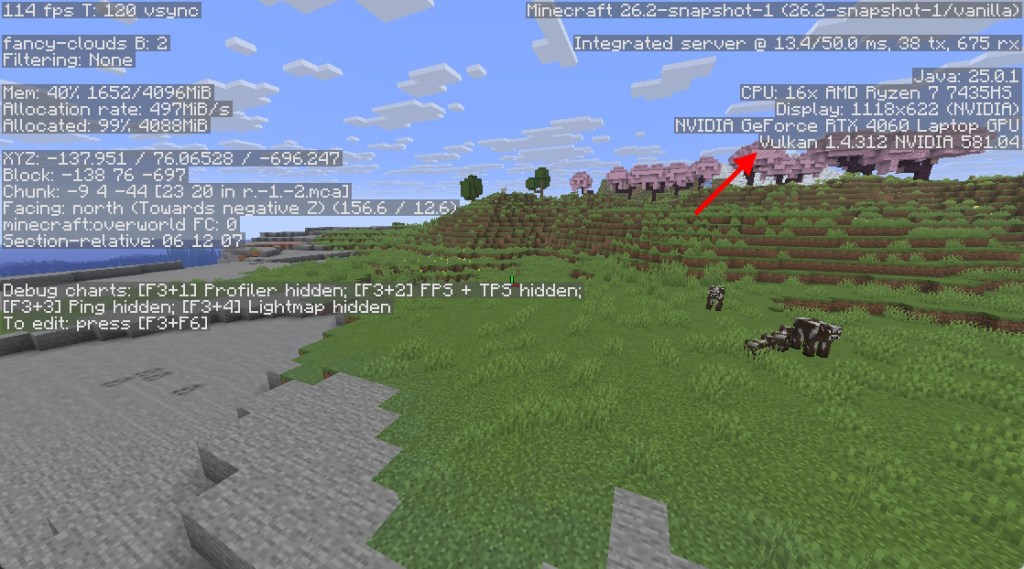
I pressed F3 and watched the system_specs line change — Minecraft OpenGL vs Vulkan performance
On my test machine I toggled between OpenGL and Vulkan and recorded the average FPS across dimensions. Hardware: AMD Ryzen 7435HS CPU, NVIDIA GeForce RTX 4060 (8GB), 24 GB DDR5 RAM, 512 GB SSD, Windows 11.
| Area | OpenGL | Vulkan |
|---|---|---|
| Overworld | 280 FPS | 490 FPS |
| The Nether | 270 FPS | 530 FPS |
| End Dimension | 230 FPS | 280 FPS |
Test settings: Windowed Fullscreen at 1440p, Graphics set to Fancy, FPS set to Unlimited, Vsync OFF, Minecraft 26.2 Snapshot 3, and the game forced to the dedicated GPU in Windows display settings. Vulkan showed higher peaks and steadier frame counts; switching felt like opening up a four-lane highway where previously there had been a single narrow passage.
Important context: Vulkan is marked experimental by Mojang. That means results vary by GPU driver, CPU, mods, or shader packs. On newer Apple silicon (M3 and later) Vulkan via MoltenVK can approach OpenGL speeds; older Macs may still run OpenGL as the fallback.
If you use mods, note that the built-in Vulkan option removes the need for third-party Vulkan performance mods in many cases, though some shader or mod combinations may still work better under OpenGL for now.
Can you use Vulkan in Minecraft?
Yes. Java Edition snapshots from 26.2 onward include a Prefer Vulkan option in Video Settings. Try it on a snapshot profile in the Launcher and verify with F3 that the system_specs line shows Vulkan.
I’ve shown the steps, the practical effects, and measured results. Will you flip the switch and test Vulkan in your own worlds—what did it do to your FPS and stability?