
I was three seconds from a perfect drift in Forza Horizon 6 when a tiny window stole the screen and the music. You feel that cold halt—the car keeps sliding while the game tells you it can’t run. I closed the popup, cursed, and then fixed it without reinstalling Windows.
I write this because I want you back in the driver’s seat fast. You’ll find a short explanation, two reliable fixes, and a quick troubleshooting checklist that skips the guesswork. Read only what you need and try the steps in order; they move from least invasive to the one that actually fixes most cases.
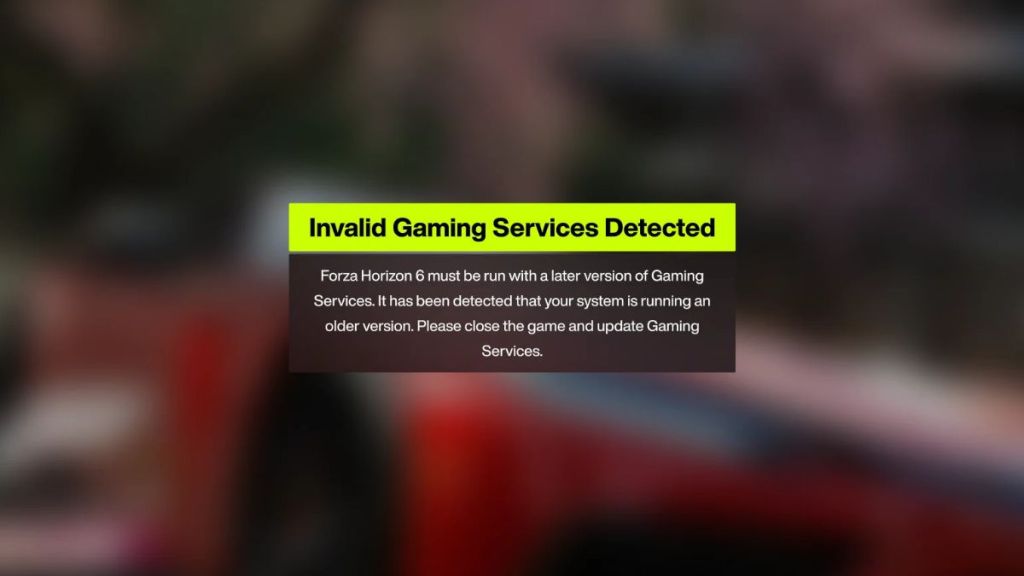
What the “Invalid Gaming Services Detected” error actually is
You press Start and the popup appears, killing momentum and progress. That popup means Windows can’t validate or run the Gaming Services component that manages Xbox/PC game installs, updates, and licensing.
Gaming Services is the traffic cop for Xbox games: it sits in the background and routes updates, sign-ins, and entitlements between Microsoft Store, the Xbox app, Steam, and Game Pass. If the service is missing, out of date, or corrupted, modern titles such as Forza Horizon 6 will refuse to run.
Why does Forza Horizon 6 say “Invalid Gaming Services Detected”?
Short answer: the Gaming Services package on your PC either doesn’t match what Forza expects or Windows can’t verify it. Common triggers:
- Gaming Services is outdated or partially updated via Microsoft Store.
- An interrupted update (Windows Update or Store) left files corrupted.
- You installed Forza via Steam but the Xbox/Store components need repair.
- Third-party tweaks or anti-cheat software blocking validation.
Simple fixes that get you back into the game
I saw this solved mid-session by forcing an update in the Store; the launch was instant afterward. Try these in order—most players are fixed by step two.
How do I update Gaming Services on Windows?
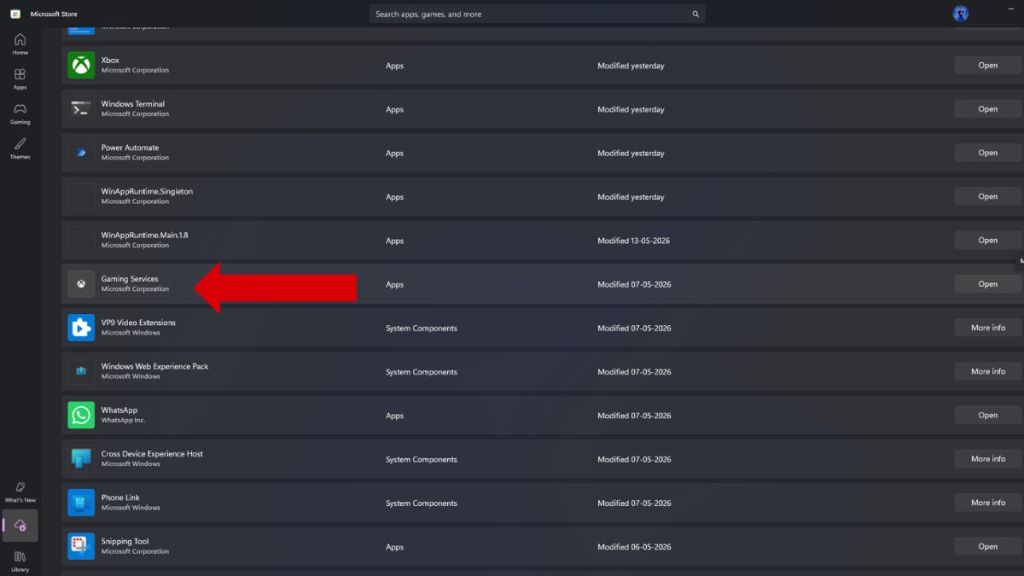
- Open Microsoft Store from the taskbar or Start menu.
- Click Downloads and updates (or the profile menu then “Downloads and updates”).
- Select Get updates and wait while the Store scans and applies updates.
- If Gaming Services appears, click Update. Restart the PC after it finishes.
If the Store shows no update but the error persists, go to the next step.
Will reinstalling Gaming Services fix the error?
Yes in most cases. If an update doesn’t clear the message, reinstall the package to replace corrupted files. The error is a speed bump in your launch sequence, not a total fail.
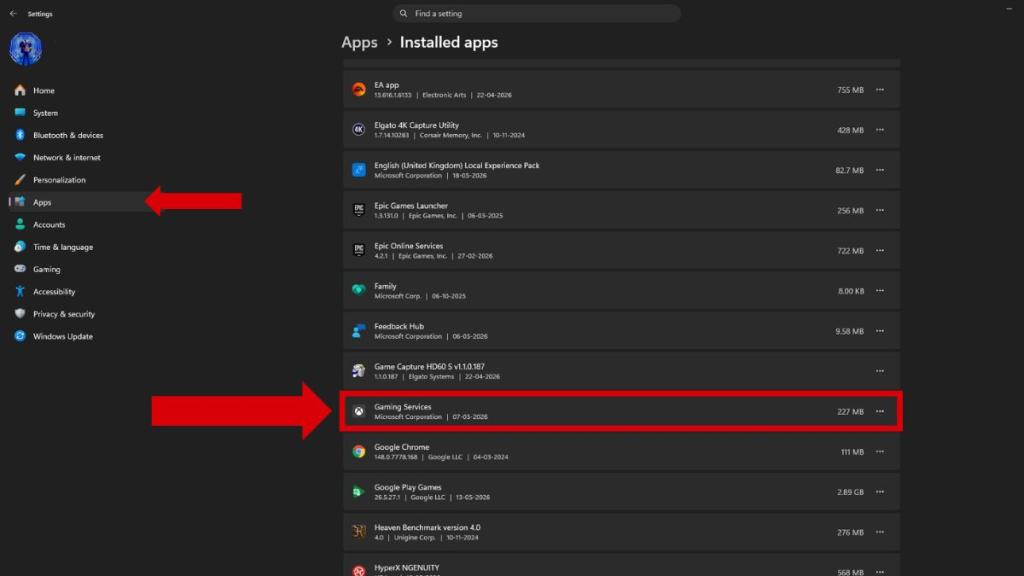
- Open Settings → Apps → Installed apps.
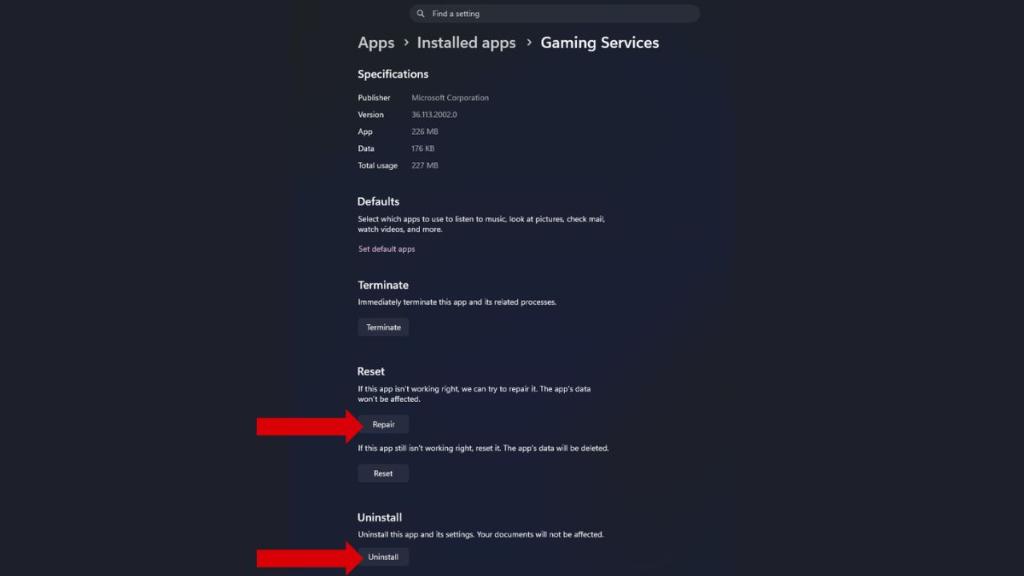
- Search for Gaming Services, click the three dots, and choose Advanced options.
- First try Repair. If that fails, use Uninstall.
- Restart your PC.
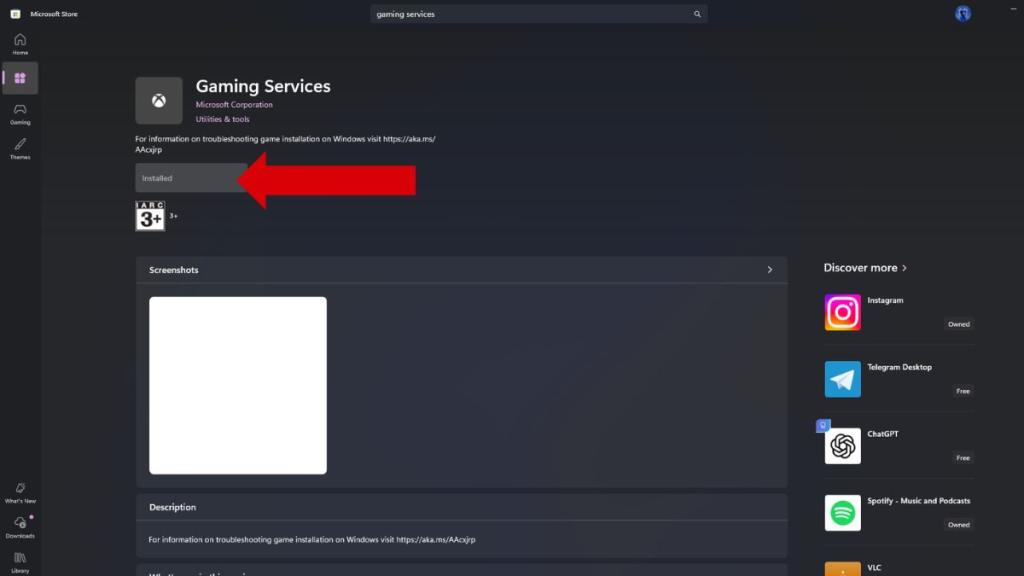
- Open Microsoft Store and install Gaming Services from its official page (or visit this link).
- After install, reboot and launch Forza Horizon 6.
Forza on PC expects Gaming Services at least at version 36.113.2002. If your version is older, the game can refuse to run.
When to call support and what to tell them
You tried the updates and reinstall but the popup persists across installs and Steam/Game Pass launches. At that point, gather a few things before reaching out.
- Take a screenshot of the exact popup and note the Gaming Services version from Settings → Apps.
- Record whether you installed Forza via Steam or the Microsoft Store/Game Pass; the Store and Xbox app are often involved.
- Check Windows Update and the Xbox app for pending updates, then restart once more.
Contact Microsoft Support or the Forza support forums with that info; a single clear ticket usually gets escalation from Xbox engineers if it’s a service-side issue.
So: did you repair it with the Store, reinstall, or still see that popup—and who do you blame for ruining a perfect run?