
I sit down after a long day, press the Xbox button, and the dashboard greets me with an error instead of my friends list. You hit sign-in and the console spits back a cold code: 0x87dd000f. That small row of text suddenly feels like a slammed door between you and the game.
I follow Xbox outages for a living, and I want you to get back online fast. Right now, Xbox and its core services are generally online, but intermittent login and server-connection failures are rolling through player reports. Below I’ll show you how to check status, why the 0x87dd000f error appears, and step-by-step fixes that actually work.
On social feeds, dozens of players posted login failures within minutes — so is Xbox down?
Short answer: not across the board. Microsoft’s Xbox server status page is the authoritative source, and it rarely shows a full outage right now. What you’re seeing is a wave of sign-in and matchmaking glitches that can follow a partial outage or local network hiccup.
The error code 0x87dd000f typically means a Microsoft account sign-in failed because of a network handshake problem. When servers stutter, your console can feel like a jammed highway: packets pile up and authentication stalls.
What does error 0x87dd000f mean?
It’s a sign-in failure caused by disrupted communication between your console and Xbox Live authentication services. That can be triggered by a recent outage, a router misconfiguration, DNS hiccups, or a corrupted local profile cache.
How do I check if Xbox Live is down?
Visit Microsoft’s server status page, watch the official Xbox Support Twitter, or use downtime trackers like DownDetector for crowdsourced reports. If those sources are clear but you still can’t sign in, the problem is likely local to your console or ISP.
After I stopped counting error messages, I tested a handful of fixes — here are the ones that work
I’ll walk you through the quickest, most effective steps. Follow them in order and test sign-in after each one; that narrows the cause fast.
Restart your console
Hold the Xbox button until the console fully powers down — don’t use sleep mode. Unplug the power cable for 30 seconds, plug it back in, and boot up. This clears the hardware cache and often restores the authentication handshake.
Reboot your modem and router
Turn off and unplug both devices for a minute, then power them up in this order: modem first, then router. A fresh IP and routing table can reset the path to Microsoft’s servers.
Remove and re-add your profile
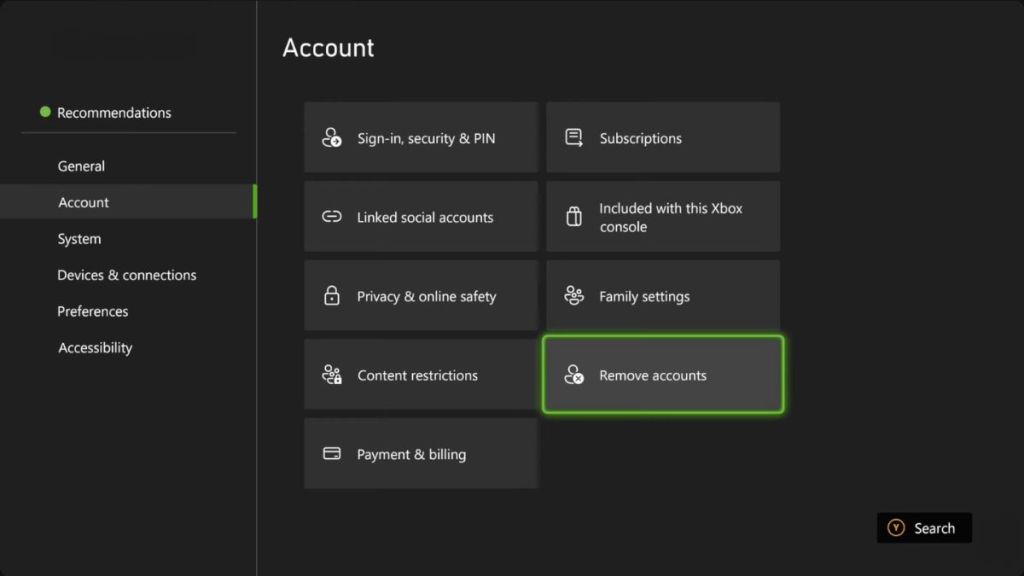
If sign-in still fails, your local profile may be corrupted. Go to Settings > Account > Remove accounts, remove your profile, restart the console, then add the profile back via Settings > Account > Add new. A re-downloaded cloud profile often fixes persistent sign-in errors. A corrupted local profile is a frayed login rope — cut it and tie a fresh knot.
Change your DNS servers
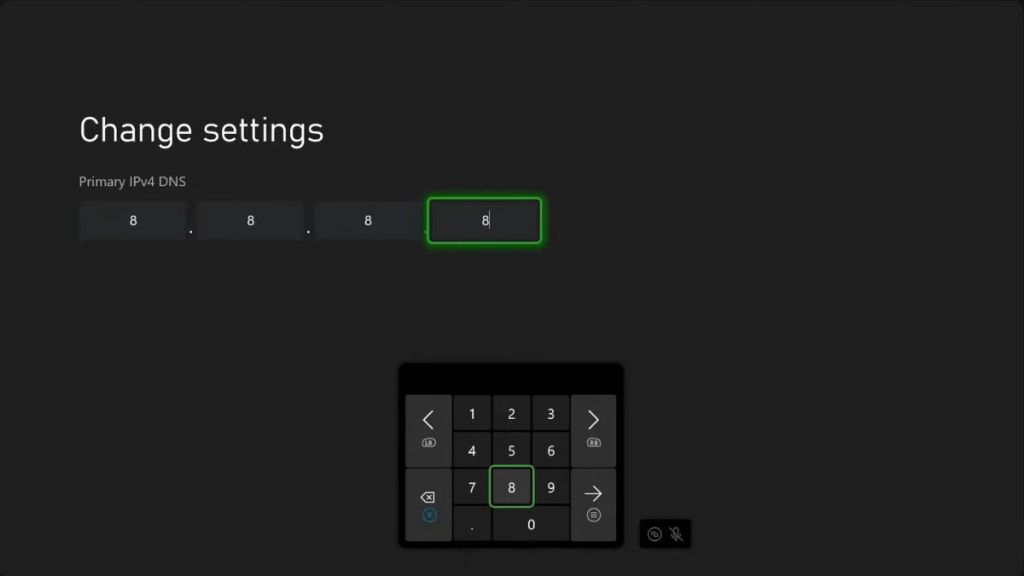
If your ISP’s DNS is slow or misrouting, switch to a public resolver on the console: Settings > General > Network settings > Advanced settings > DNS and choose Manual. Try:
- Google DNS — Primary 8.8.8.8 / Secondary 8.8.4.4
- Cloudflare DNS — Primary 1.1.1.1 / Secondary 1.0.0.1
Save and restart the console. Many players regain sign-in immediately after a DNS swap.
Check for a system update
If your console stalled during an update it can struggle with live services like Xbox Game Pass or multiplayer. Go to Settings > System > Updates and finish any pending downloads. If an update is stuck, a wired connection can be faster and more reliable for completing it.
If those steps don’t work, wait a short while and re-check Microsoft’s status page and the Xbox Support Twitter for official fixes and rollouts. For persistent outages tied to Microsoft’s backend, waiting is often the only option.
How can I fix Xbox login errors quickly?
Restart the console, reboot your network, try a DNS swap, and re-download your profile in that order. Each step rules out a common cause and keeps you from wasting time on low-impact changes.
Have you seen this error before, and which fix finally worked for you — a DNS swap, a profile reset, or patience while Microsoft sorts things out?