
I was five minutes into a heavily modded survival run when the world stuttered and froze. You press Alt+Tab, see the crash dialog, and feel every hour of work evaporate. I learned to stop guessing and started reallocating memory—and you can too.
I’m a long-time player and tinkerer who’s fixed dozens of modged setups. Below I’ll show you where Minecraft hides its memory settings, how to change them safely, and what actually matters when performance falters. Read fast; the goal is fewer crashes and more play.
My launcher keeps defaulting to 1 GB and then crashes — How to Allocate More RAM to Minecraft Using the Official Launcher
Observation: On older laptops the Launcher often ships with a tiny memory allocation that trips up shaders and big modpacks.
Open the Minecraft Launcher and go to Installations. Find the profile you launch most, click the three-dot menu, and choose Edit. Click More Options to reveal JVM arguments.
In that long line of text find the bits that read -Xms and -Xmx. Those control the minimum and maximum memory Java gives Minecraft. Change the numbers after them to your preferred values (use GB, e.g., -Xmx6G), then Save and launch.
Rule of thumb I follow: never give Minecraft more than half of your system RAM. Treat your OS like a passenger — it needs room to breathe or the whole machine will choke.
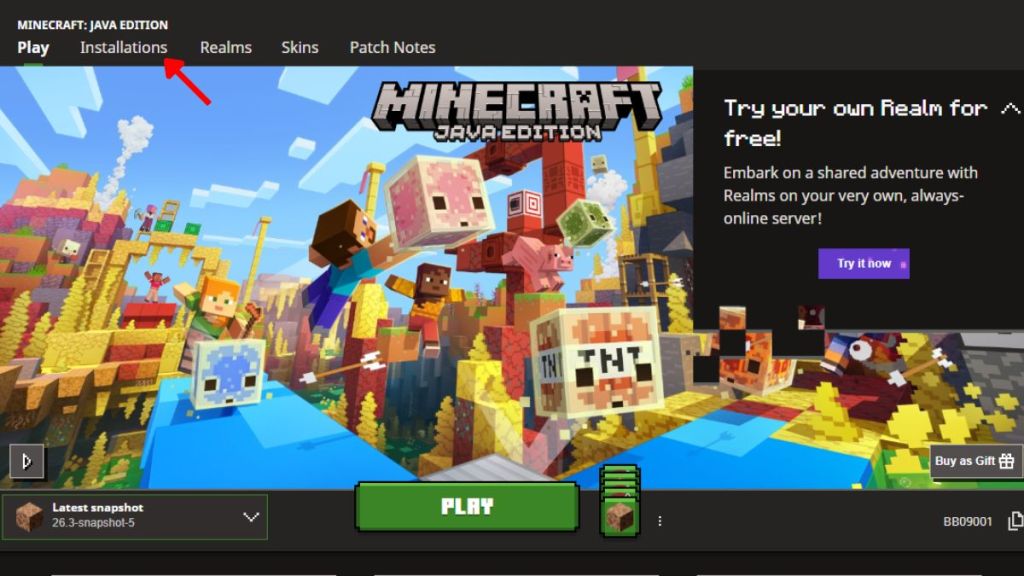
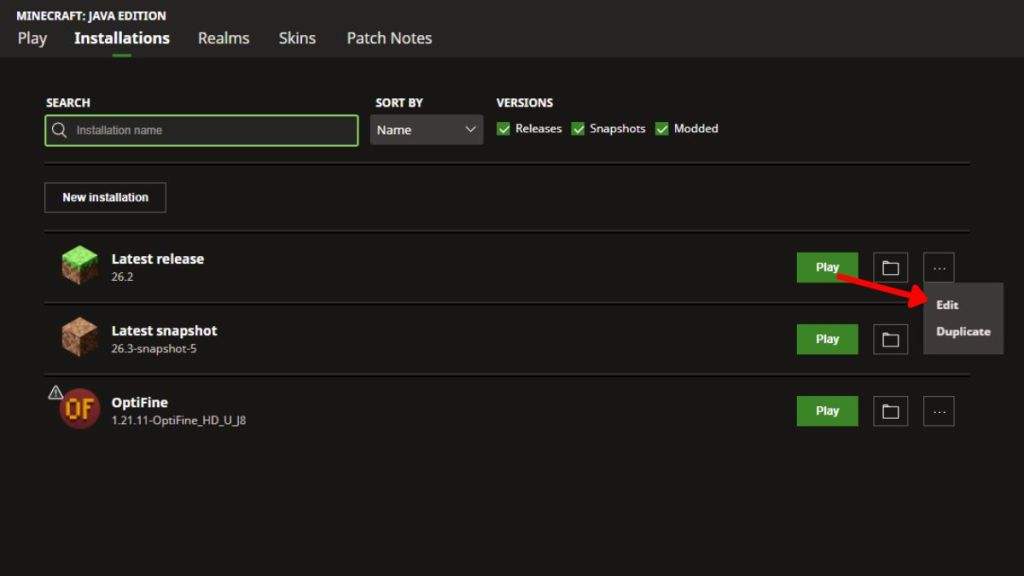
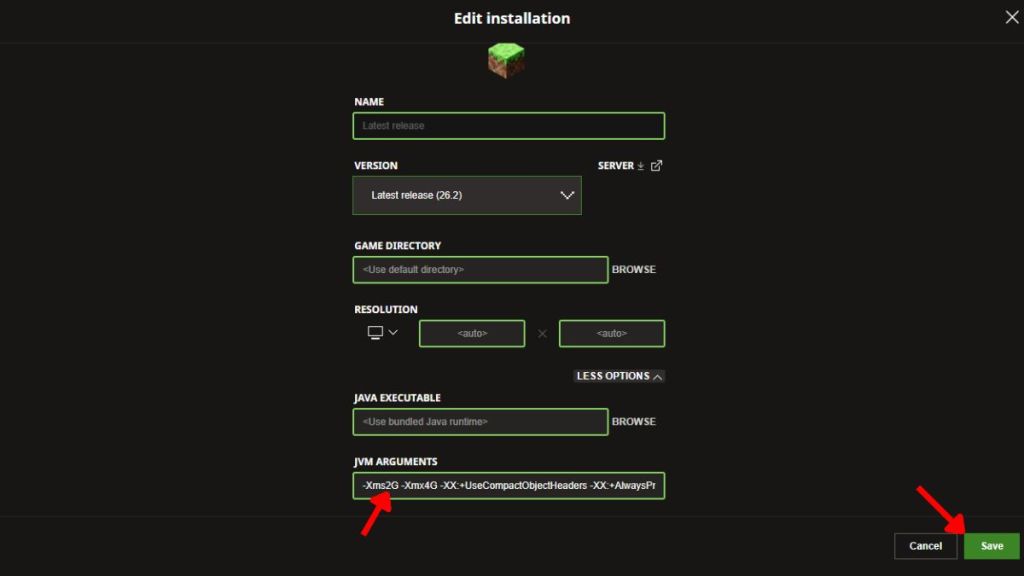
Launch a world and press F3 to confirm the memory number in the top-right debug overlay. If you run mods such as Distant Horizons or high-res texture packs, increase simulation distance cautiously—opening draw distance is like a camera lens opening wider: it reveals more, and it also demands more from the machine.
How much RAM should I allocate to Minecraft?
Vanilla Minecraft runs comfortably on 2–4 GB. Light modpacks (under ~10 mods) typically need 4–6 GB. Large modpacks (50–100+ mods) often sit well at 8–10 GB. If your system only has 8 GB total, don’t hand the whole lot to Minecraft—reserve space for Windows/macOS and background tools.
On my friend’s rig CurseForge handled dozens of packs — How to Allocate More RAM to Minecraft CurseForge
Observation: CurseForge bundles and launchers often set conservative defaults, but they give you an easy slider to fix it.
Open CurseForge, click the Settings cog in the bottom-left, then choose Minecraft. Under Java Settings you’ll find Allocated Memory. Slide it or type the value (in MB or GB) you want and CurseForge saves it automatically.
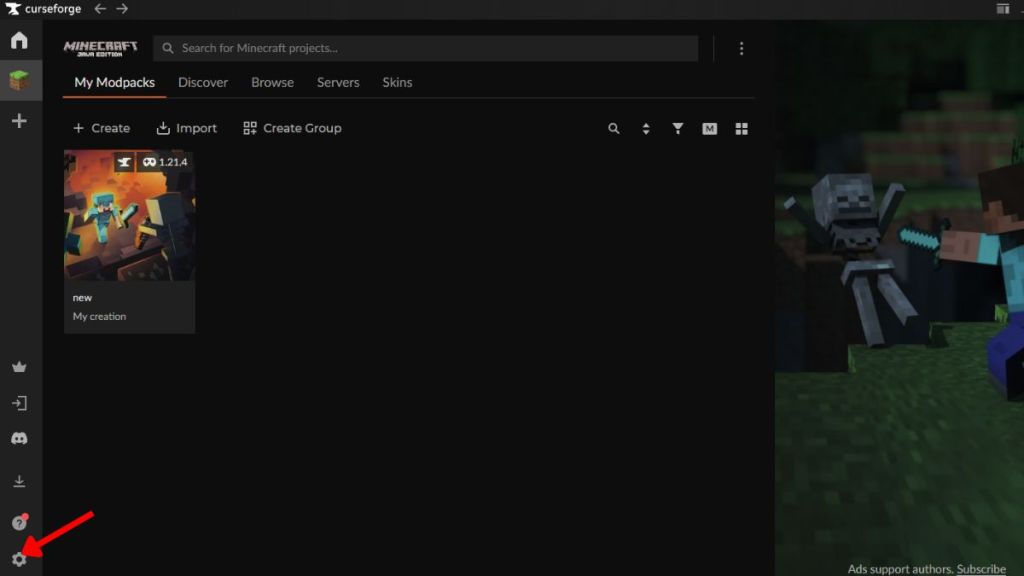
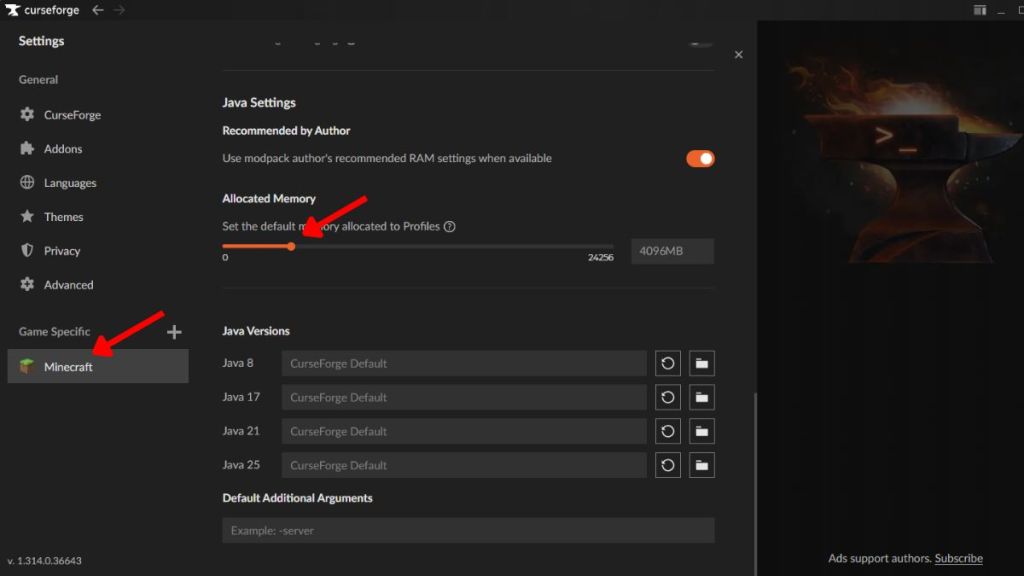
CurseForge manages the JVM options for you, so you don’t need to touch -Xms/-Xmx manually unless you want fine control. After you change the slider, launch the pack and press F3 to confirm memory in the debug overlay.
Can allocating more RAM increase FPS?
Short answer: not necessarily. Giving Minecraft more RAM prevents OutOfMemory crashes and reduces stutter when loading big chunks, but FPS is usually limited by your GPU and CPU. Mods like OptiFine, Sodium (for Fabric), or setting reasonable shader/texture resolutions will move the FPS needle more than RAM alone.
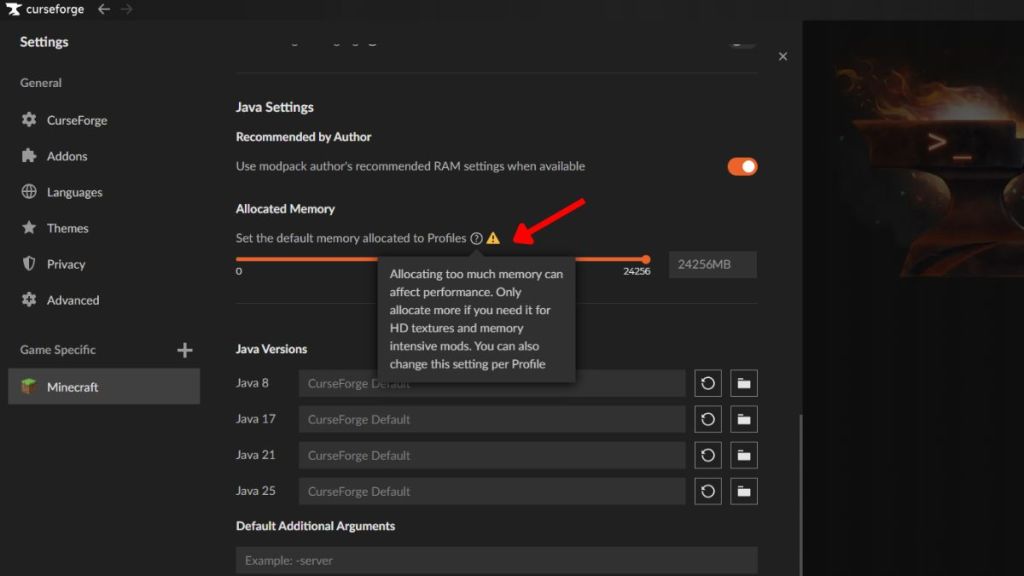
I once watched a player assign every gigabyte and blue-screen the PC — Common Mistakes To Avoid Before You Allocate More RAM to Minecraft
Observation: People often assume more RAM equals more frames, then assign too much and hand the OS a problem.
- Check system RAM first in Windows or macOS settings. Know what you own before you reassign it.
- Don’t give Minecraft more than 50% of total RAM—Windows, background apps, and Java itself need headroom.
- Only edit the numbers after -Xms and -Xmx unless you know JVM flags. Other JVM tweaks can break mods or crash startup.
- Typical guidance: vanilla 2–4 GB, small modpacks 4–6 GB, big modpacks 8–10 GB. If you have 32 GB, you still shouldn’t heap all of it onto Minecraft—it’s not a memory bucket to fill.
Can I allocate more RAM to Minecraft Bedrock Edition?
No. Bedrock manages memory automatically across consoles, Windows Store builds, and mobile. Manual allocation is a Java Edition feature tied to the JVM—so the steps above apply only to Java players using the official Launcher or third-party launchers like CurseForge, ATLauncher, or GDLauncher.
If you want faster load times or smoother visuals, focus on an honest inventory of your hardware: CPU and GPU matter more for FPS; SSDs help chunk loading; RAM helps prevent crashes when mods or textures demand more working memory. Treat memory allocation as one tool among many.
I’ve helped players from Intel integrated GPUs to high-end RTX rigs get stability without sacrificing system health—so which change will you try first to stop the next crash?