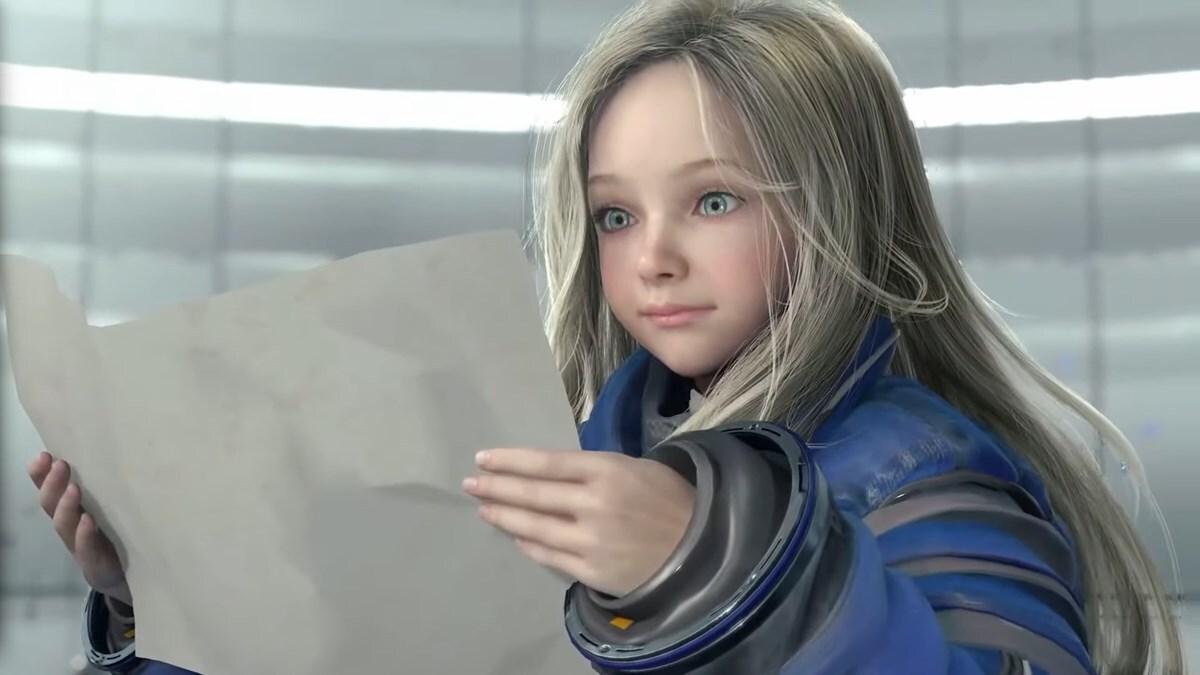
I was standing at my PC, watching Diana’s face stutter in a corridor that should have been smooth. A single drop in frame rate turned a quiet scare into a jolt of frustration. I told myself I would fix it before the next play session—and you can too.
I’ve spent hours with Pragmata on the RE Engine and stripped settings until performance matched feel. You don’t need a lab; you need choices that respect your hardware and taste. I’ll show you the settings I actually use, why they matter, and when to toss a feature out the window.
In many apartments the heater has a single dial you fiddle with. The same is true for Pragmata’s graphics settings.
I’ll keep this practical: Pragmata runs in tightly controlled levels, which is a gift. The RE Engine loves closed corridors and defined scenes, so it’s already kinder on GPUs than open-world messes. If you want steady frames without turning visuals into an ugly smear, start here.
- Frame Rate: Variable — lets the game breathe across scenes
- Ray Tracing: Off (leave On only if you’re on an RTX 4070 or higher)
- Image Quality: 100%
- Dynamic Resolution: Off
- Hair Quality: Medium (High if your CPU is strong)
- Texture Quality: High – 2GB setting for GPUs with 8GB or less VRAM
- Texture Filtering: High
- Mesh Quality: Medium/High
- Shadow Quality: Medium
- Shadow Cache: On
- Contact Shadows: Any — Off can free frames on CPU-limited rigs
- Effects Quality: Medium/High
- Video Quality: Full HD
- Anti-Aliasing: FXAA + TAA
- Ambient Occlusion: SSAO — Off for noticeable gains on weak machines
- Volumetric Lighting: Low
- Bloom: Off
- Subsurface Scattering: Off if CPU-limited, On if you value facial detail
- Motion Blur, Lens Flare, Lens Distortion, Depth of Field: Personal taste — I keep them Off for clarity
What are the best graphics settings for Pragmata?
Short answer: follow the list above, and tune the few heavy hitters to match your rig. Shadows, volumetrics, and ambient occlusion are the largest time-thieves; dial those back first. If you run an RTX card, use Ray Tracing sparingly because it’s expensive in frame cost but rewarding in polish.
At a coffee shop you notice the laptop fans spin up the instant a video starts. The same warning signs show up in-game.
If the game stutters and your fans howl, start with these diagnostics: check VRAM usage in GeForce Experience or MSI Afterburner, confirm CPU cores aren’t pegged in Task Manager, and look at GPU temperature. Those tools tell you whether the bottleneck is CPU, GPU, or memory.
How can I increase FPS in Pragmata?
Use DLSS (NVIDIA) or FSR (AMD) on Quality when you need headroom. Frame Generation can add perceived smoothness but introduces input lag—test it in combat. On weaker systems, lower SSAO, Volumetric Lighting, and Shadow Quality first. If you’re using a 4090-class card and still chase fidelity, you can toggle Path Tracing cautiously.
Path Tracing is realistically for RTX 4090 users (MSRP $1,599 / €1,470) or experimental 5090-class setups, and it eats performance like a spotlight showing every dust mote. If your rig is under $2,000 (€1,840) total, balance visual love against raw frames.
Does Pragmata support ray tracing?
Yes. Ray Tracing improves reflections and surface detail, but it’s GPU-taxing. If you have an RTX 4070 or better, try it in a few scenes and compare frame loss. If you use DLSS Quality, you can keep higher settings with fewer frame compromises.
On a live stream you can see viewers bail at a single stutter. Performance affects perception.
I prefer image fidelity when the machine permits it, but I’ll trade off a few visual bells for smoothness during tense fights. Subsurface Scattering makes faces stand out—turn it on if you want character realism. Bloom and motion effects are purely stylistic and cost frames for little gameplay gain.
Tools and names worth noting: Capcom’s RE Engine is the foundation; NVIDIA’s DLSS and Frame Generation are practical levers; MSI Afterburner and GeForce Experience are the diagnostics you’ll use. If you test settings, change one at a time and record the delta—small moves reveal more than blind toggling.
Try these settings, test them for 30 minutes in the most chaotic level you can find, then decide whether to favor framerate or fidelity. Will you chase perfect visuals, or let smooth play speak for itself?