
Three minutes into the first case, the frame rate dipped and my jaw did too. I remember pausing, reading the stutter as if it were a warning light on a dashboard. You don’t need crashes to ruin a mystery—just one persistent hitch.
I’ve spent hours tuning Mouse P.I. For Hire on PC so you don’t have to guess which sliders matter. I’ll show you the exact settings I use on a mid-range rig, explain the trade-offs, and point out the one switch that kills most microstutters. You’ll be able to pick a sweet spot for stability or raw frames in seconds.
A crowded city scene choked my FPS — Best Mouse P.I. For Hire graphics
My setup keeps the game smooth without turning it into a visual train wreck.
- GPU: NVIDIA RTX 3060 12 GB
- RAM: DDR5 16 GB
- CPU: AMD Ryzen 5600G
When I swapped presets mid-level I saw spikes — Settings I run and why
These are the values I currently use on 1920×1080; they balance framerate and clarity for a 72 FPS target.
- Resolution: 1920×1080 (personal choice)
- Window Mode: personal preference
- Field of View: 100
- Frame Rate Limit: 72
- VSync: Off
- Render Scale: 1
- Anti-aliasing: DLSS4
- DLSS4: Balanced
- Graphics Preset: Custom
- Volumetric Lights Quality: Medium
- HLOD: Low
- Effects Quality: Medium
- Texture Quality: Medium
- Shadow Quality: Low
- Rim Lights: Off
- Anisotropic Filtering: Low
- Ambient Occlusion: SSAO
- Depth of Field: On
- Film Grain Effect: I set it to 0; you can keep it on
- Diffusion: 0
My RTX 3060 was a lighthouse guiding a small boat through pixel fog.
When textures and effects pile up the game stutters — What to lower first
Start by treating graphics as a budget: you have limited cycles, and some features spend more than others.
- Drop Shadows and HLOD: The biggest FPS wins come from Shadow Quality (set to Low) and HLOD (Low). Shadows are expensive; shaving them gives immediate stability.
- Effects and Volumetrics: Medium keeps atmosphere without constant GPU hammering.
- Textures: Medium is a safe middle ground on 12 GB VRAM; if you have more VRAM, increase.
- DLSS4: Use Balanced to gain frames while keeping detail; on NVIDIA cards this is the single most effective tool for framerate uplift.
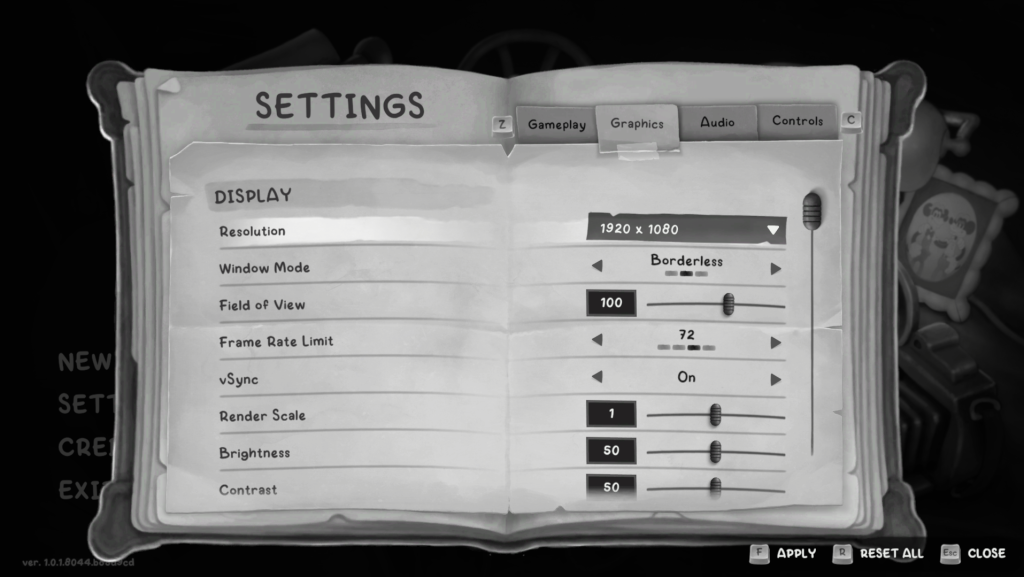
After trying extremes I realized one switch matters most — VSync and frame limits
Oddly, an unlimited frame target can create microstutter even on decent GPUs.
Set Frame Rate Limit to a stable target: I prefer 72 FPS to match my playstyle. You can lock to 60 for consistency, drop to 36 for very low-end machines, or push to 144 if your monitor and GPU handle it. I didn’t see an option above 144 in-game. VSync off reduces input lag and system load; if you see tearing then test a tighter cap or use NVIDIA Reflex/RTSS externally.
The Frame Rate Limit became a leash on a sprinting dog.
What are the best graphics settings for Mouse P.I. For Hire on PC?
For a steady 72 FPS on mid-range hardware: DLSS4 Balanced, Shadows Low, Textures Medium, Effects Medium, Volumetrics Medium, HLOD Low. Use Render Scale 1 and VSync Off unless simple tearing forces you to try a cap or an external solution like RTSS.
How do I increase FPS without losing visual quality?
Push DLSS4 first. It gives the best quality-to-performance trade on NVIDIA GPUs. Then knock shadows and HLOD down one notch. If VRAM is plentiful, raise Textures; otherwise leave at Medium. Steam’s launch options or NVIDIA Control Panel tweaks can help squeeze a few extra frames.
Does DLSS4 improve performance in Mouse P.I. For Hire?
Yes—DLSS4 Balanced is the fastest route to higher FPS while preserving detail. On an RTX 3060 you’ll see the biggest improvement compared with native rendering. If you’re on AMD hardware, check for FSR or driver updates; Steam community threads and NVIDIA’s guides are useful references.
When I stopped guessing and tested settings — Short checklist to fix stutters now
- Set Frame Rate Limit to 72 (or your monitor’s refresh / a steady value)
- Turn VSync Off unless tearing bothers you
- Use DLSS4 Balanced on NVIDIA cards
- Shadows: Low, HLOD: Low
- Textures/Effects/Volumetrics: Medium
- Disable Rim Lights, set Anisotropic Filtering low if you need extra headroom
If you want maximum frames at the cost of a few cosmetics, lower Effects and Volumetrics further. If you prefer visuals, raise Textures and render scale cautiously and watch VRAM usage via MSI Afterburner or NVIDIA’s Performance Overlay in Steam.
You can test these settings in five minutes and keep the ones that feel right—are you ready to risk a prettier scene for smoother detective work?