
The beat drops and nothing lines up. I watched my perfect playlist fall apart and knew the problem was on me, not the song. You can fix this—if you follow a few quiet steps I’ve tested myself.
Short version: finish the tutorial, open Infinite Disco, add your files under Free Play, and calibrate the BPM in the Advanced Editor. Below I walk you through each click, where to get BPM numbers, and which tools actually help.
Many players skip the tutorial — How to import your own music and use custom songs in Dead as Disco
I ran into the same snag: the game won’t let you touch Infinite Disco until the tutorial is complete. So clear that first. Once you finish, return to the main menu and select Infinite Disco, then choose Free Play.
At the top of Free Play there’s a tab called “Add My Music”. Click it and upload your track. I’ve only tested files ending in .mp3, but the game accepts common formats like .m4a, .wma, .aac, and .wav.
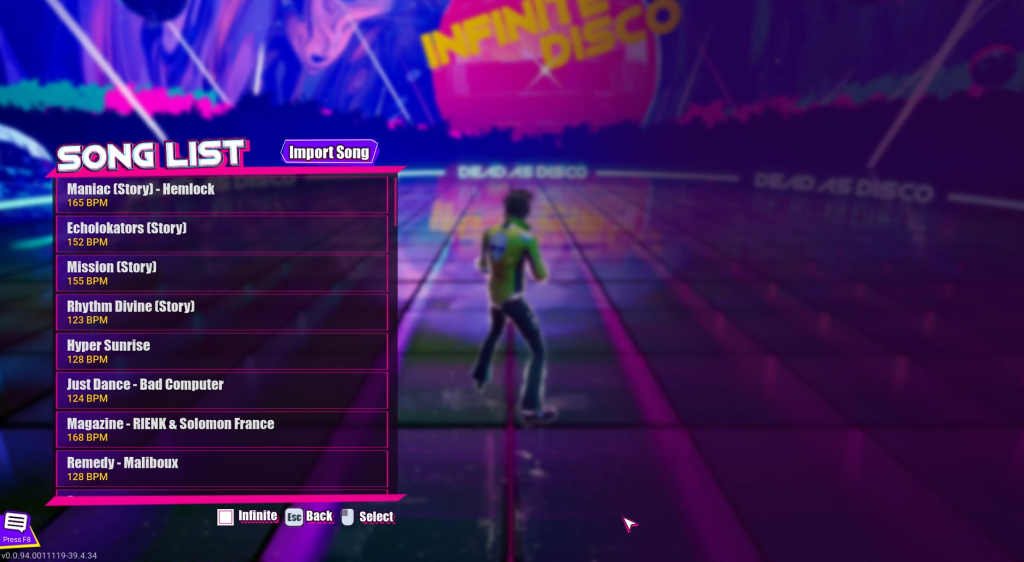
Once the file is added it appears in your Free Play list. Hit play and see if the enemies march to your beat or to someone else’s.
How do I add custom songs in Dead as Disco?
Complete the tutorial to unlock Infinite Disco. From the main menu: Infinite Disco → Free Play → Add My Music. Upload a local audio file (drag-and-drop works on most platforms) and the track shows up in Free Play.
What file formats does Dead as Disco accept?
Common formats are supported: .mp3, .m4a, .wma, .aac, .wav and similar. I’ve personally used .mp3 without issues. If a file won’t import, try exporting it as .mp3 or .wav from Audacity or another editor.
Can I use Spotify or other streaming tracks?
Not directly. Streaming services like Spotify use DRM that prevents the game from reading the file. You need a local audio file you own; use recordings you have permission to use or purchased files. Tools like Audacity can edit local files, while Tunebat and SongBPM will help you find BPM numbers.
Tracks that sound perfect on headphones can stagger in-game — How to calibrate custom music in Dead as Disco
Most mismatches come down to tempo. Dead as Disco reads beats-per-minute to time enemy spawns and effects; if the BPM is wrong, the whole level feels off.
First, find the song’s BPM. Google the track name + “BPM,” or use Tunebat, SongBPM, or a free BPM counter website. You can also tap tempo in Audacity or Mixxx if the track is obscure.

Open the track in the game’s Advanced Editor. Set the Tempo field to the BPM you found, then nudge the waveform markers to line up the downbeats. Most songs only need a BPM entry; you only need manual waveform edits if the start of the song lags or has silence.
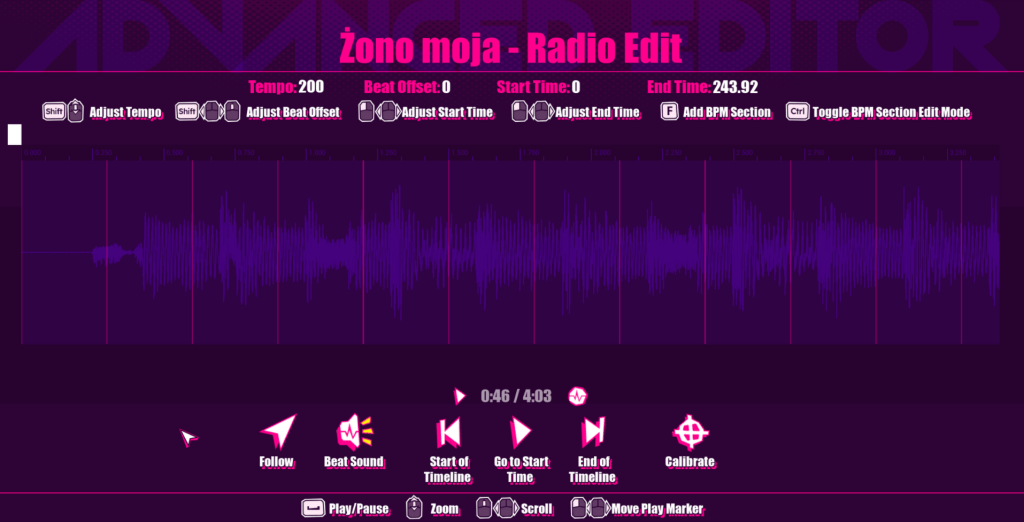
If the first beat arrives late, trim silence at the start in an editor (Audacity is free) or shift the waveform inside the Advanced Editor. Save and test in Free Play until enemy patterns lock to the music like a clockwork march.
Adding a track without calibration is like dropping a parachute with the strings tangled. BPM is the song’s heartbeat; set it wrong and the level goes into arrhythmia.
I’ve used Tunebat and SongBPM to pull quick tempo numbers, and Audacity when I needed to trim silence. Brain Jar Games built the editor, and screenshots in outlets like Moyens I/O help confirm where the controls live if you’re on PC or console.
Want to swap entire playlists or batch-calibrate dozens of songs? Automate your BPM checks with a DJ tool like Mixxx, export corrected files from Audacity, then re-upload in bulk to Free Play—just test a few before you commit the whole set.
You’ve got the steps. Which track are you testing first to prove this works?