
I froze, thumb hovering over the shutter, as the sun dropped behind a temple silhouette. One wrong move and that perfect angle—the paint, the light, the moment—would be gone. I told myself I’d save it properly this time; then I found the fast route.
I’ve pulled dozens of Forza snaps off consoles and PC for articles, socials, and a stubborn personal gallery. You can get yours too, and I’ll walk you through the clean, repeatable steps I use when I want a crisp export. You’ll learn where those files live, the little sharing trick that unlocks downloads, and a few PC shortcuts that save time.
A half-hour drive and a perfect sunset can produce one photo you don’t want to lose — How to access the Forza Horizon 6 Photo Mode snaps
First: you need to take the snap properly. Open Photo Mode in-game, frame the car or scene, then save and share the capture. The Photo Mode removes UI and exports at the resolution your game uses, so the result is clean and sharp—perfect for wallpapers or social posts.

A browser will feel like a small command center after hours in-game — Downloading your Photo Mode snaps from MyForza
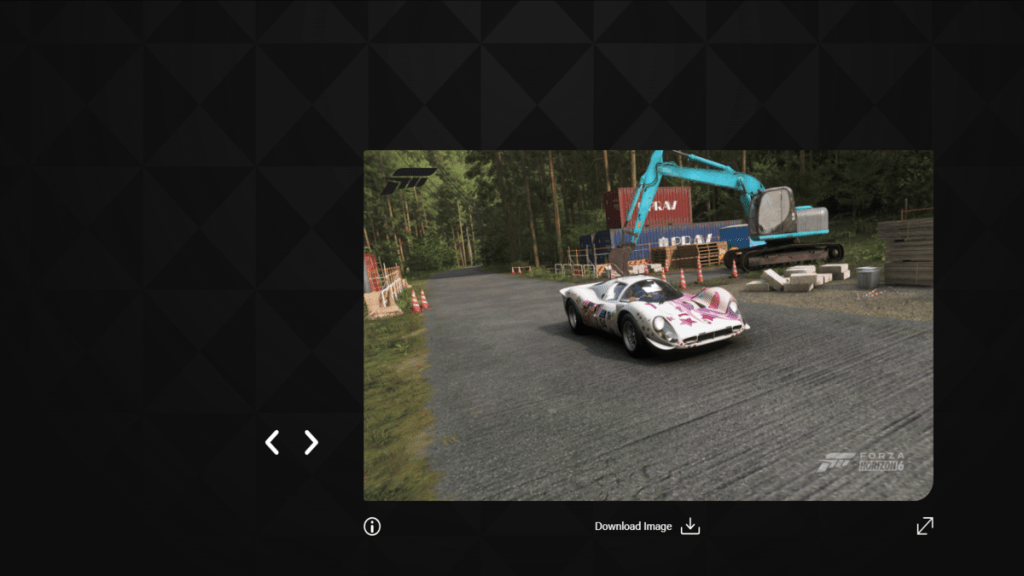
Once you save a photo in Photo Mode, you must share it to MyForza to download it. That share step is the gatekeeper: no share, no download.
- Open MyForza and sign in with the same Xbox/Microsoft account you use for the game.
- Find your MyForza profile gallery: the image you shared from the Photo Mode should appear there after a short upload.
- Open the image, give it a unique name if you like, then use the download button on the site to grab the full-resolution file.
How do I download photos from Forza Horizon 6?
Share the Photo Mode capture in-game, then visit MyForza and download it. If you don’t hit Share, MyForza never receives the file—no shortcut exists for console users.
Can I save Photo Mode images without sharing?
Not if you want the downloadable file. The save function keeps the capture locally inside the game library, but the downloadable export lives on MyForza only after you share. If you’re on PC you can use OS-level screenshots as a local shortcut, but those include HUD unless you use Photo Mode first.

A cluttered desktop proves you’ll want better naming habits — PC workarounds and quick tips
If you play on PC via Steam or the Xbox app, two extra tools are useful: Steam overlay screenshots and the Windows Game Bar. Those give you a local copy instantly, but they don’t strip UI unless you’re already in Photo Mode.
- Steam overlay: press F12 (default) to capture a screenshot. Good for a fast save if you forgot to share, but you’ll often need to crop or edit.
- Windows Game Bar: press Win+G to open, then use the capture widget. Handy when running through the Xbox app.
- Naming convention: add a short, unique filename in Photo Mode before sharing so your MyForza gallery is easy to scan later.
Your in-game portfolio is a curio cabinet of late-night gratifications.
The Forza website is a ferry that carries your photos off the island of your console.
If you want consistency, I recommend using Photo Mode for the clean export and keeping the share step ritualized—frame, save, name, share, then download from MyForza. That five-step habit stops regrets and missing shots.
Where are my Photo Mode snaps stored?
Shared snaps live on MyForza; unsent saves live only inside the game profile on your console or local PC folders. For console users, MyForza is the only path to a downloadable file.

Final practical note: if you want to share across social platforms or print, download the MyForza file and keep a master folder. Tag your files with the car, location, and date so you don’t have to hunt later. Which shot are you going to argue over first?