
I hit pause mid-drift and watched a stranger take the lead. The lobby filled up with people I’d never met — clamoring voices, random invites, zero context. You want a private street where every laugh and crash is between friends, not a free-for-all.
You hover over the pause menu and the Online tab is one click away — How to create a convoy in Forza Horizon 6 and play with friends
I teach players how to take the noisy public highway and turn it into a private route. A Convoy in Forza Horizon 6 is essentially your friends-only room: a place to race, roam, and test builds with people you actually want in the session. Think of it like a private garage where you choose who can come in.
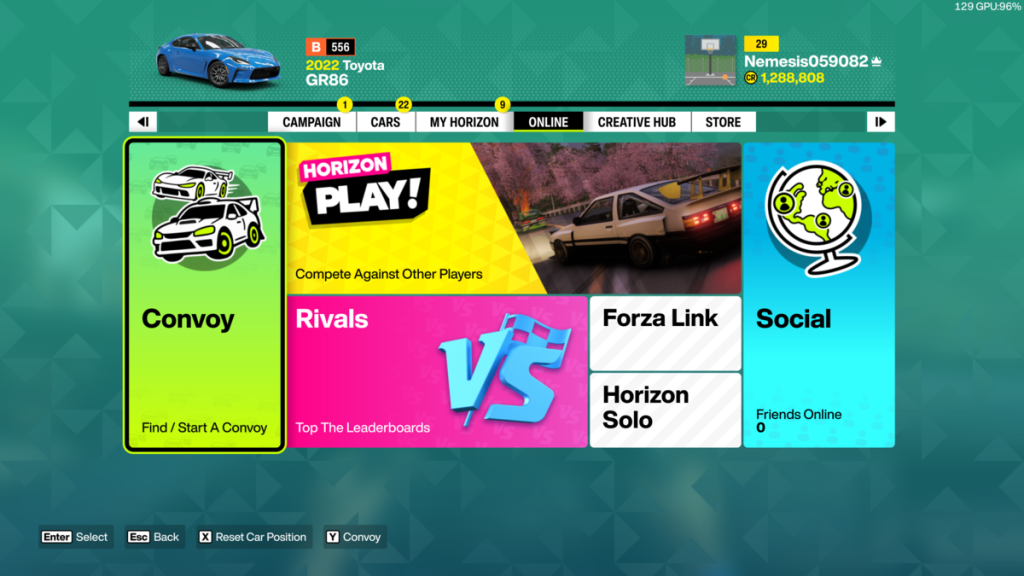
How do I create a Convoy in Forza Horizon 6?
Open the pause menu and tap Online. On the left side you’ll see Convoy. From there pick Create Convoy. You’ll be asked to invite friends from your in-game list — highlight names and send invites. Everyone who accepts lands straight in your lobby.
- Pause the game and select the Online tab.
- Choose Convoy on the left column.
- Select Create Convoy and invite friends from the list.
- Friends accept the invite and join your private lobby.
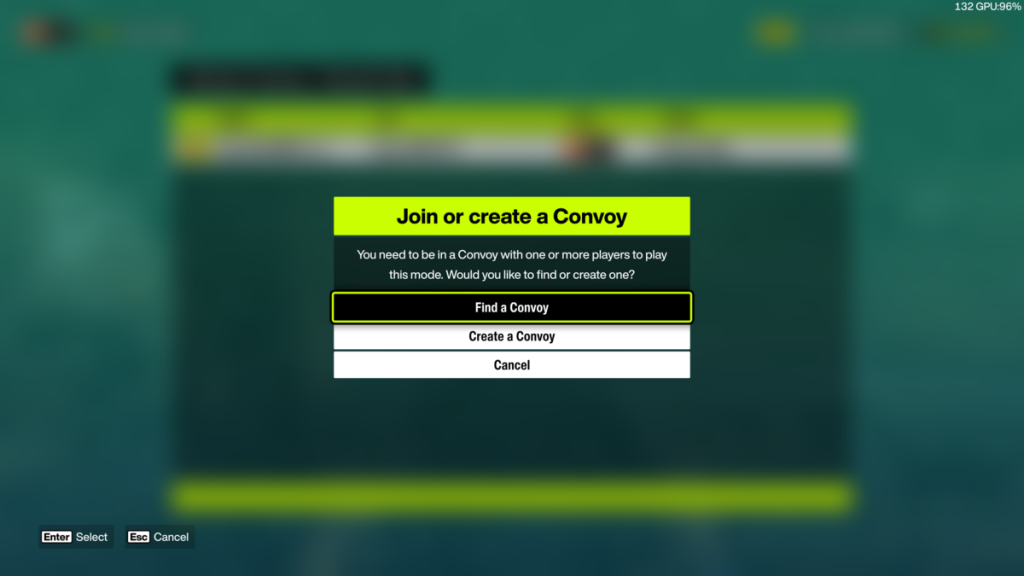
How many players can join a Convoy?
Each Convoy supports up to 12 players including you. That’s big enough for a full crew without turning into a public server. Use that space for team-based races, photo runs, or a chaotic street-sprint where the prize is bragging rights.
How do I join a friend’s Convoy?
Your friend sends an invite and you accept — that’s the simplest route. If they changed the room privacy to My Friends can join me, anyone on their in-game friends list can hop in without an invite. If the host uses Invite Only, you’ll need that invite to enter.
Keep crossplay active if your group mixes PC and Xbox. I’ve run Convoys across Xbox Series X|S and Windows PC through Xbox Live and the Xbox app with zero fuss. Playground Games built the social layer so your crew doesn’t fracture by platform.
A small choice in the menu changes the tone of the session — Privacy settings and quick tips
Tap the privacy toggle and decide who can join. Set it to My Friends can join me for speed and convenience, or pick Invite Only when you want an actual invite list. Crossplay is a checkbox; leave it on to include PC players signed in with Xbox accounts.
- My Friends can join me — quick access for anyone on your friends list.
- Invite Only — selective invites, perfect for curated sessions.
- Crossplay On — mix PC and Xbox players through Xbox Live/Xbox app.
If you use Discord, create a voice channel and drop invites there. If you prefer Xbox chat, that works too. I’ve used both — Discord for planning and Xbox chat for last-minute swaps — and they keep the chaos friendly.
You click invite and the lobby feels like an old group chat — Practical troubleshooting
If someone can’t join, check these quick things: are they signed into Xbox Live? Are they on the same game version? Are they blocked or flagged by privacy settings on Xbox/Windows? A mismatched update or an Xbox privacy setting will stop invites cold.
- Confirm both players have the latest game patch.
- Ask them to sign into Xbox Live (Xbox app on PC or console profile).
- Check Xbox privacy settings for multiplayer and invites.
When everything lines up, the Convoy becomes a simple, private playground. When it doesn’t, these checks save a lot of wasted time and frustration.
Want to make your Convoy feel more official? Name the group, set a simple rule (no-cash-prize races, photo runs only), and assign one person as host. The session runs smoother when a single voice calls the start line.
I’ve raced with crowds and with crews; private Convoys keep the moments you want and cut out everything else — who will you invite first?