
I was two minutes into a dungeon when the game hiccupped and my hero froze mid-attack. My stomach dropped—I’d just lost a streak to a single stutter. You shouldn’t have to gamble with playability to enjoy Fatekeeper.
I’m writing from a rig that sits above the recommended specs, but I tuned everything here for stability more than flash. You’ll get the same advice whether you’re on a GTX, an RX card, or running on a laptop GPU.
- 32 GB of DDR4 RAM
- AMD Ryzen 7 5700X
- AMD Radeon 9060XT 16 GB
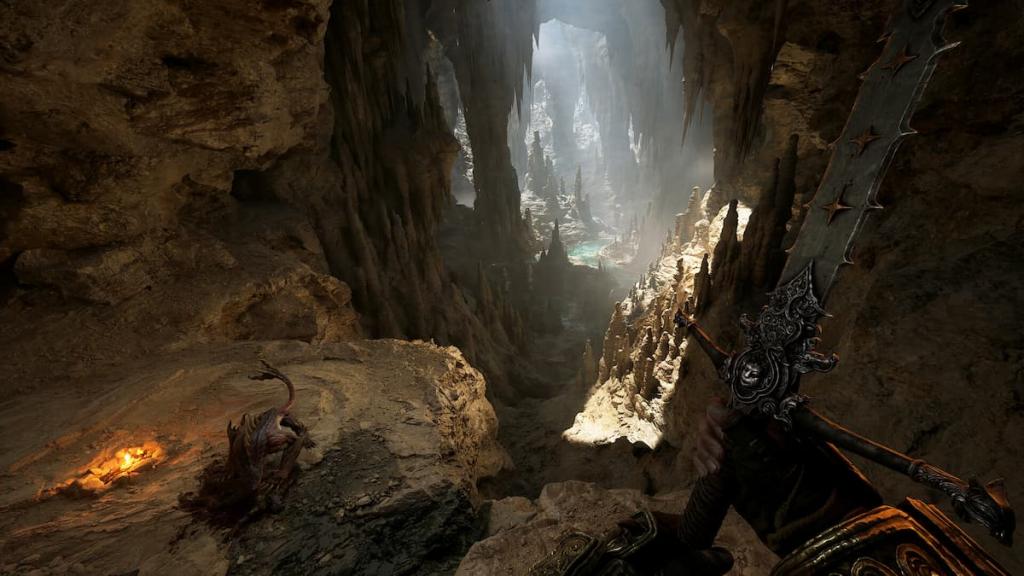
I saved the game to an SSD rather than an HDD and you should do the same if you can—streaming hiccups hit spinning drives. If your PC lives near the minimum spec, follow these sliders; if it’s a fast rig, pick the in-game recommended presets.
Best Fatekeeper graphics to use on your PC
On a typical play session, crowded caves and long view distances are where the game chews frames.
I set every option toward stability: sacrifice a little polish for consistent 60 FPS and far fewer microstutters. Shadows and shading are the largest CPU/GPU drains here, so you’ll cut those first; texture and foliage pay off visually but can be dropped if you need breathing room.
- Window Mode: Your preference
- Resolution: Native monitor resolution
- Unlimited FPS: No
- Max FPS: 60 — pushing past 60 introduced stutters on my tests
- Enable VSync: Yes — trades peak frames for steadier output
- Graphics: Custom
- View Distance Quality: Medium
- Antialiasing Quality: Medium
- Shadow Quality: Low — shadows are expensive and add little in most fights
- Global Illumination Quality: Medium (drop to Low if you still stutter)
- Reflection Quality: Low
- Post Process Quality: Medium
- Texture Quality: Medium
- Effects Quality: Medium
- Foliage Quality: Medium (set to Low if frames tank in forests)
- Shading Quality: Low
- Landscape Quality: Medium (reduce to Low on budget GPUs)
- Allow Megalights: Yes
Framerate problems during combat and exploration
On busy maps I saw frame drops when particles and shadows stacked up at once.
If your combat feels jagged, cut Shadow, Shading, and Reflection first. Those three act like a theater curtain dropping mid-scene — dramatic but often unnecessary. Keep Texture at Medium if you want readable visuals without excessive VRAM pressure.
How do I stop Fatekeeper stuttering?
Stutter usually stems from either CPU hitches or texture streaming. Lock your FPS to 60, enable VSync, and cap background processes (Discord overlays, Chrome tabs) while you play. Save the game on an SSD and, if you use an RX or Nvidia card, keep drivers current via AMD Radeon Software or GeForce Experience.
Does Fatekeeper support DLSS or AMD FSR?
The game lacks native DLSS. If you have an Nvidia card, use TSR; on AMD, use FSR. Set the scaler to Balanced or Performance — that gives you headroom for stable frames without making the world a blur. Think of texture streaming choking the pipeline like a clogged artery; reducing scaler quality opens the flow.
My final tuning notes and quick checks
During quick playtests, disabling unlimited FPS and forcing a 60 cap removed most microstutter sources.
Keep those small optimizations as a checklist: SSD save, 60 FPS cap, VSync on, Shadows and Shading low, and FSR/TSR set to Balanced. If you use Steam, enable the Steam overlay sparingly; if you use OBS, set it to hardware encode and avoid recording at the same time you’re running the highest settings.
Tools and names to remember: AMD Radeon Software, GeForce Experience, TSR, FSR, DLSS (not supported natively), Steam, THQ Nordic.
You can chase glossy screenshots, or you can tune for winning runs—what will you choose this evening?